
Getting Started
Welcome to Coach LMS – Complete Learning Management System
Coach LMS is a comprehensive Learning Management System (LMS) platform built with Laravel 12, designed to help mentors create and manage online courses, students enroll and learn, and administrators oversee the entire platform. The system includes course creation, curriculum management, assignments, quizzes, certificates, payment processing, wallet management, and comprehensive reporting.
Thank you for choosing Coach LMS. This documentation will help you understand the system features, install the application, and configure it according to your needs.
Follow the sections below to get started with your learning management system.
Technologies Used
Technologies Used
- Version: Laravel 12.0
- Language: PHP ^8.2
- Architecture: MVC (Model-View-Controller) Pattern
- Database Layer: Eloquent ORM
- Caching: Laravel Cache with Filesystem Adapter
- PDF Generation: mpdf/mpdf ^8.0
Blade Templates + Tailwind CSS (Frontend)
- Blade Templates: Laravel Blade templating engine
- Tailwind CSS ^3.4.13 – Utility-first CSS framework
- Vite ^6.0 – Lightning-fast development tooling
- Laravel Vite Plugin ^1.0 – Laravel and Vite integration
- Autoprefixer ^10.4.20 – Automatic vendor prefixing for CSS
- jQuery 3.7.1 – DOM manipulation and AJAX requests
- DataTables – Sorting, filtering, and pagination for tables
- SheetJS (xlsx) – Excel file export functionality
- Font Awesome 6.7.2 – Icon library
- html2canvas – Capture HTML elements and convert them into canvas/images
- Utilities: Toastr (Notifications), jQuery Validation (Form validation)
Project Structure
Backend (Laravel)
Coach LMS follows a standard Laravel MVC architecture with a multi-panel structure, which promotes clean separation between admin, mentor, and student functionalities. The application is organized into three main panels, each with its own controllers, models, views, and business logic.
Each panel encapsulates its own models, controllers, services, views, middleware, and route definitions, ensuring clear separation of concerns and maintainability.
Core Modules
- Admin: Complete system administration including student management, mentor management, course management, category management, curriculum management, assignment management, review management, enrollment management, order management, finance management, settings management, help center management, and newsletter management
- Mentor: Complete mentor operations including dashboard analytics, course management, curriculum management, assignment management, review management, enrollment management, order management, wallet and earnings management, payment account management, profile management, work experience management, education management, and expertise management
- Student: Student-facing interface for browsing courses, enrolling in courses, learning courses, taking quizzes, submitting assignments, viewing certificates, writing reviews, managing profile, and viewing orders
- Auth: Authentication and authorization for Admin, Mentor, and Student with a single login page, role-based access control, email verification, and forgot password support
- Course: Course creation, editing, approval workflow, curriculum management, status management, and deletion requests
- Curriculum: Section management, lecture management with video uploads, quiz management with questions, and resource management
- Assignment: Assignment creation, student submission handling, grading, acceptance/rejection, resubmission requests, and lock/unlock functionality
- Quiz: Quiz creation with multiple choice and True/False questions, passing score configuration, and attempt tracking
- Review: Course review system with 5-star ratings, review comments, helpful votes, and review replies
- Enrollment: Student course enrollment management, manual enrollment creation, enrollment filtering, and export functionality
- Order: Course purchase order management, payment processing, order status tracking, and invoice generation
- Finance: Commission calculation, payout management, withdrawal requests, financial dashboard, and revenue analytics
- Wallet: Mentor wallet balance management, transaction history, withdrawal requests, and payment processing
- Payment: Payment gateway integration (Stripe, PayPal, Razorpay), payment processing, and offline payment handling
- Settings: Comprehensive settings management for site configuration, payment gateways, email settings, currency management, tax management, features management, FAQ management, testimonials management, and page content management
- Profile: User profile management for admin, mentor, and student panels
Frontend (Blade Templates + Tailwind CSS)
- Blade Templates: Server-side rendering with reusable components and template inheritance for consistent layout management.
- Tailwind CSS: Utility-first CSS framework for responsive, mobile-first UI design and rapid styling.
- jQuery: Handles DOM manipulation, event handling, and AJAX-based dynamic interactions.
- Multi-panel Views: Separate view directories for Admin, Mentor, Student, and Front panels for better code organization.
- Responsive Design: Fully mobile-first layout using Tailwind’s responsive utilities.
- Form Validation: Client-side validation powered by the jQuery Validation plugin.
- Icon System: Font Awesome 6.7.2 integration for a comprehensive icon library.
- html2canvas: Captures HTML elements and renders them into canvas/images for screenshots or PDF generation.
- admin/ – Admin panel views for managing dashboards, students, mentors, courses, and system settings.
- mentor/ – Mentor panel views covering courses, curriculum, assignments, reviews, enrollments, orders, wallet, and profile.
- student/ – Student panel views for course enrollment, assignments, progress tracking, wallet, and profile management.
- front/ – Public-facing website views such as homepage, course browsing, course details, checkout, and student dashboard.
Package Included
Coach LMS comes with a complete set of features organized into three main panels:
- Admin Panel (Master Dashboard)
- Complete system administration
- Student and mentor management
- Course and category management
- Curriculum, assignment, and quiz management
- Review and enrollment management
- Order and finance management
- Settings and configuration management
- Help center and newsletter management
- Mentor Panel
- Complete mentor operations management
- Course creation and management
- Curriculum management with video uploads
- Assignment and quiz management
- Review management
- Enrollment and order tracking
- Wallet and earnings management
- Withdrawal requests
- Profile and portfolio management
- Student Website
- Student-facing learning interface
- Course browsing and enrollment
- Course learning with video player
- Quiz taking and assignment submission
- Certificate generation
- Course reviews and ratings
- Student dashboard
- Order history and invoice download
Installation
System Requirements
Server Requirements:
- PHP 8.2 or higher
- MySQL 5.7 or higher
- Apache server
Manual Installation
- Create a folder and upload files
- Create a folder inside your local server (htdocs for XAMPP or www for WAMP).
- Unzip the package. Copy all files and folders inside the upload folder and paste to the created folder.
- Create a MySQL database and import
- Create a database and import the SQL file from the unzipped package.
- Steps to import:
- Under Databases, enter the database name and click Create.
- Select the database.
- Click Import in the top menu.
- Click Browse and select coach-lms.sql file.
- Click Go to import the file.
- A success message will appear when the import is complete.
- Set Base URL and Database in .env file
- Open the .env file in the root folder with a text editor.
- Set your APP_URL here:
APP_URL=http://localhost/ - Set your database credentials here:
- DB_CONNECTION=mysql
- DB_HOST=127.0.0.1
- DB_PORT=3306
- DB_DATABASE=your_database_name
- DB_USERNAME=your_db_username
- DB_PASSWORD=your_db_password
- Set your APP_URL here:
- Open the .env file in the root folder with a text editor.
Installation via FTP Client
- Upload files via FTP
- Unzip the package on your computer.
- Connect to your FTP server.
- Upload all files and folders to the server root directory (e.g., public_html).
- Create database and import
- Create a database and import the SQL file following the same steps as in manual installation.
- Set Base URL and Database on server
- Open .env file in the root of server files with a text editor.
- Set APP_URL and database credentials as above.
- Save the file and upload it to the server.
Cron Details
- Expire status Enrollments
- File purpose: This cron file (ExpireEnrollmentsController) is used to expire course enrollments whose expiry days have passed.
- Cron URL: http://localhost/xyz/cron/expire-enrollments (where xyz – your project folder name)
- Run frequency: Every 6 hours.
- Explanation: The cron automatically checks enrollments and updates their status to “expired” if the expiry date has passed.
Login
Admin Login
After successful installation, you can access the Admin Panel and Website using the links provided below:
- Website : http://localhost/xyz (where xyz – your project folder name)
http://xyz.com (where xyz.com – your domain name)
- Admin panel : http://localhost/xyz/admin/dashboard (where xyz – your project folder name)
http://xyz.com/admin/dashboard (where xyz.com – your domain name)
-
- Email: admin123@gmail.com
- Password: password
Mentor Panel Register & Login
Before accessing the Mentor Panel, each mentor must first register or be created by the admin.
- Registration URL : http://localhost/xyz/register (where xyz – your project folder name)
http://xyz.com/register (where xyz.com – your domain name)
While registering, please choose the Mentor role from the available role options to create a mentor account.
- Login URL : http://localhost/xyz/login (where xyz – your project folder name)
http://xyz.com/mentor/dashboard (where xyz.com – your domain name)
-
- Email: mentors@techverselearning.com
- Password: password
Student Website Register & Login
Students can register through the website registration page.
- Registration URL : http://localhost/xyz/register (where xyz – your project folder name)
http://xyz.com/register (where xyz.com – your domain name)
While registering, please choose the Student role from the available role options to create a Student account.
- Login URL : http://localhost/xyz/login (where xyz – your project folder name)
http://xyz.com/login (where xyz.com – your domain name)
-
- Email: learner.demo@testmail.dev
- Password: password
Admin Panel
Profile
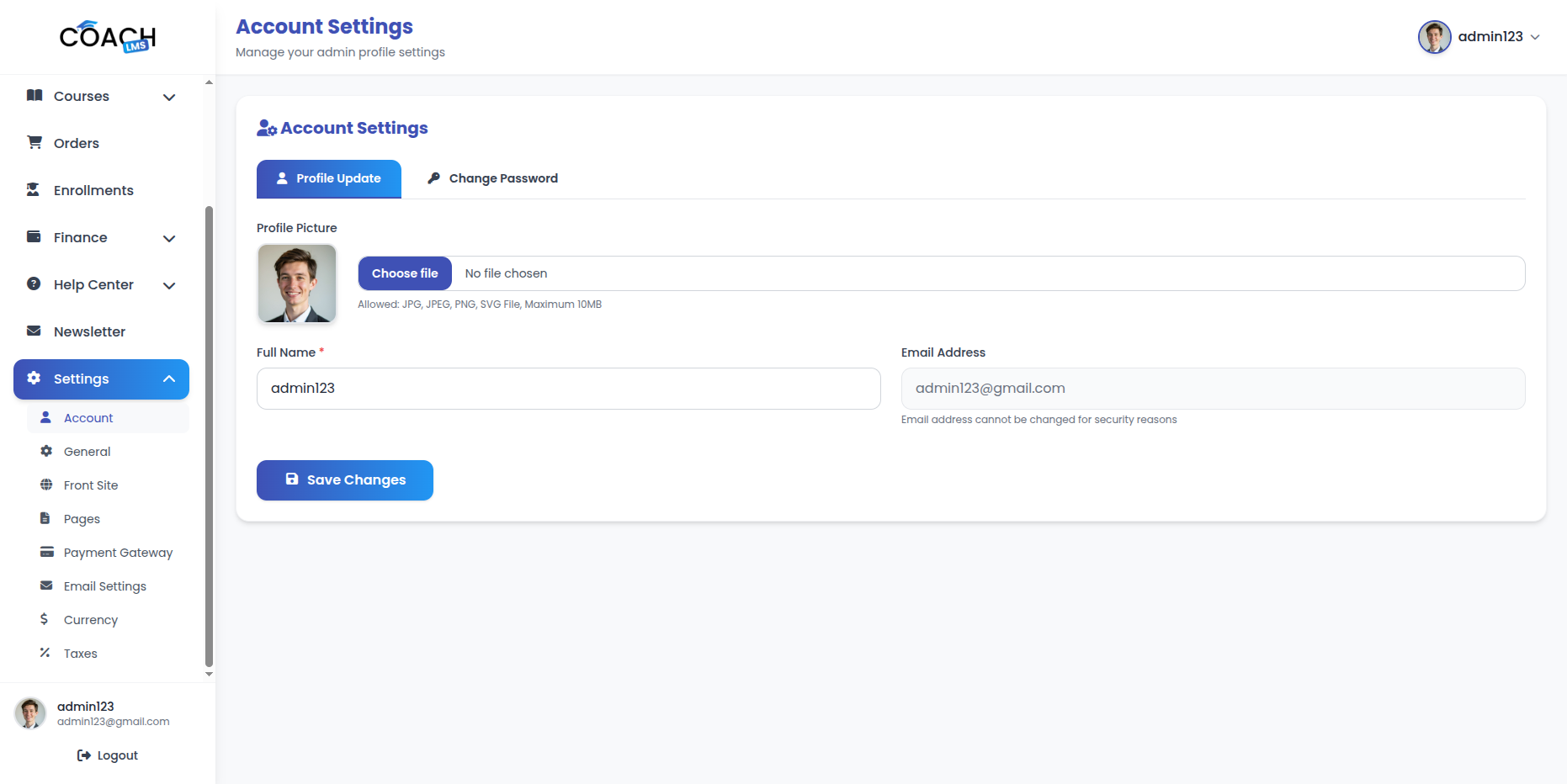
Profile Information
From here you can update your account details, including profile information, phone number, and avatar.
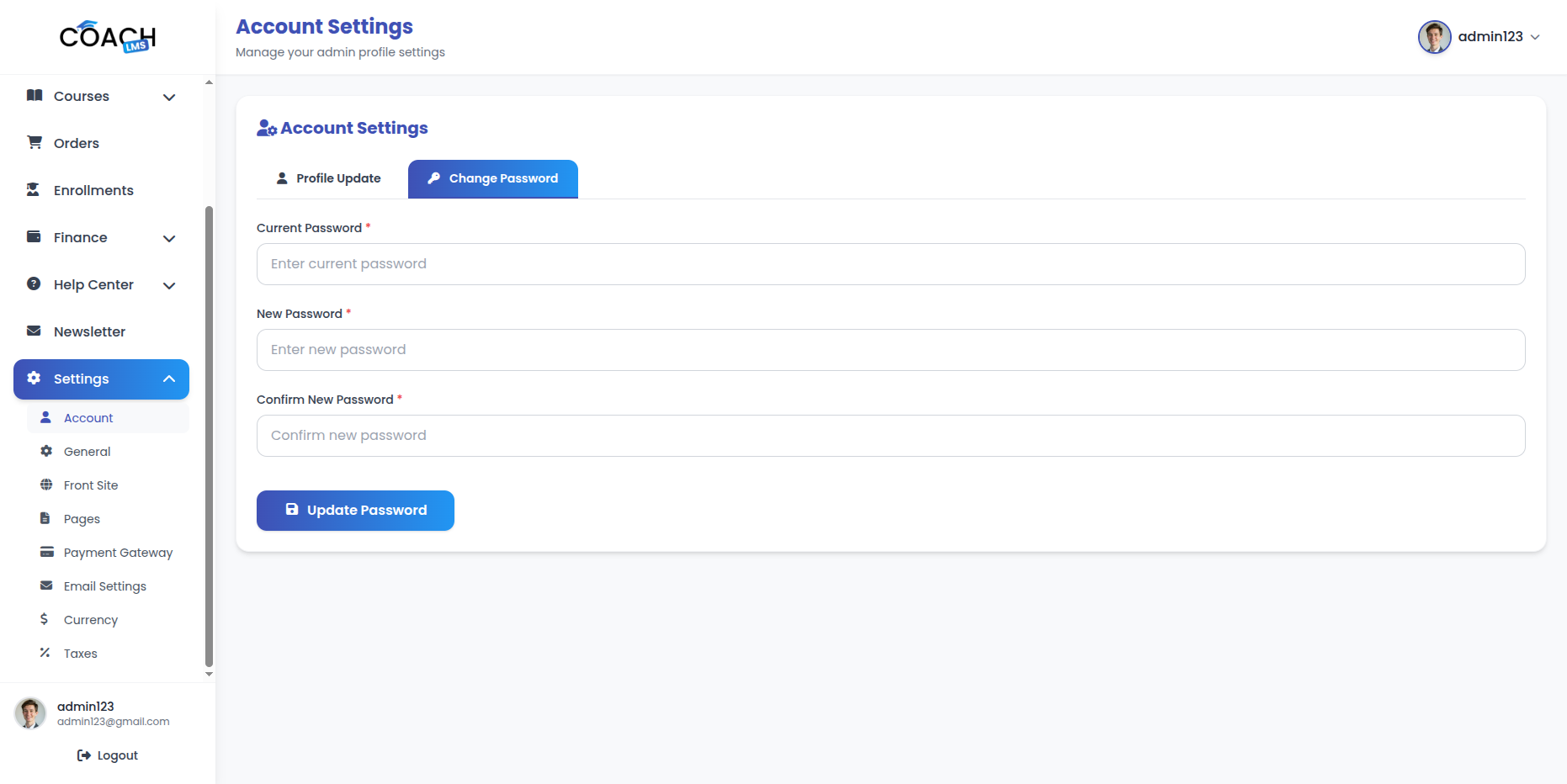
Change Password
You can update your password at any time. For better protection, make sure to use a strong and secure password.
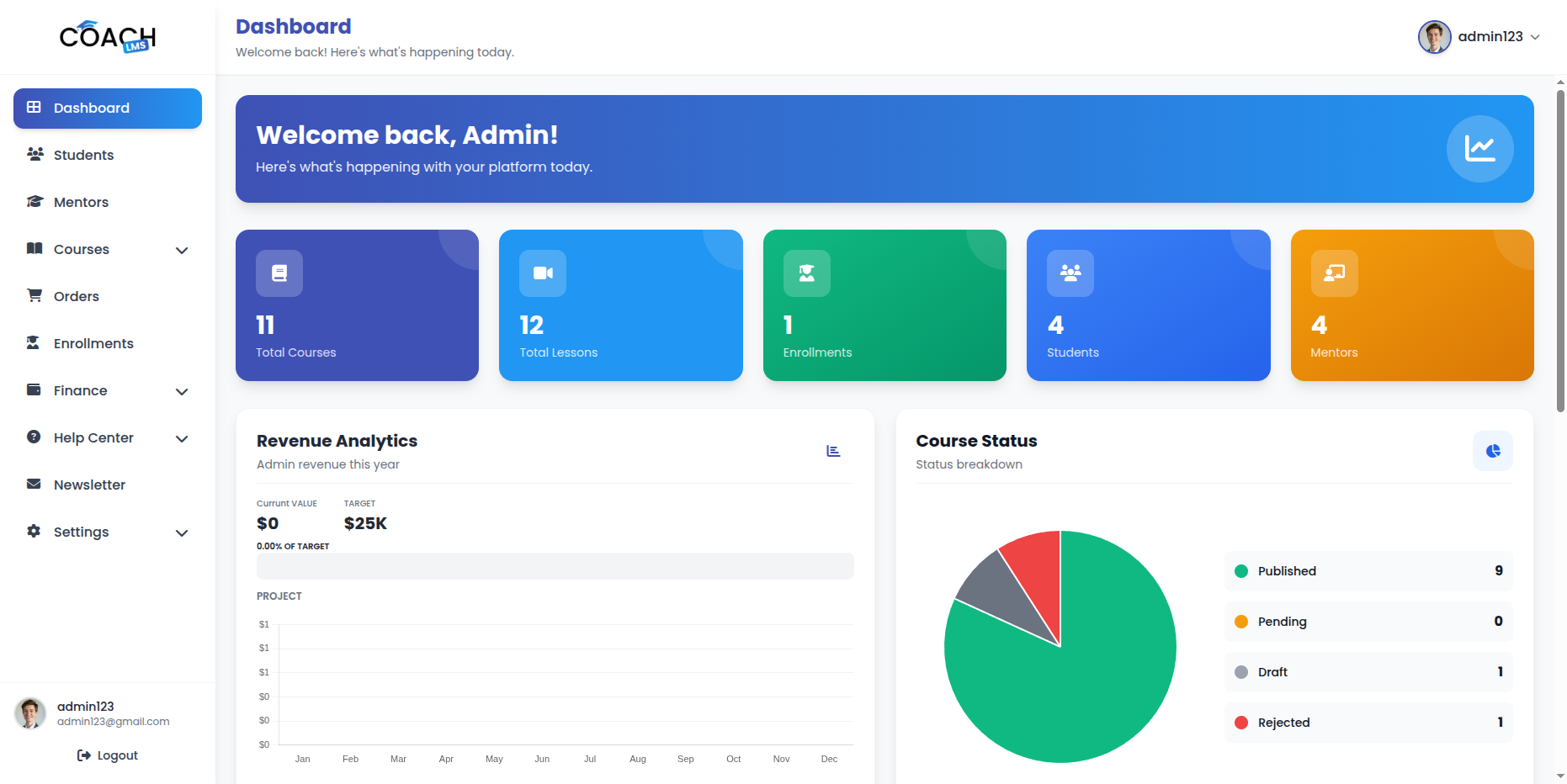
Dashboard
The Dashboard provides a comprehensive overview of the system’s key metrics and activities. It displays essential statistics such as the total number of courses, students, mentors, enrollments, and overall revenue analytics, helping administrators monitor performance and manage operations efficiently from a single view.
Key Statistics Section:
The Statistics section displays critical metrics at a glance:
- Total Courses: Shows the complete count of all courses in the system.
- Total Lessons: Displays the total number of lessons across all courses.
- Total Enrollments: Shows the total number of course enrollments.
- Total Students: Displays the complete count of all registered students.
- Total Mentors: Shows the total number of registered mentors.
Platform Revenue Section:
This section provides detailed revenue insights:
- Platform Revenue: Displays the total revenue generated from all course sales, with monthly breakdown in column chart format.
- Revenue Target: Shows revenue target (25K) with progress bar and percentage achieved.
- Course Status Breakdown: Visual breakdown showing:
- Published – Courses approved and live
- Pending – Courses submitted for review
- Draft – Courses being created or edited
- Rejected – Courses rejected by admin
Recent Data Section:
Provides real-time insights into recent platform activity.
- Recent Activities: Displays the 6 most recent platform activities including:
- New course creations
- Course status changes
- New enrollments
- Payment transactions
- User registrations
- Activity descriptions with timestamps
Pending Withdrawal Requests:
- Overview of mentor withdrawal requests awaiting approval.
Student Management
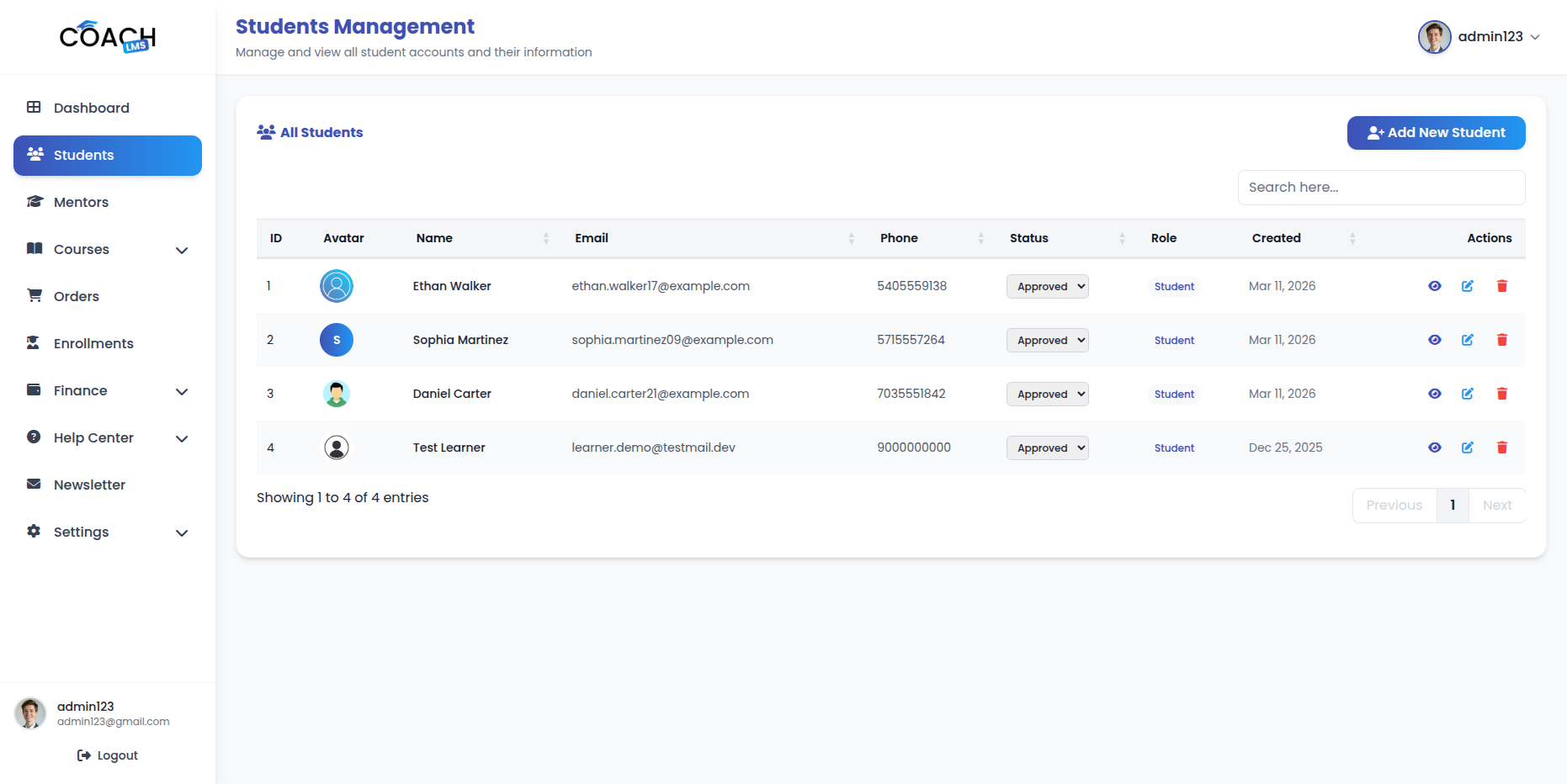
The Student Management module allows the Admin to efficiently manage all registered students in the system. Admins can add, edit, activate/deactivate, and view students, along with their enrollment history and order details.
Each student’s profile includes key information such as name, email, phone, registration date, status, enrollment count, and order history, providing a clear overview of all student activities in one place.
Key Actions
- Add Student: Create a new student by entering basic details such as name, email, phone, and password. Student account is created with Approve status by default.
- Edit Student: Update student information at any time, including contact details, phone, and account status.
- Delete Student: Remove a student and their related data from the system when no longer needed (soft delete).
- Activate/Deactivate Student: Control student access to the platform by toggling their active status.
- View Student Details: View complete student profile including:
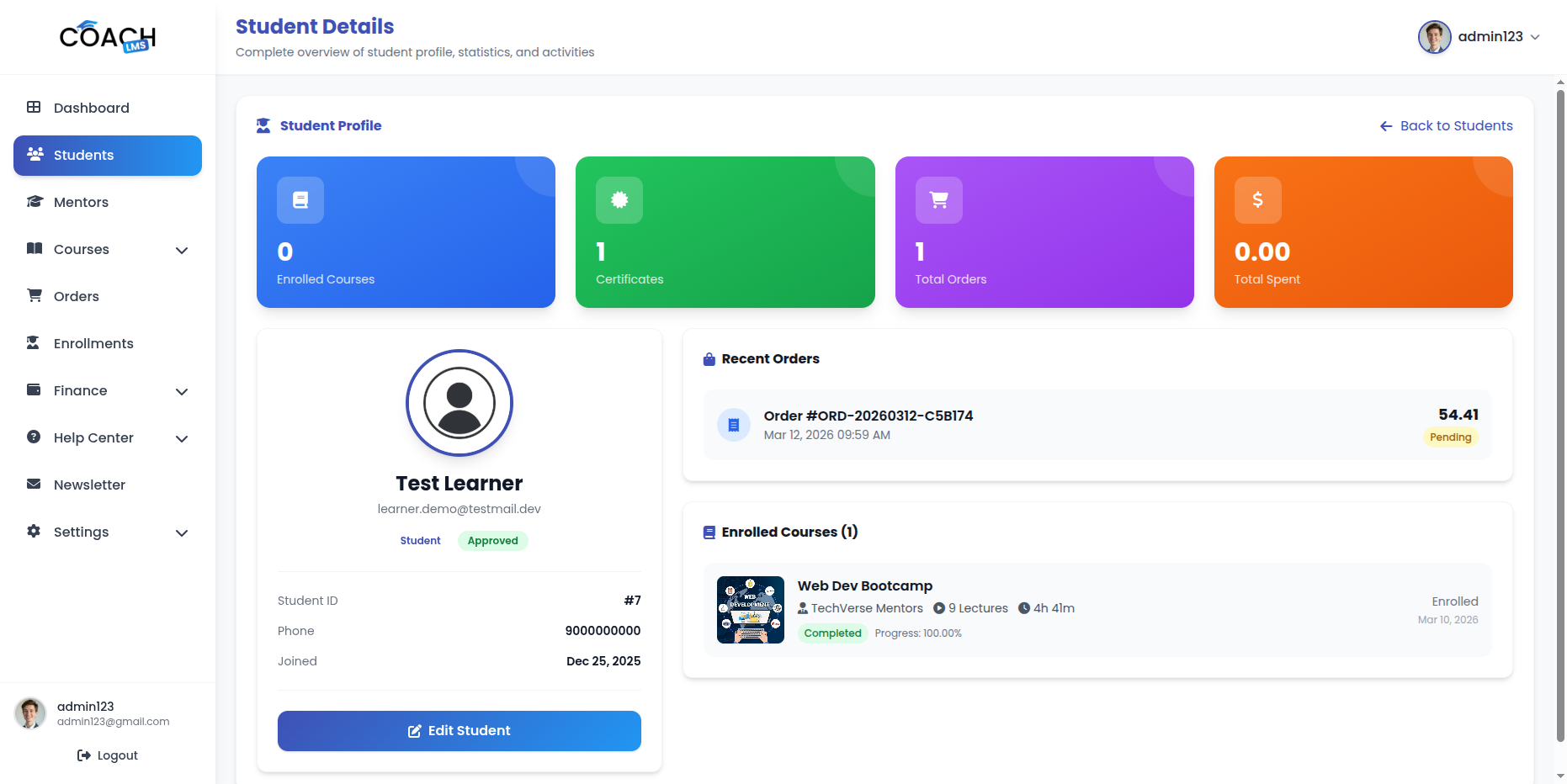
- Enrollment history with course details
- Order history with payment information
- Account status and registration date
Mentor Management
The Mentor Management module allows the Admin to efficiently manage all registered mentors in the system. Admins can add, edit, activate/deactivate, and view mentors, along with their course statistics, payment account details, and profile information.
Each mentor’s profile includes key information such as name, email, phone, bio, specialization, status, course count, student count, earnings, and withdrawal information, providing a clear overview of all mentor activities in one place.
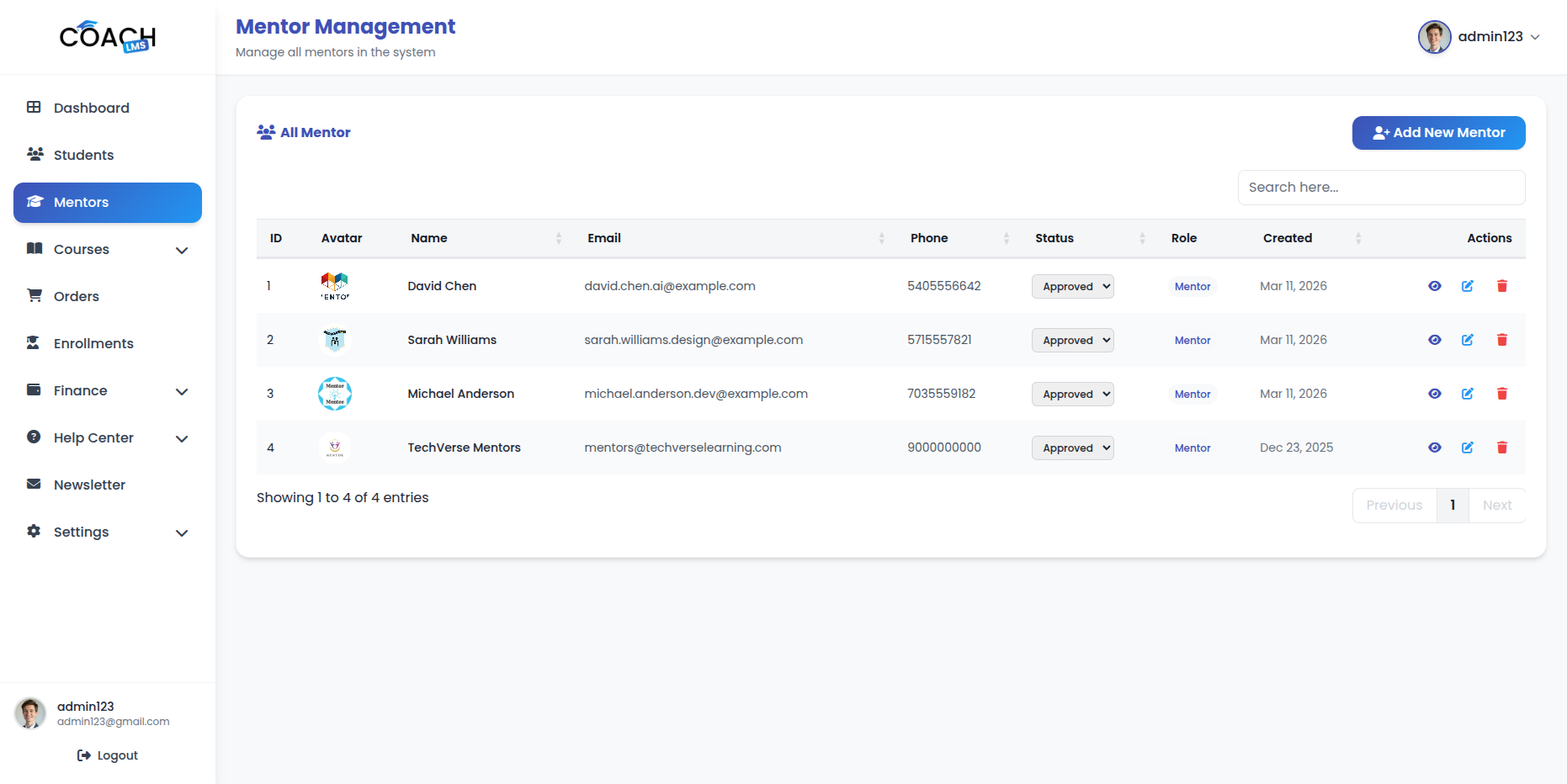
Key Actions
- Add Mentor: Create a new mentor by entering basic details such as name, email, phone, bio, specialization, and password. Mentor account is created with Approve status by default.
- Edit Mentor: Update mentor information at any time, including contact details, bio, specialization, password, and account status.
- Delete Mentor: Remove a mentor and their related data from the system when no longer needed (soft delete).
- Activate/Deactivate Mentor: Control mentor access to the platform by toggling their active status.
- View Mentor Details: View complete mentor profile including:
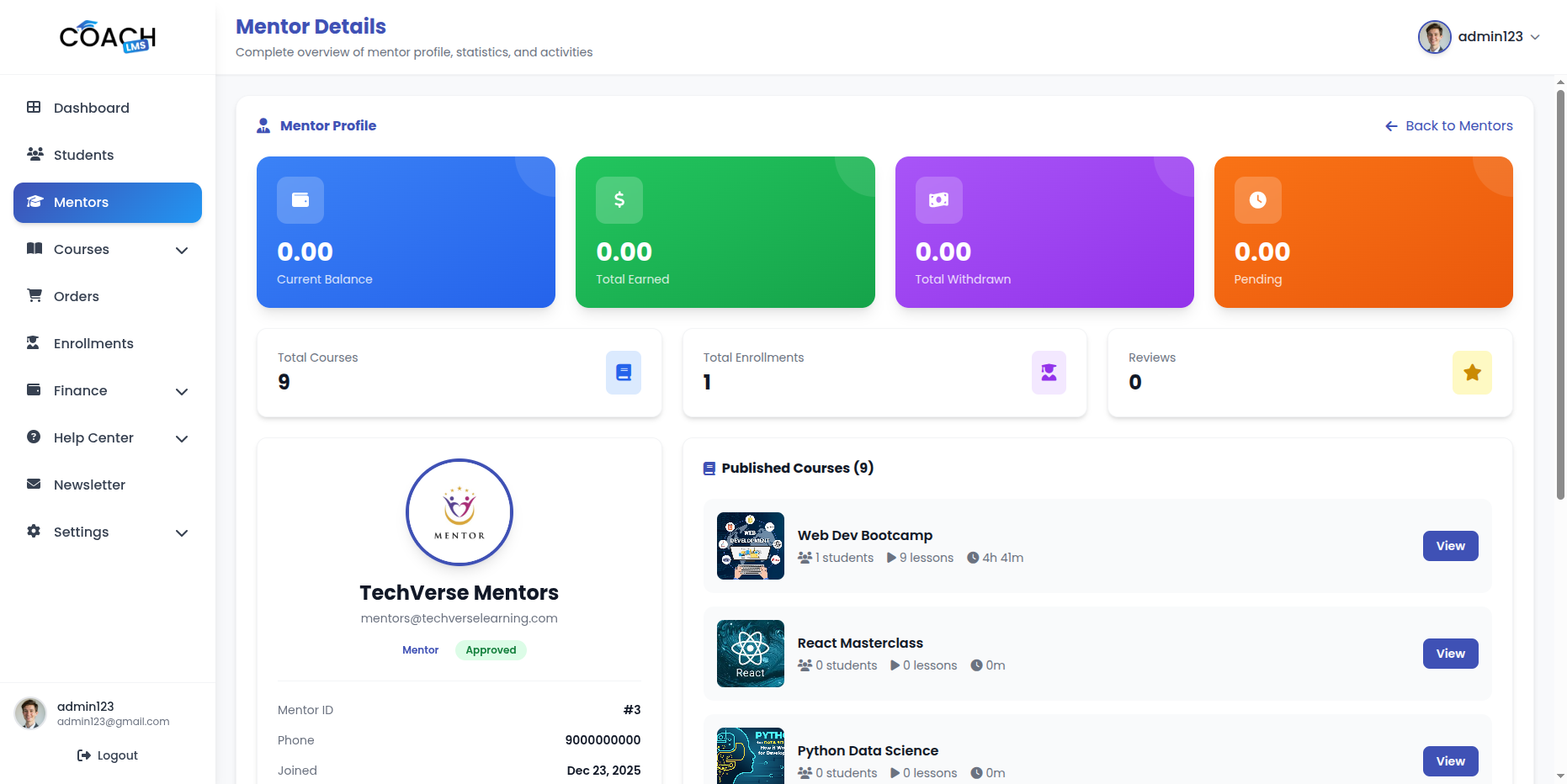
- Work experience entries
- Education entries
- Expertise entries
- Social media links
- Wallet balance and withdrawal history
- Course statistics (total courses, students, revenue)
Course Management
The Course Management module allows the Admin to efficiently manage all courses in the system. Admins can create courses for any mentor, edit any course, approve/reject courses, update course status, delete courses, and manage course deletion requests.
Each course includes key information such as title, description, category, mentor, price, status, enrollment count, and revenue, providing a clear overview of all course activities in one place.
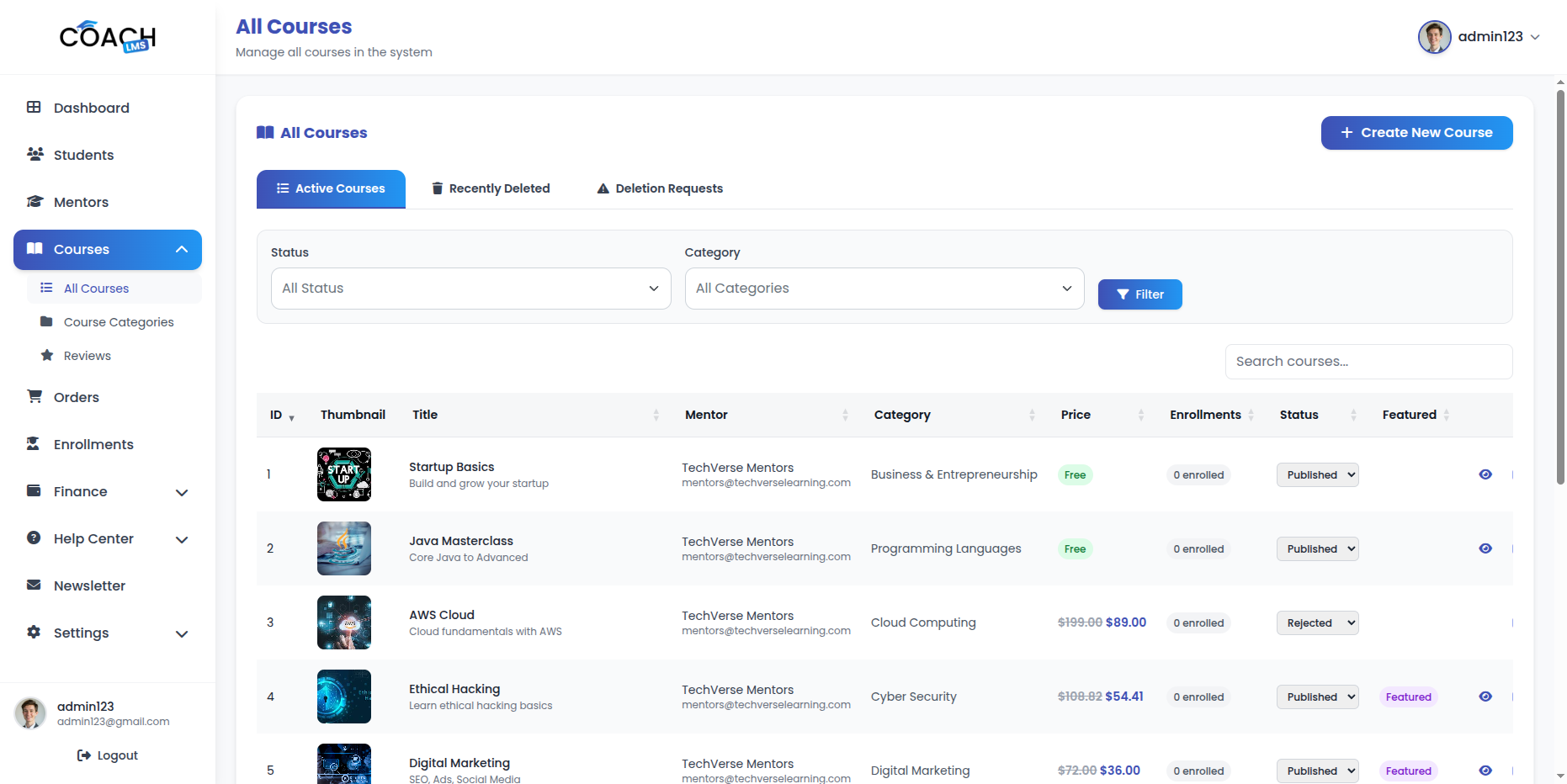
Key Actions
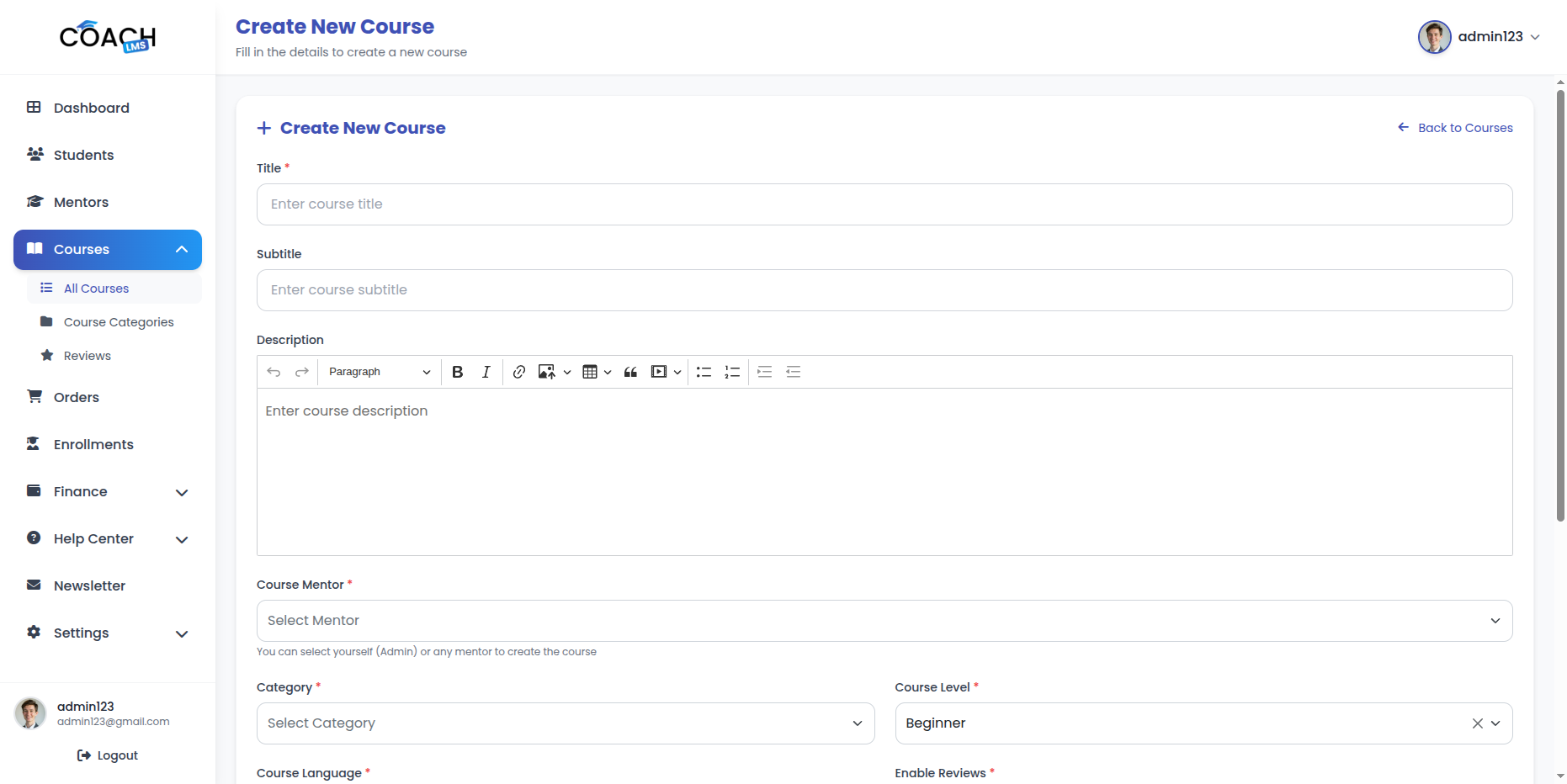
- Create Course: Create a new course by entering details such as title, description, category, mentor, price, level, language, and status. Admin can create courses for any mentor.
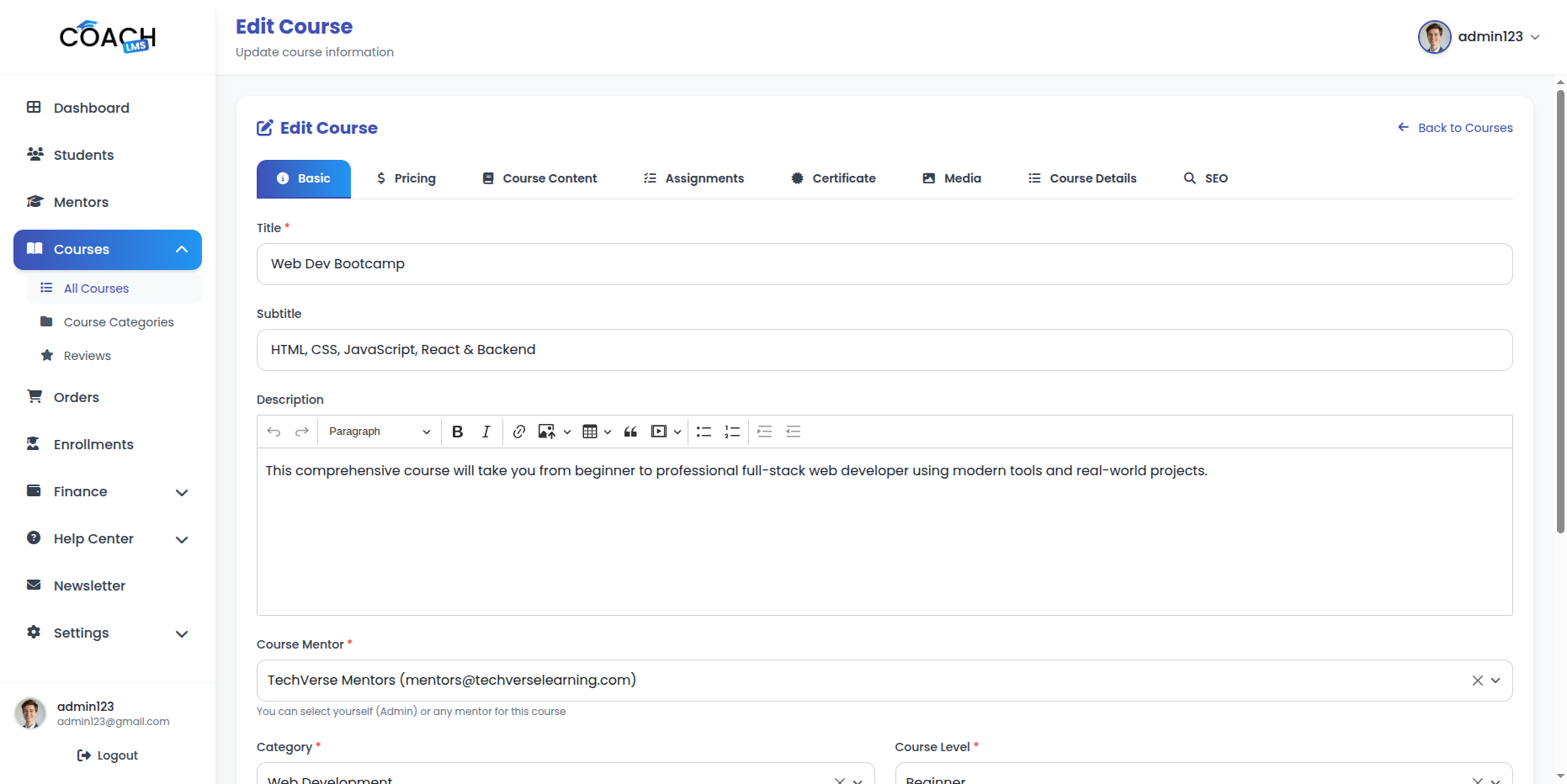
- Edit Course: Update any course information at any time, including title, description, category, mentor, price, level, language, and status.
- View Course Details: View complete course information including:
- Full curriculum (sections, lectures, quizzes)
- Course statistics
- Enrollment history
- Review details
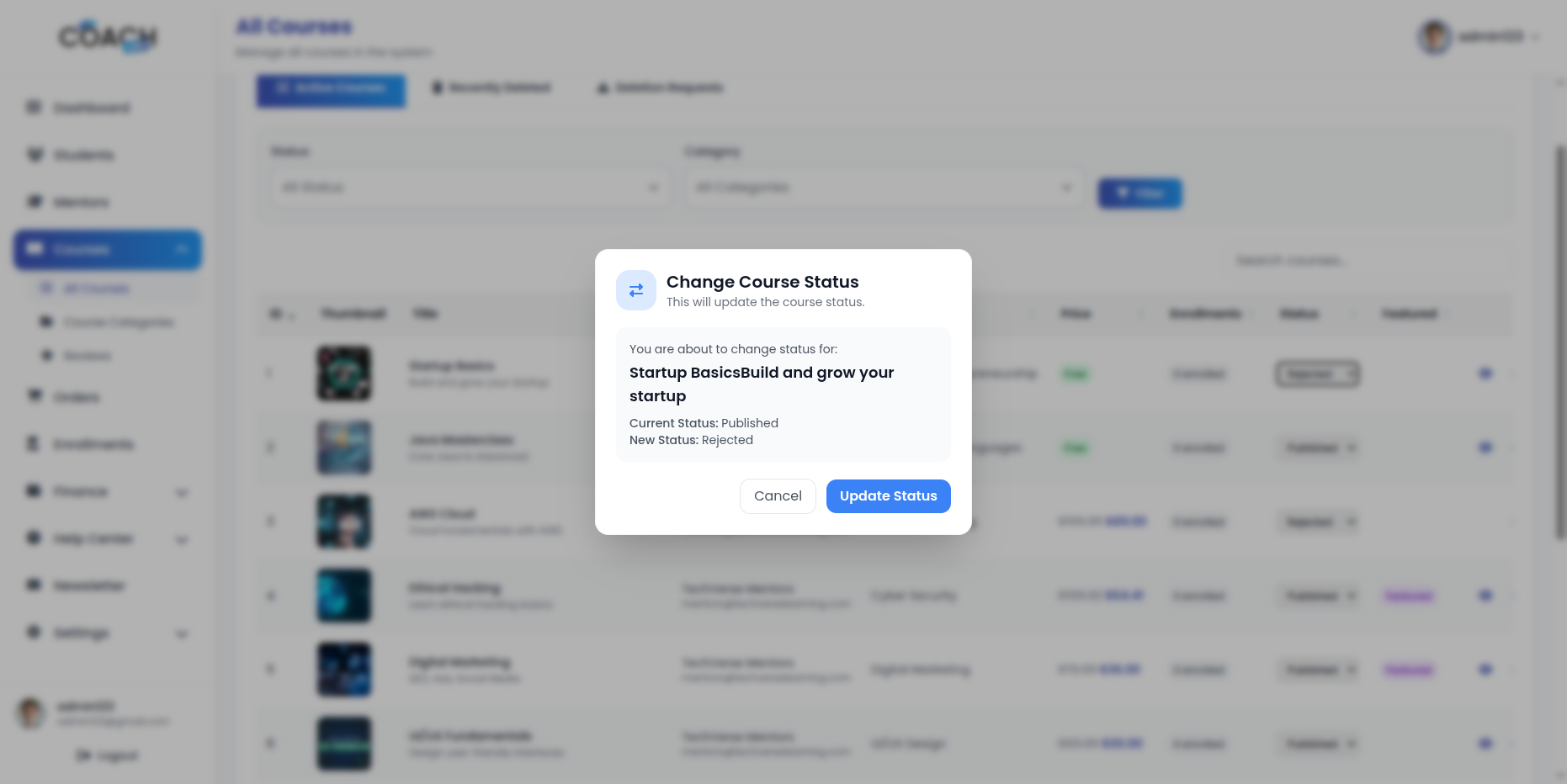
- Approve/Reject Course: Approve or reject courses submitted for review. Email notifications are sent to mentors when courses are approved or rejected.
-
- Update Course Status: Update course status via dropdown (Published, Pending, Draft, Rejected). Email notifications are sent to mentors when status changes.
- Delete Course: Delete courses from the system (soft delete). Deleted courses can be restored within 7 days if needed.
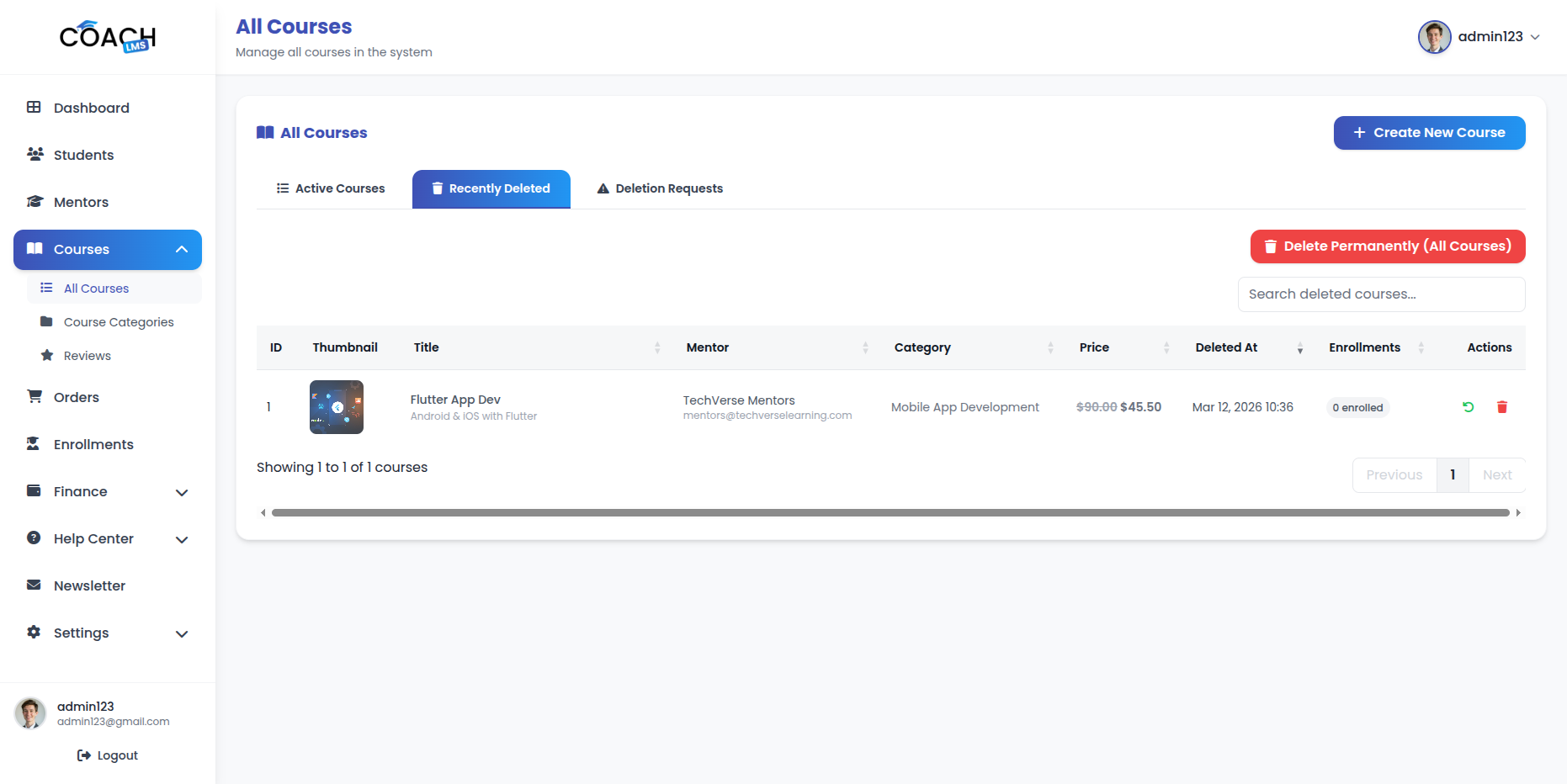
- Restore Deleted Course: Restore previously deleted courses.
- View Deleted Courses: View list of all deleted courses.
- Manage Deletion Requests: Approve or reject course deletion requests from mentors.
Course Status Workflow
- Draft: Course being created/edited by mentor
- Pending: Course submitted for admin review
- Published: Course approved and live for students
- Rejected: Course rejected by admin
1. Curriculum Management
The Curriculum Management module allows the Admin to manage course curriculum including sections, lectures, and quizzes. This module provides comprehensive control over course content structure.
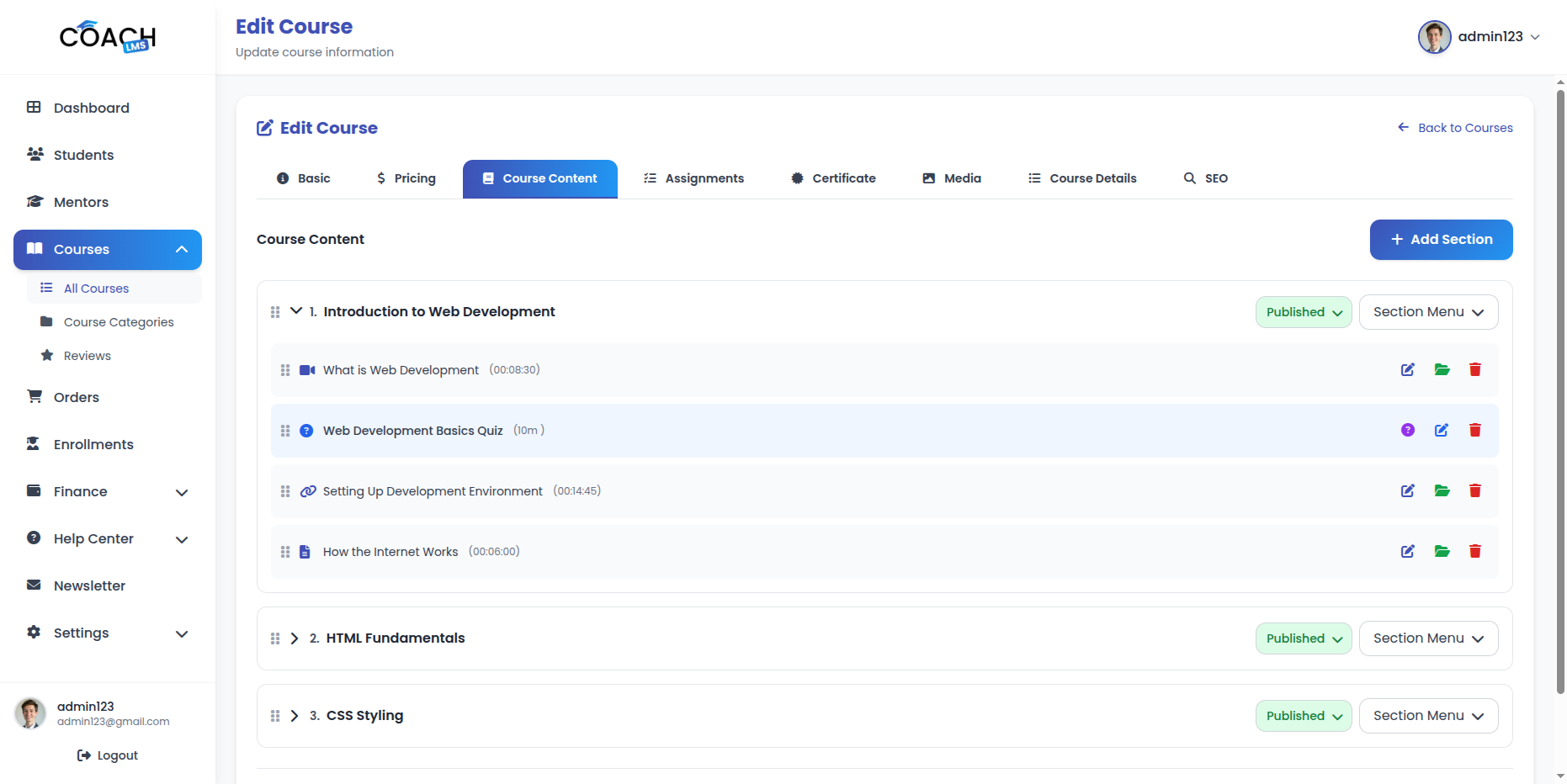
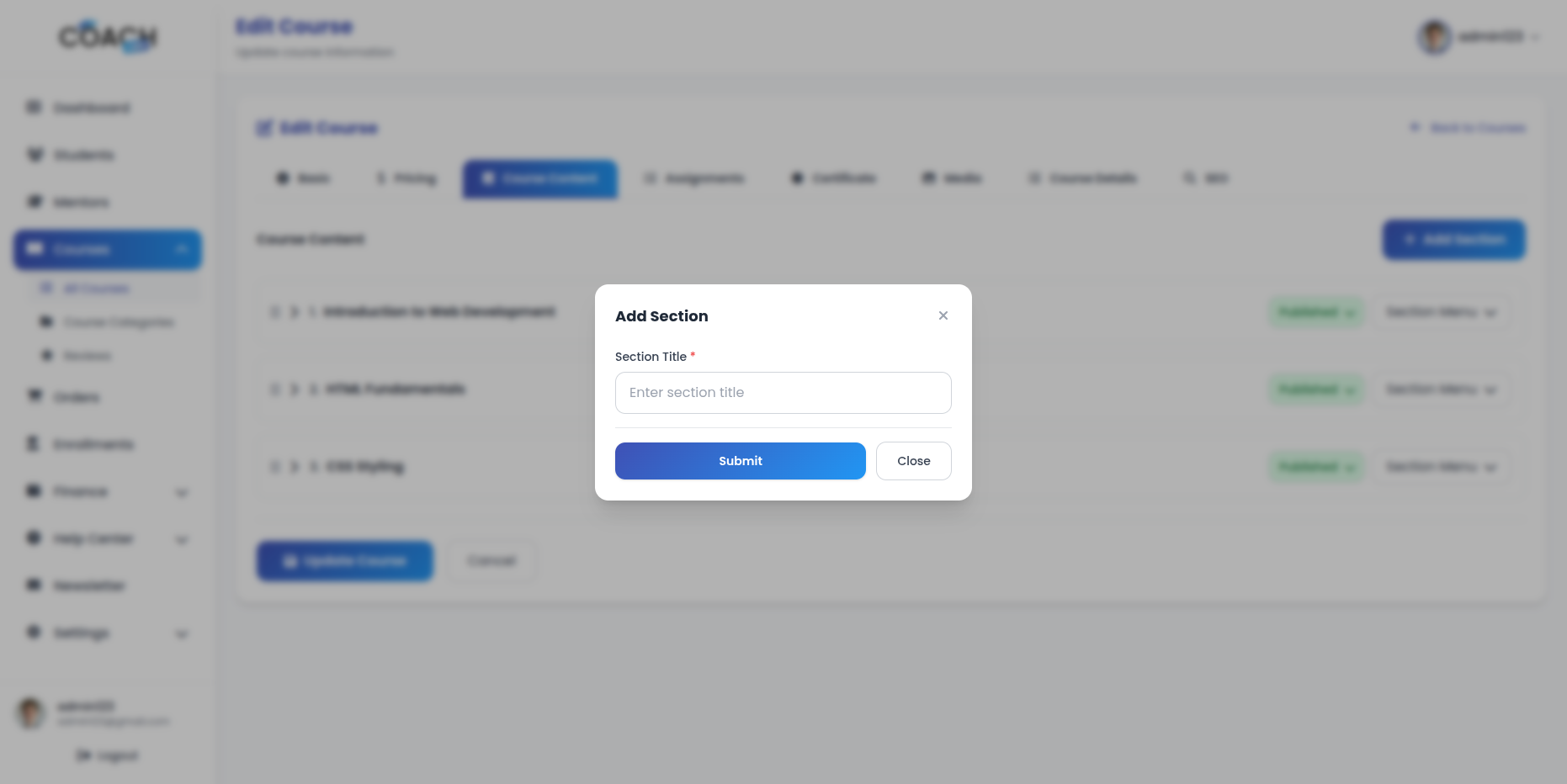
Sections Management
-
- Create, edit, delete course sections
- Update section order using drag & drop
- Enable/disable sections
- Section ordering affects the display order in the course player
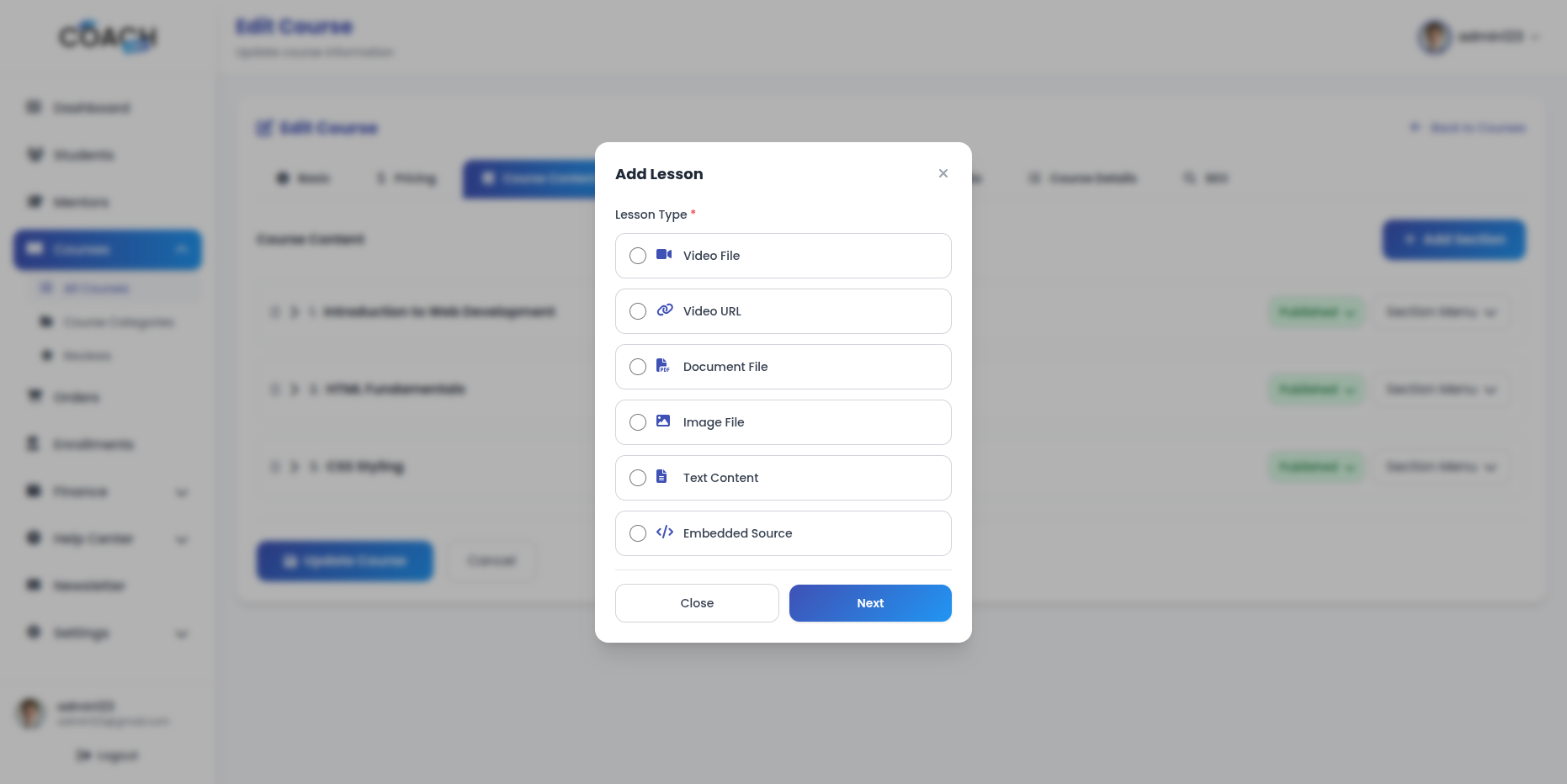
Lectures Management
-
- Create, edit, delete lectures
- Upload lecture videos (maximum 50MB, formats: MP4, AVI, MOV)
- Set lecture duration
- Update lecture order using drag & drop
- Manage lecture resources (upload, download, delete)
- Lecture resources: (PDF, DOC, DOCX, ZIP, RAR, 7Z)
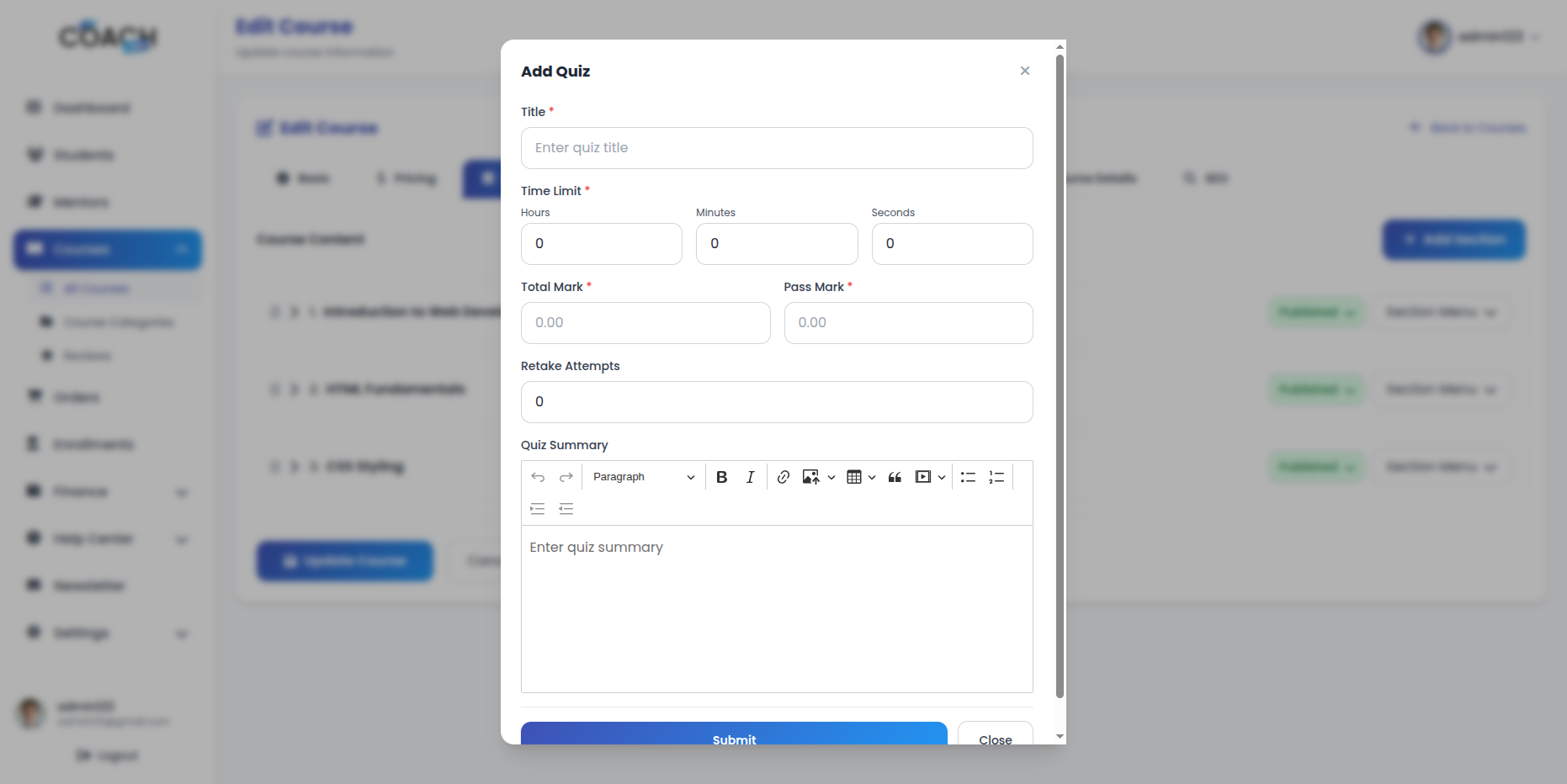
Quizzes Management
-
- Create, edit, delete quizzes
- Set quiz duration and passing score
- Update quiz order using drag & drop
- Manage quiz questions:
- Multiple choice questions with multiple options
- True/False questions
- Add correct answers
- Set question marks.
2. Assignment Management
The Assignment Management module allows the Admin to manage course assignments. Admins can create assignments, view student submissions, grade submissions, accept/reject submissions, and request resubmissions.
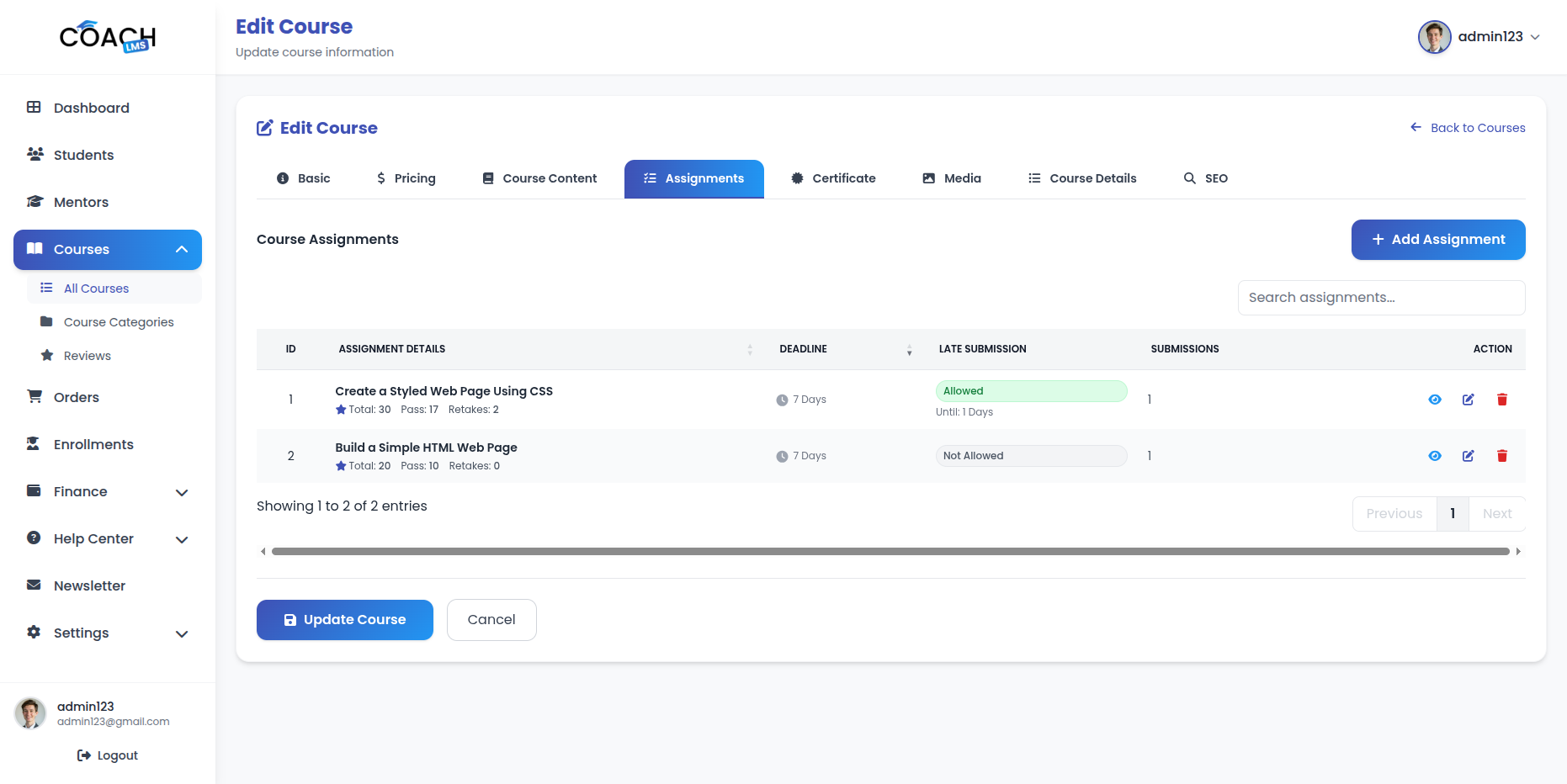
Key Actions
- Create Assignment: Create a new assignment by entering details such as title, description, due date, and marks.
- Edit Assignment: Update assignment details including title, description, due date, and points.
- Delete Assignment: Remove an assignment from the system when no longer required.
- View Submissions: View all student submissions for an assignment with:
- Student information
- Submission files (downloadable)
- Submission date and time
- Submission status
- Grade Submissions: Grade student submissions by entering points and feedback.
- Accept/Reject Submissions: Accept or reject student submissions.
- Request Resubmission: Request students to resubmit assignments with a new deadline days.
- Lock/Unlock Submissions: Lock submissions to prevent further edits or unlock for resubmission.
- Assignment Submission Files: Students can upload assignment submission files only in the formats that were selected by the mentor or admin at the time of creating the assignment in the course.
3. Certificate Management
The Certificate Management module allows Admins and Mentors to create customizable course completion certificates. Students can download certificates in PNG or PDF format.
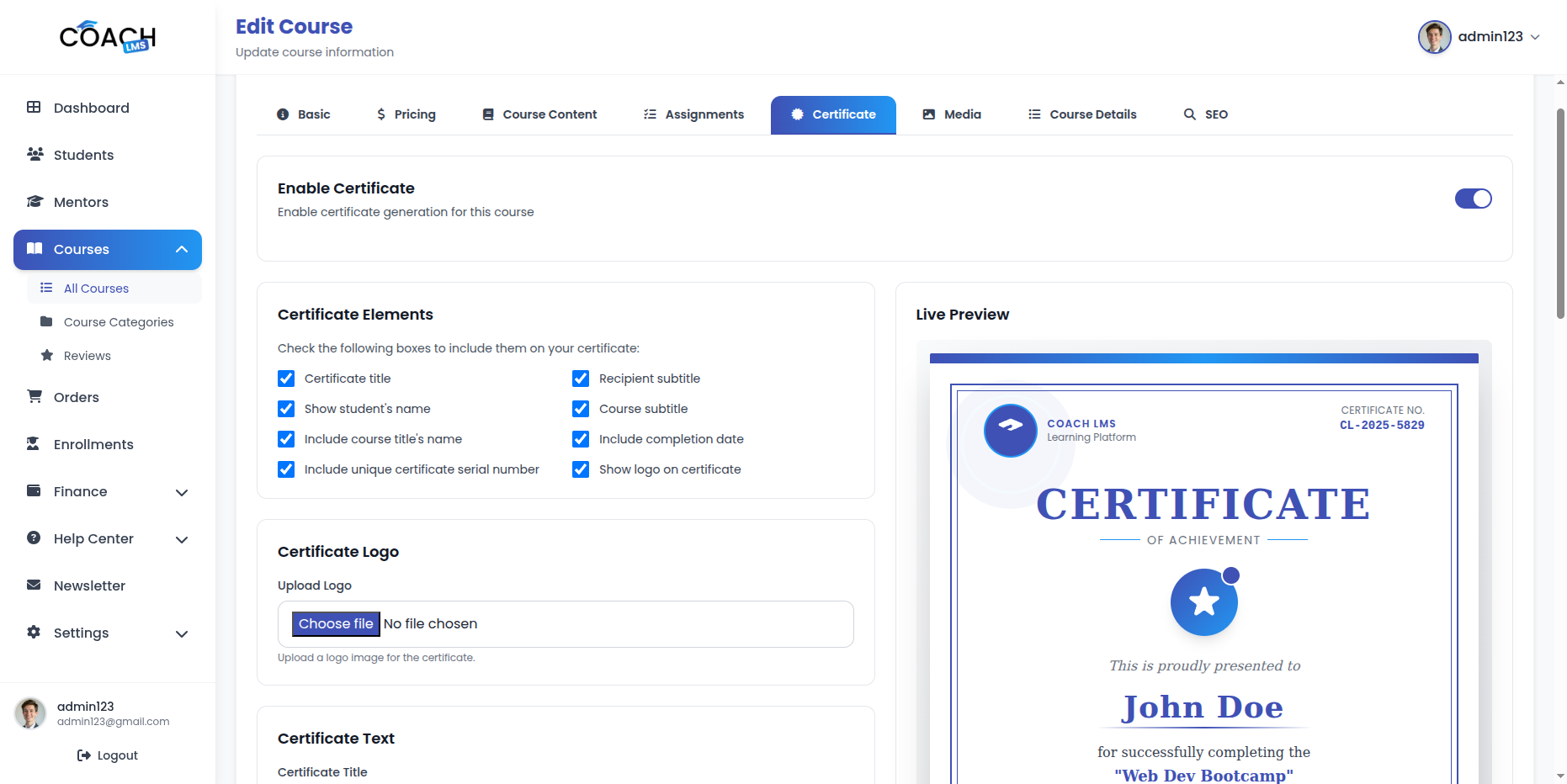
Key Actions
- Enable/Disable Certificate: Toggle certificate generation for each course. Students can download only when enabled.
- Configure Certificate Elements: Customize title, subtitles, student name, course name, completion date, unique serial number, and logo.
- Upload Certificate Logo: Upload and preview a logo for the certificate header.
- Customize Certificate Text & Colors: Adjust all text elements, background, border, title, subtitle, name, and content colors.
- Customize Fonts & Sizes: Set fonts and sizes for title, subtitle, student name, and content using Google Fonts.
- Live Preview: Real-time preview with sample student name and course information.
- Certificate Generation: Certificates auto-generate upon course completion with student name, course name, completion date, serial number, mentor signature, and platform branding.
- Design Elements: Decorative borders, background elements, award badges, professional layout, and responsive print-ready design.
4. SEO Settings
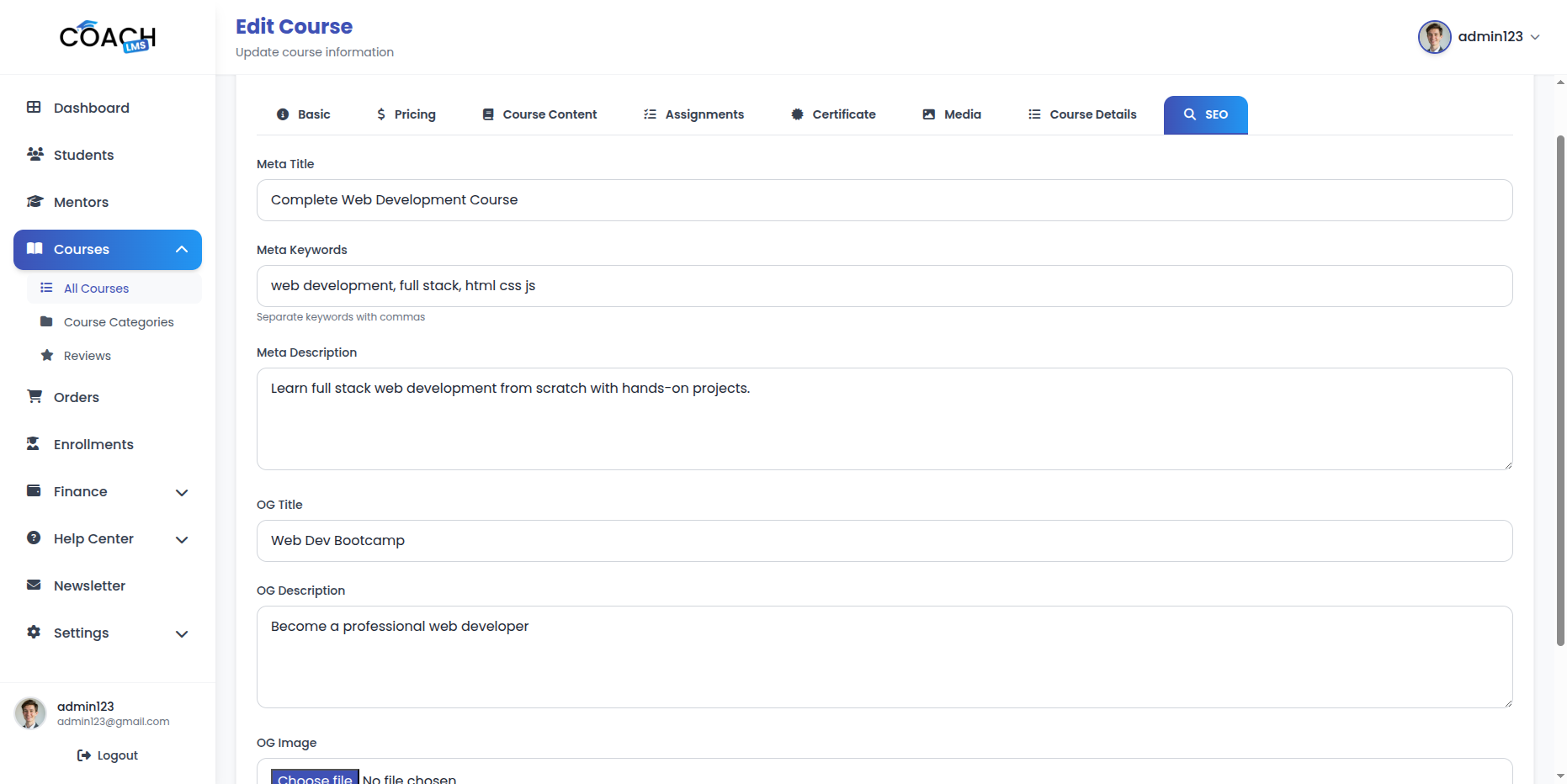
- Meta Title: Set a custom title for search engines.
- Meta Keywords: Add comma-separated keywords for SEO.
- Meta Description: Write a description for search engine results.
- OG Title: Set title for social media sharing.
- OG Description: Set description for social media sharing.
- OG Image: Upload an image for social media previews (Recommended: 1200x630px, Max 10MB, Formats: JPEG, PNG, JPG, GIF, WEBP).
5. Media Management
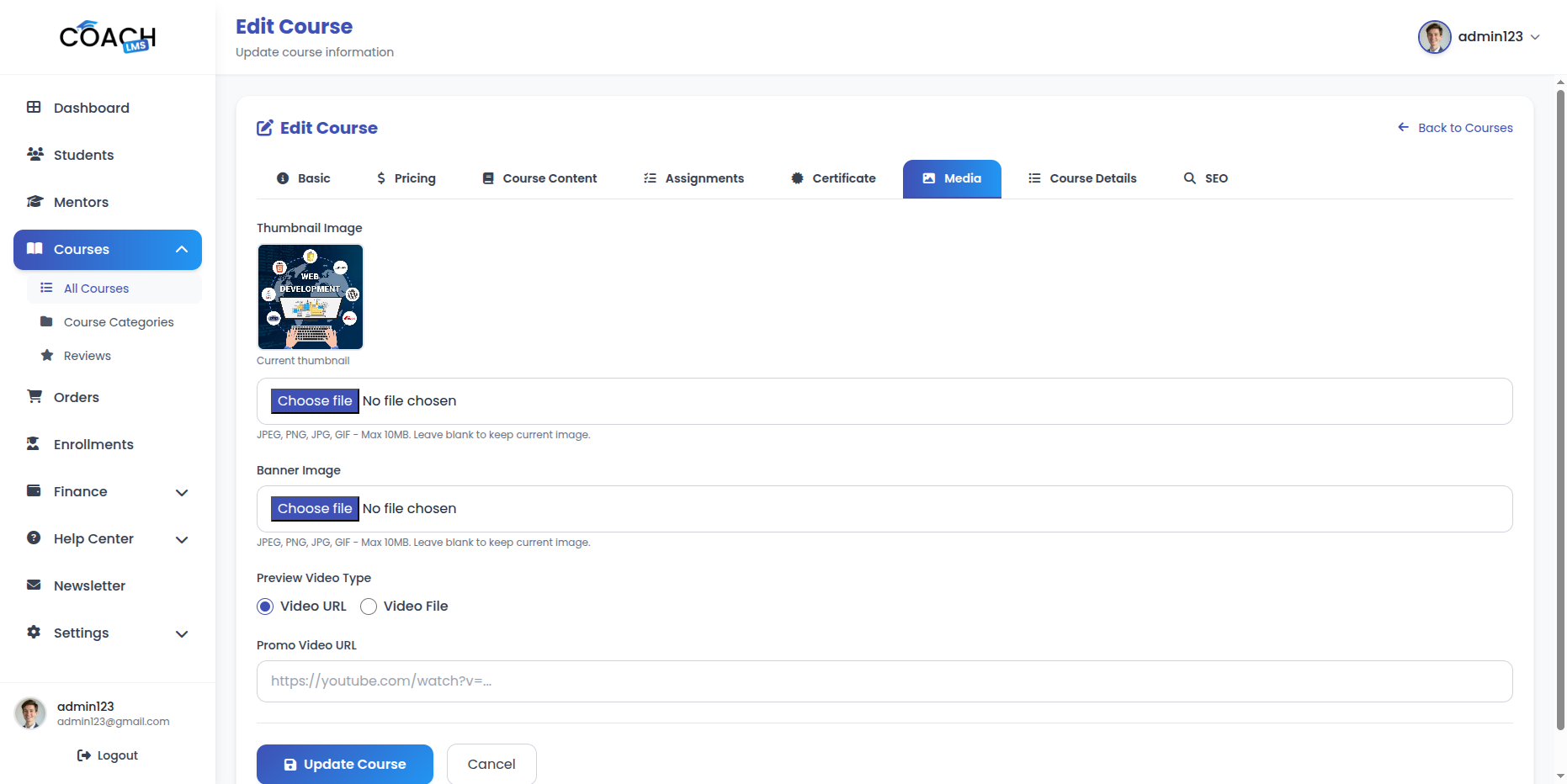
- Thumbnail Image: Upload or replace course thumbnail (JPEG, PNG, JPG, GIF). Preview available.
- Banner Image: Upload or replace course banner image (JPEG, PNG, JPG, GIF). Preview available.
- Promo Video: Upload video via URL (YouTube, Vimeo) or file (MP4, AVI, MOV). Preview available.
6. Course Details
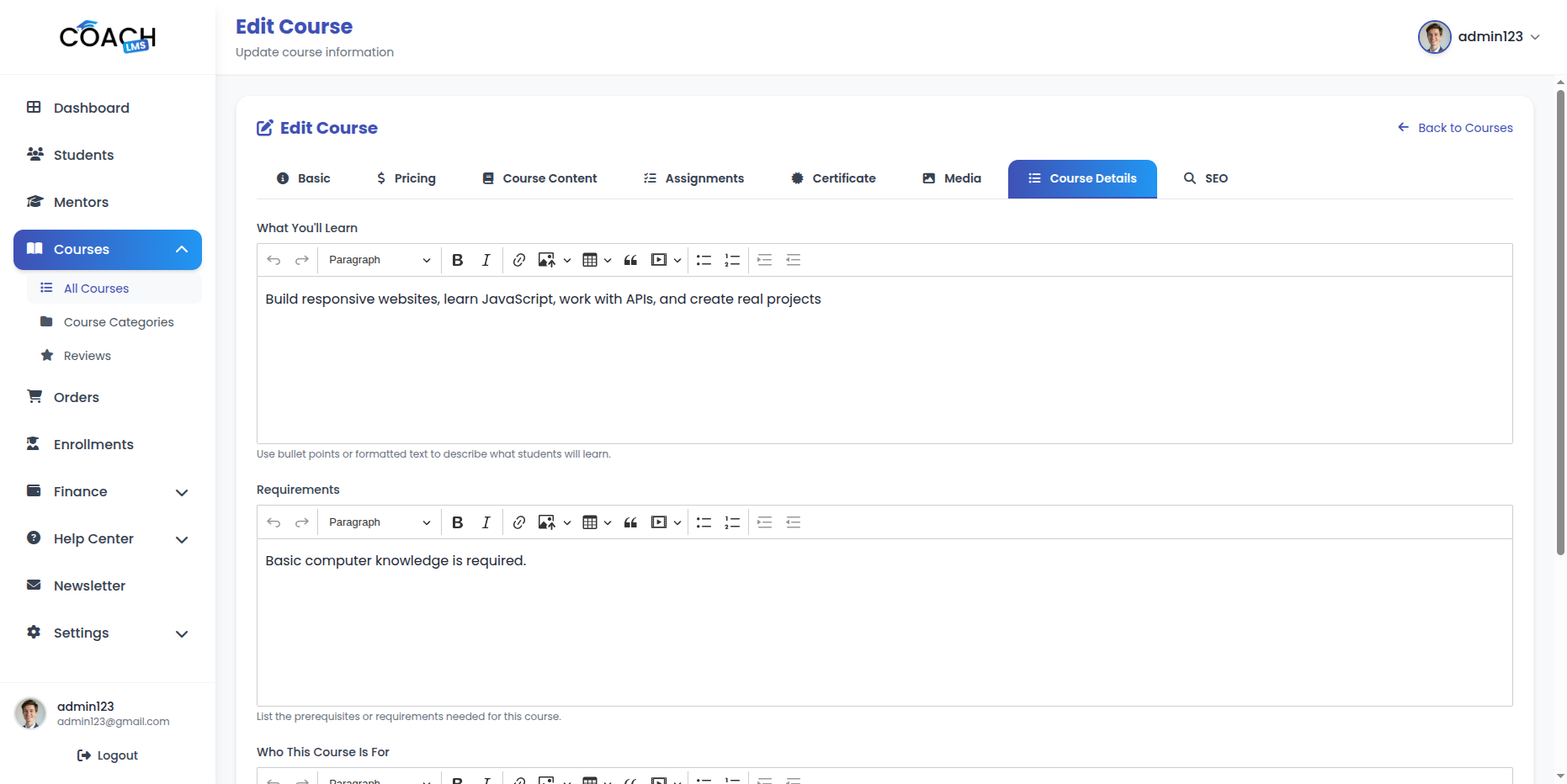
- What You’ll Learn: Add course learning outcomes with rich text and HTML formatting; supports bullet points.
- Requirements: List course prerequisites; supports HTML and clear formatting for readability.
- Who This Course Is For: Describe target audience with HTML and custom formatting options.
Category Management
The Category Management module allows the Admin to create and manage course categories. Admins can add new categories, edit existing ones, configure essential details such as name, description, image, status, and sort order.
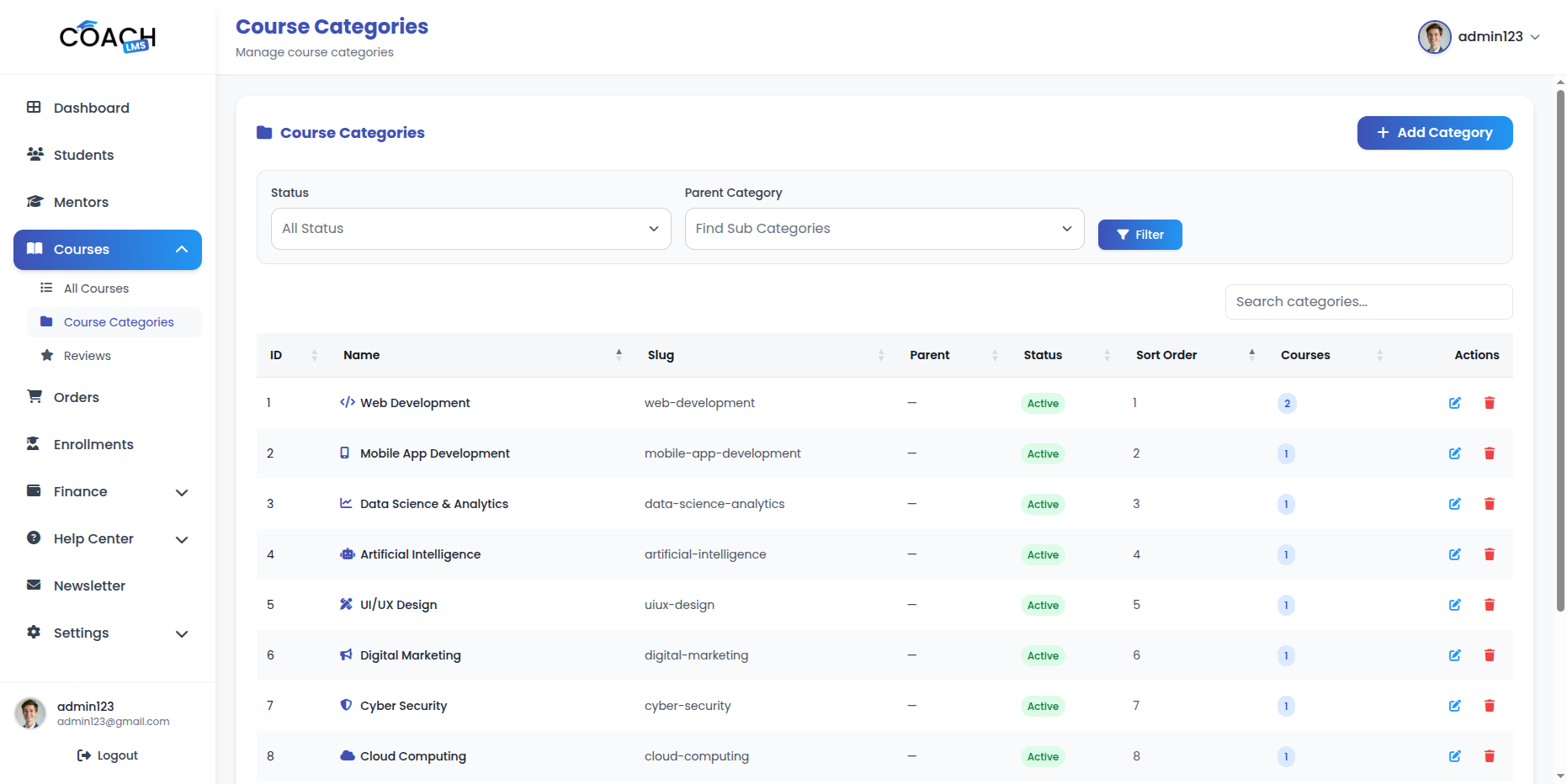
Key Actions:
- Add Category: Create a new category by entering details such as name, description, image, status, and sort order.
- Edit Category: Update any category details, including name, description, image, status, and sort order.
- Delete Category: Remove a category from the system when no longer required.
Review Management
The Review Management module allows the Admin to manage course reviews. Admins can view all reviews, approve/reject reviews, delete reviews, and view review details with replies.
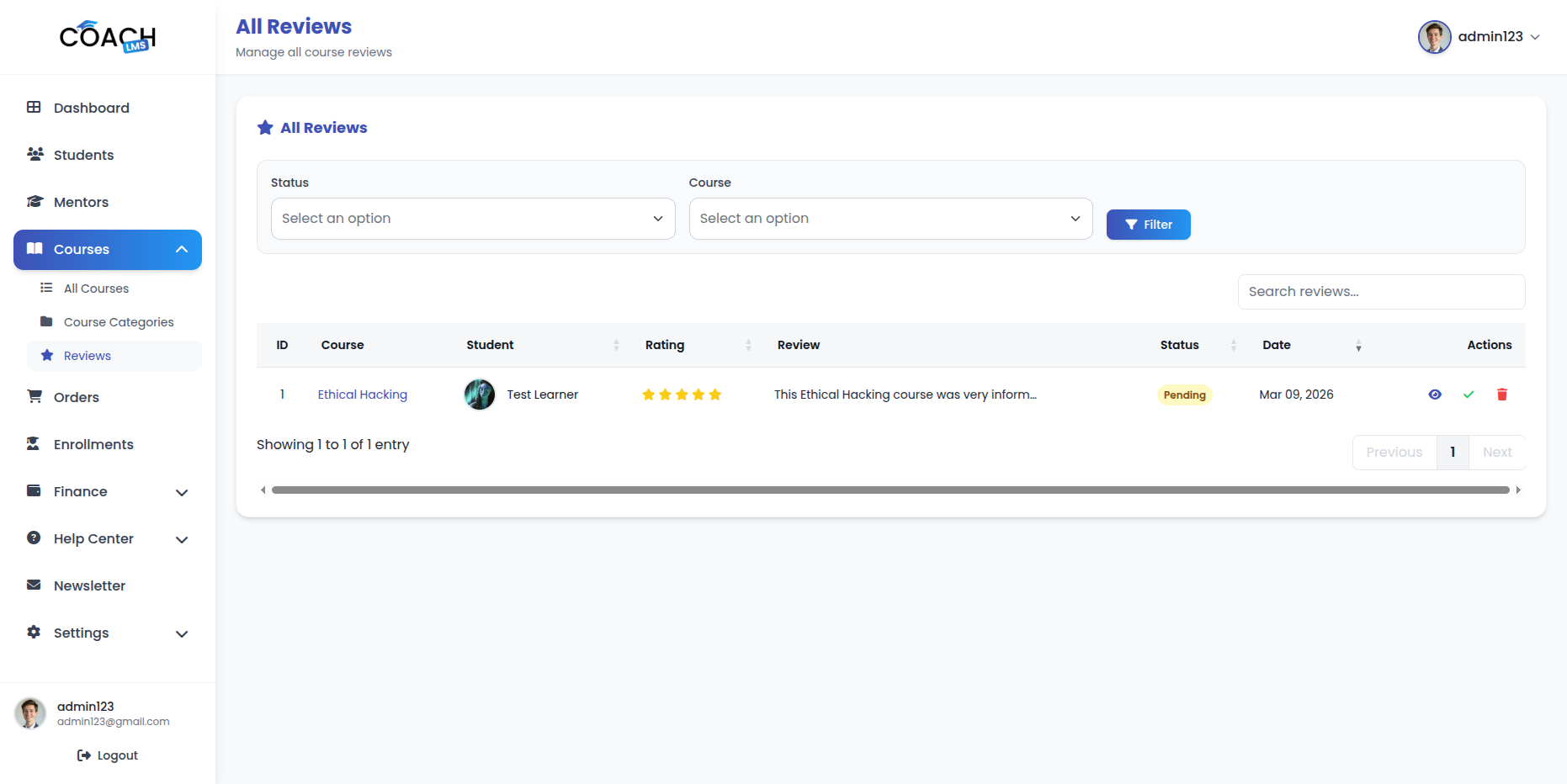
Key Actions:
- View All Reviews: View all course reviews with DataTable (search, filter, pagination).
- Approve/Reject Reviews: Approve or reject course reviews submitted by students.
- Delete Reviews: Remove reviews from the system when inappropriate.
- View Review Details: View complete review information including:
- Student information
- Course information
- Rating (1-5 stars)
- Helpful votes
- Review replies (if enabled)
Order Management
The Order Management module allows Admins to view and manage all course purchase orders. Admins can view order details, mark orders as paid, reject orders, and filter orders by status, date, and student.
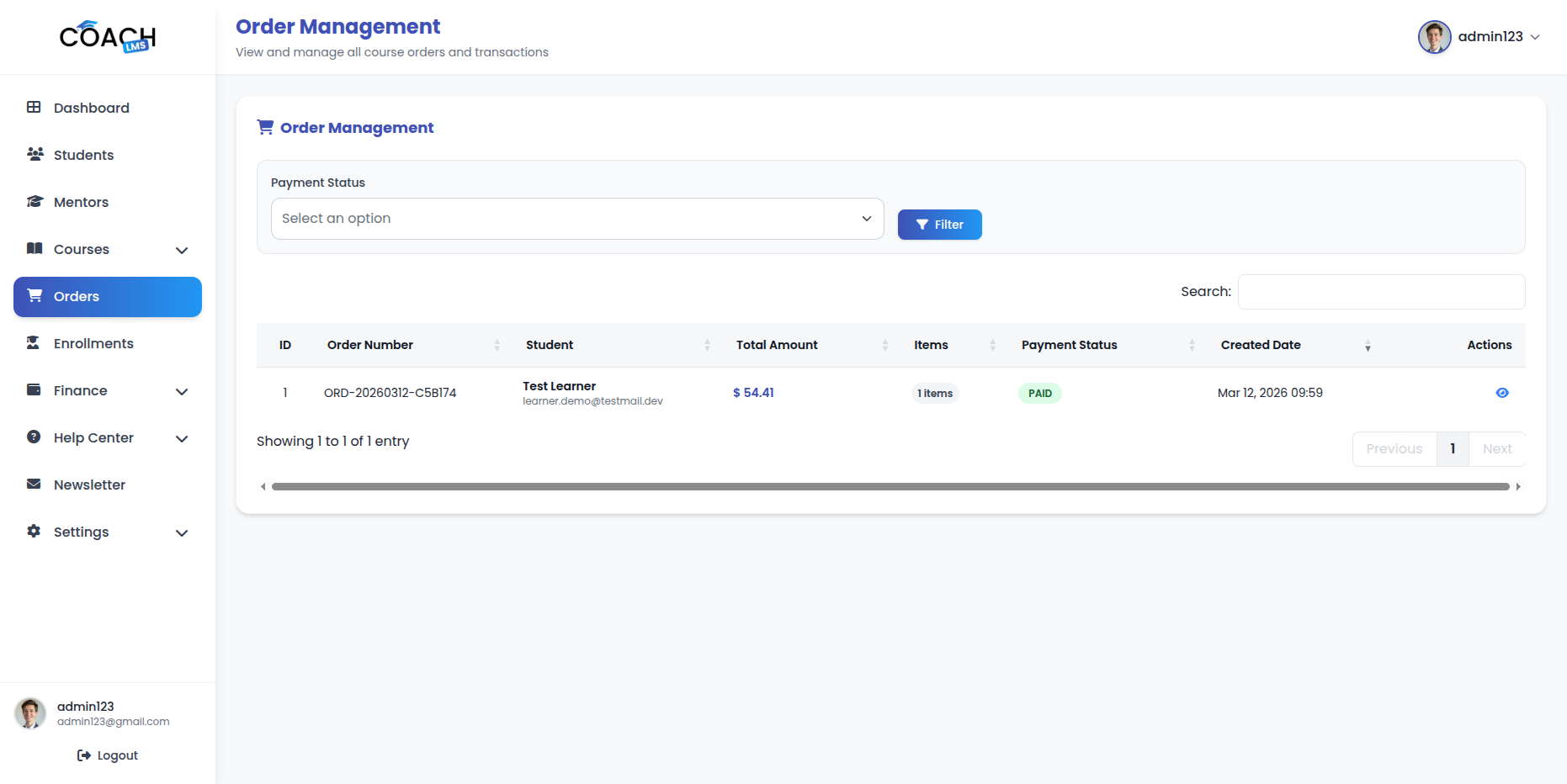
Key Actions:
- View All Orders: Display all orders with search, filter, and pagination.
- View Order Details: Check complete order info including courses, payment details, student info, order status, and date.
- Mark Order as Paid: Manually mark orders as paid for pending payments.
- Reject Order: Reject orders.
- Filter Orders: Filter orders by status, date range, or student.
Enrollment Management
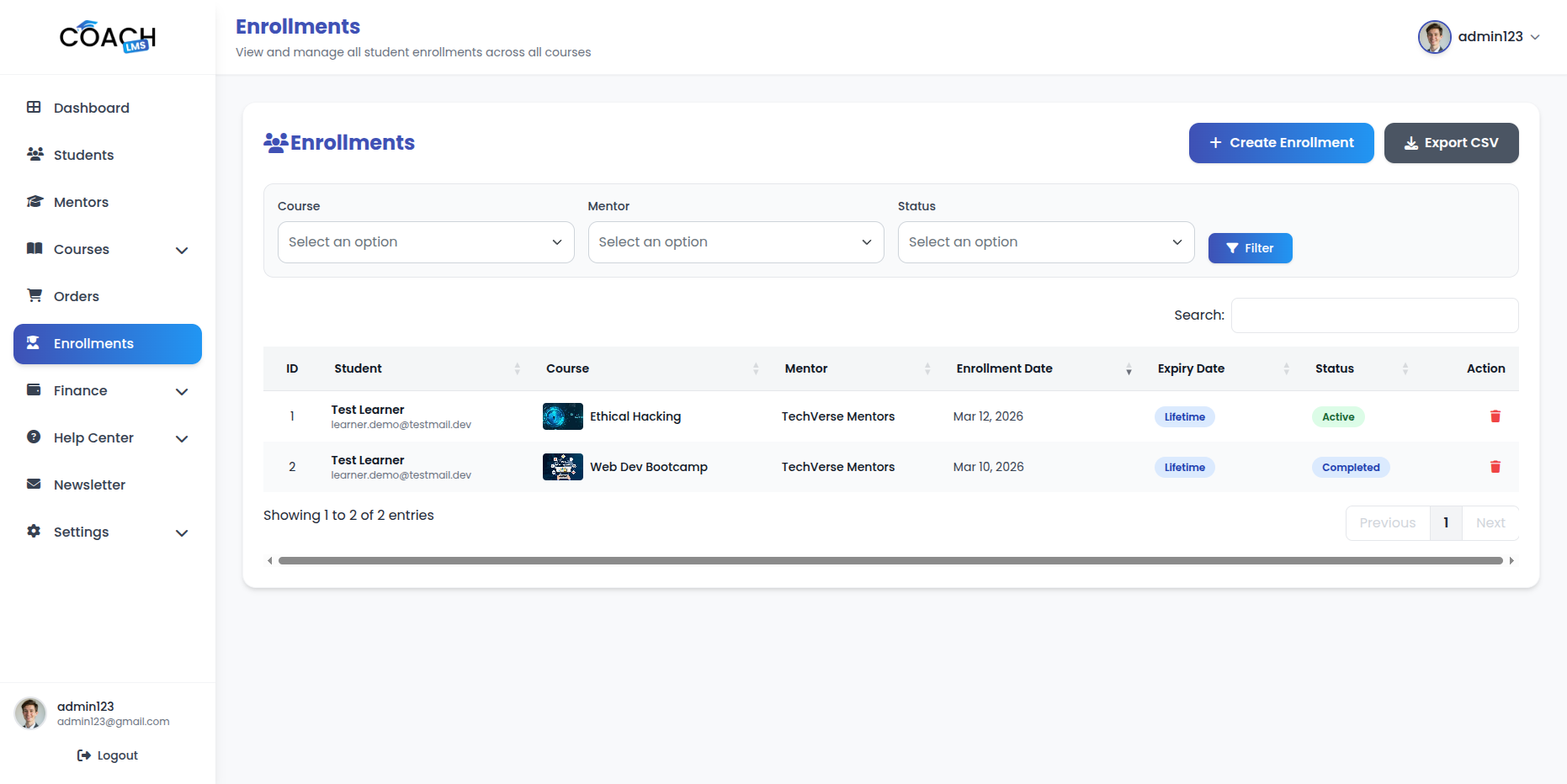
The Enrollment Management module allows Admins to manage student course enrollments. Admins can view all enrollments, create manual enrollments, filter enrollments, and export enrollment data.
Key Actions:
- View All Enrollments: Display all enrollments with search, filter, and pagination.
- Create Manual Enrollment: Add enrollments manually for students and courses.
- Filter Enrollments: Filter enrollments by course, student, mentor, status, or date range.
- Export Enrollments: Export enrollment data in CSV format.
- Delete Enrollments: Remove enrollments from the system when needed.
Finance Management
The Finance Management module provides comprehensive financial management including commission reports, revenue analytics, payment statistics, and payout management.
10.1 Financial Dashboard:
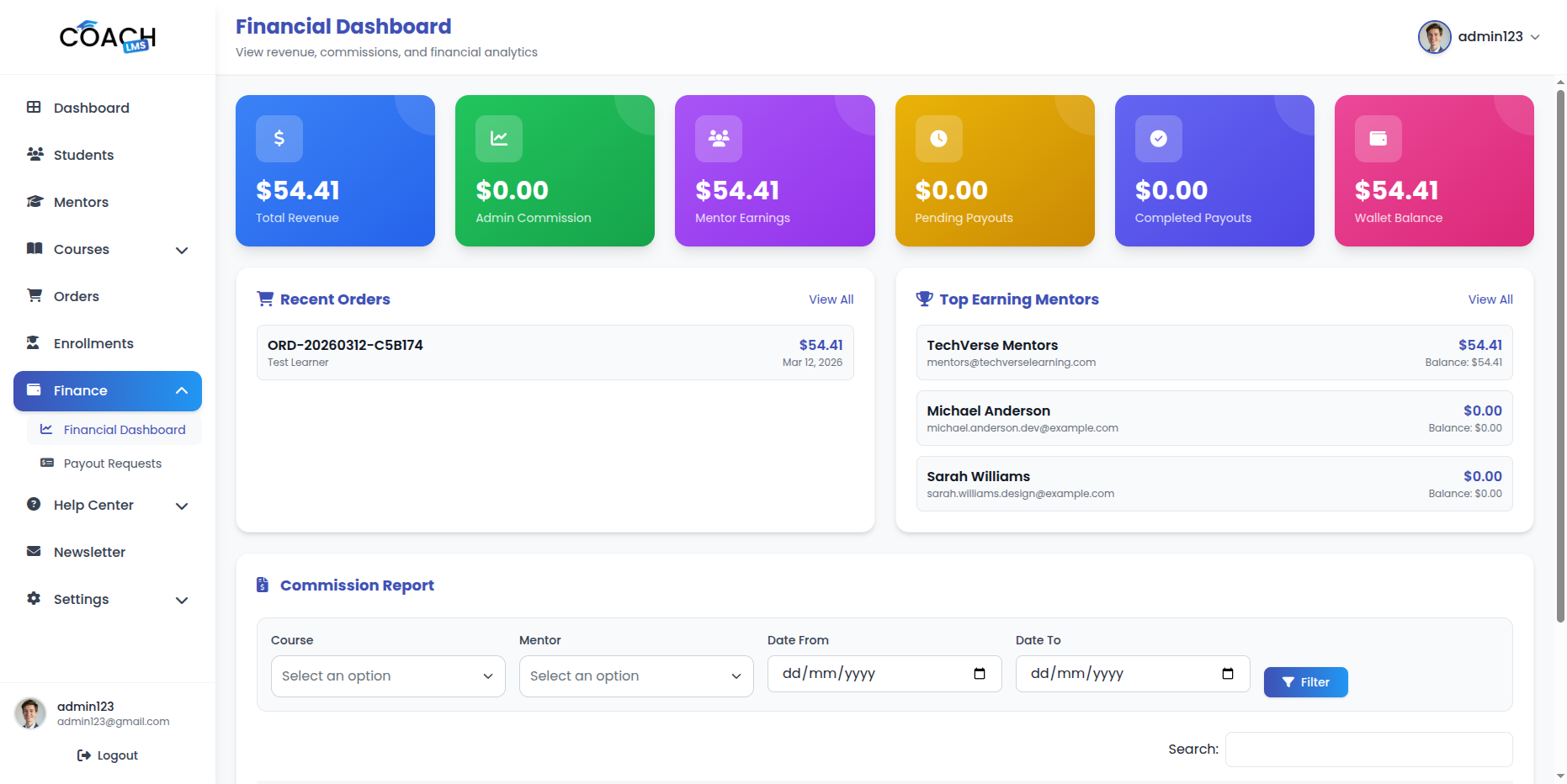
- Commission Reports: View commission reports with date range filtering.
- Revenue Analytics: View revenue analytics with monthly breakdown.
- Payment Statistics: View payment statistics by method and status.
10.2 Payout Management:
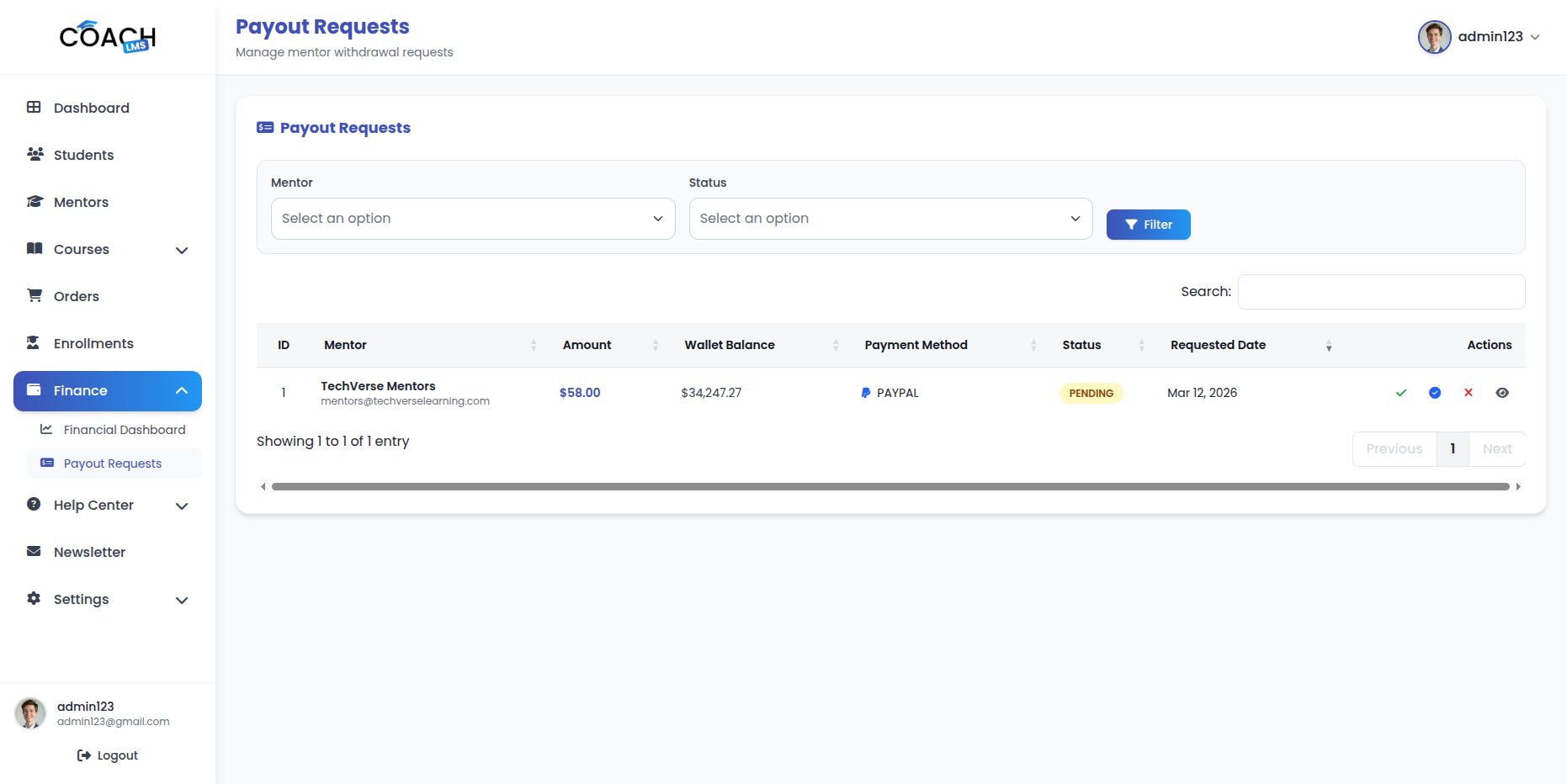
- View All Withdrawal Requests: View all mentor withdrawal requests with DataTable.
- View Payout Details: View complete payout information including mentor details, amount, method, and status.
- Approve Payout Requests: Approve withdrawal requests and process payments.
- Reject Payout Requests: Reject withdrawal requests with reason.
- Mark Payouts as Paid: Mark payouts as paid after processing.
- Process Payments: Process payments via Stripe, PayPal, or Razorpay.
- Create Payment Intents: Create payment intents for Stripe payments.
- Confirm Payments: Confirm payment processing.
Help Center Management
The Help Center Management module allows the Admin to manage help categories and FAQs for customer support.
11.1 Help Category Management:
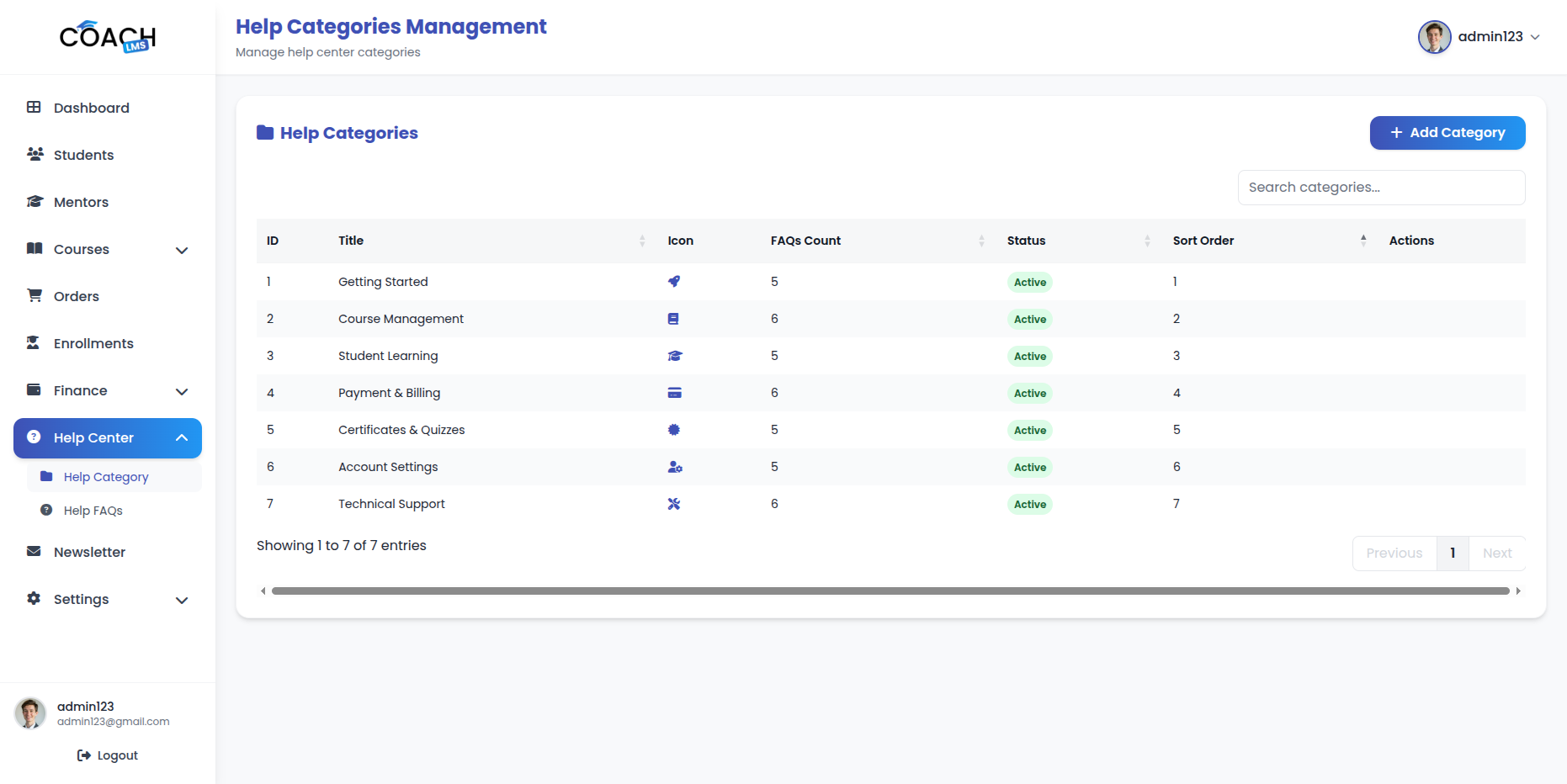
- Create Category: Create new help categories.
- Edit Category: Edit existing categories.
- Delete Category: Remove categories from the system.
- Manage Category Ordering: Update category display order.
11.2 Help FAQ Management:
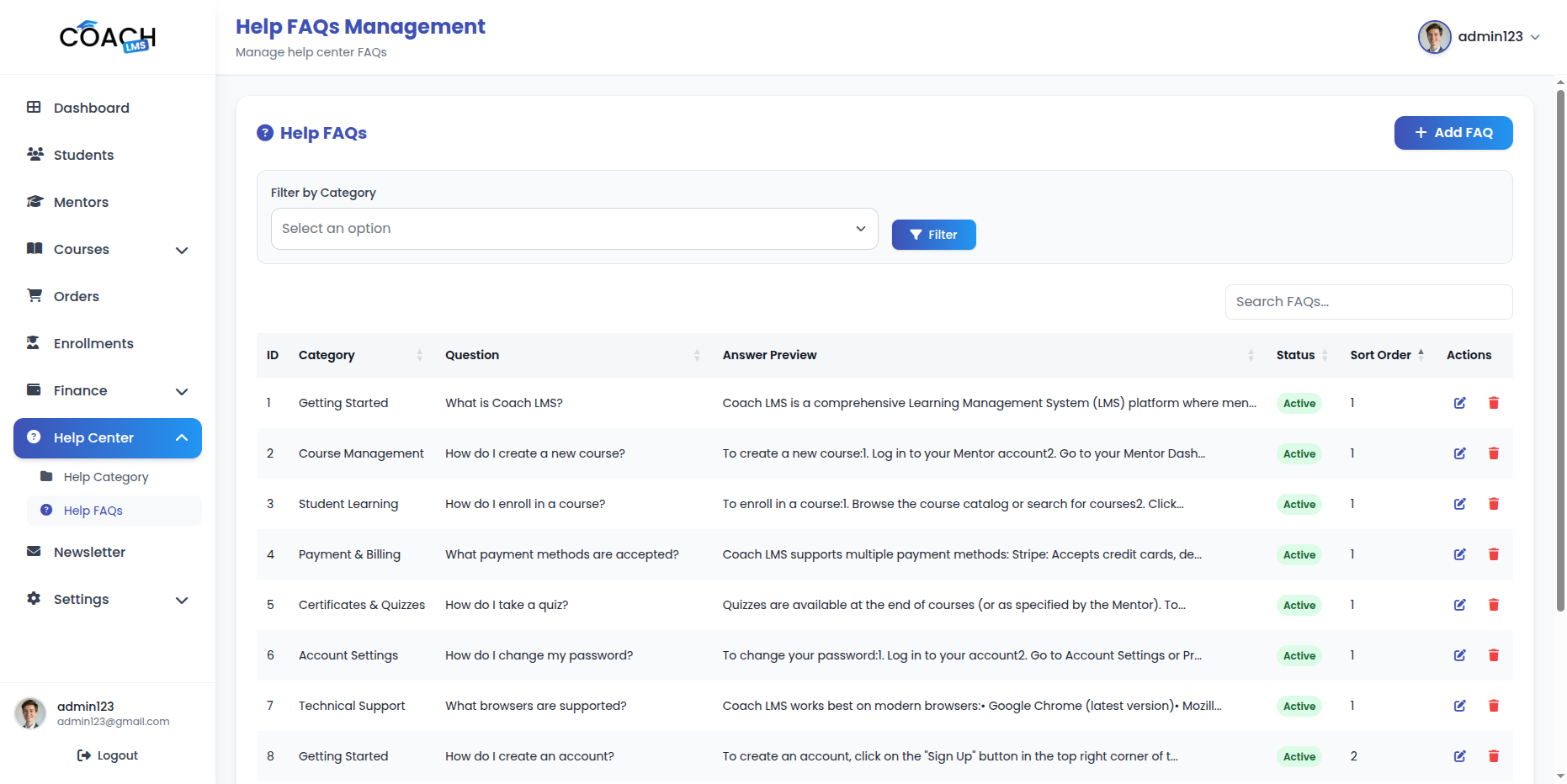
- Create FAQ: Create new help FAQs.
- Edit FAQ: Edit existing FAQs.
- Delete FAQ: Remove FAQs from the system.
- Assign FAQs to Categories: Organize FAQs by category.
- Manage FAQ Ordering: Update FAQ display order.
Newsletter Management
The Newsletter Management module allows the Admin to view and manage newsletter subscribers.
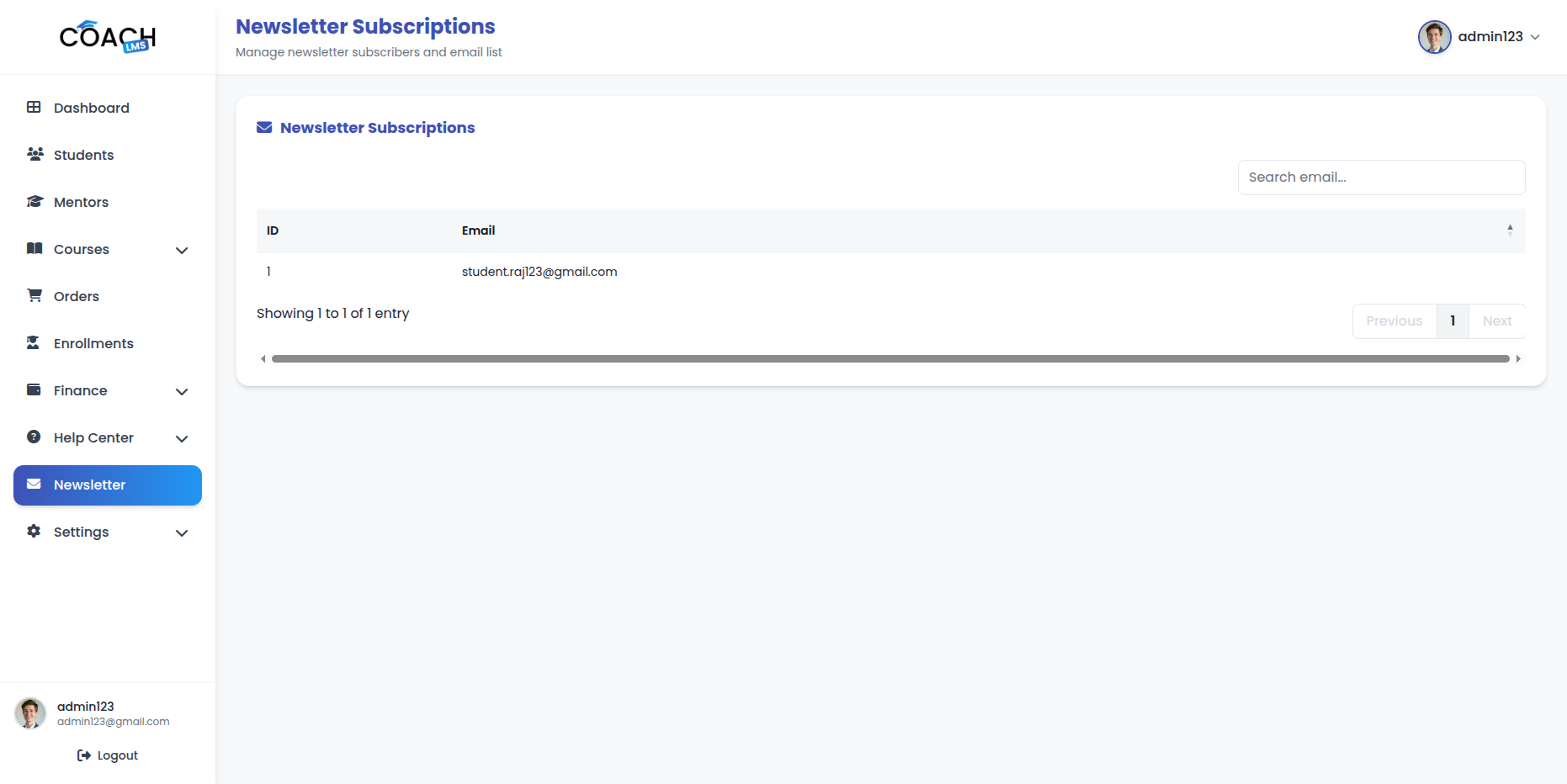
Key Actions:
- View All Subscribers: View all newsletter subscribers with DataTable (search, filter, pagination).
Settings Management
The Settings Management module allows the Admin to configure all system settings including general settings, Front site settings, payment gateway configuration, withdrawal method settings, commission settings, email settings, currency management, tax management, features management, FAQ management, mission & vision management, core values management, testimonials management, and page content management.
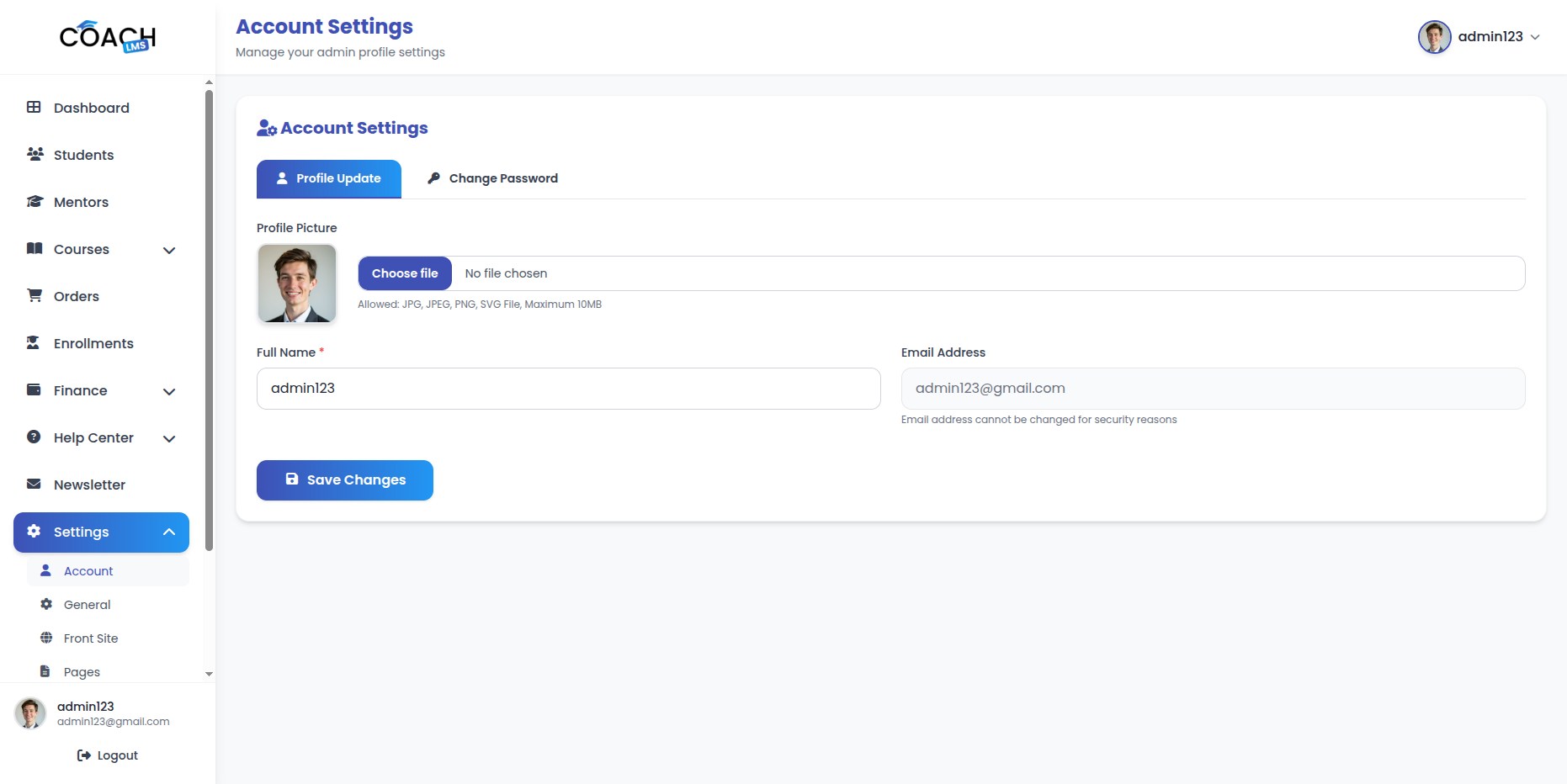
13.1 Account Setting
-
- Profile Information: From here you can update your account details, including profile information, phone number, and avatar.
- Change Password: You can update your password at any time. For better protection, make sure to use a strong and secure password.
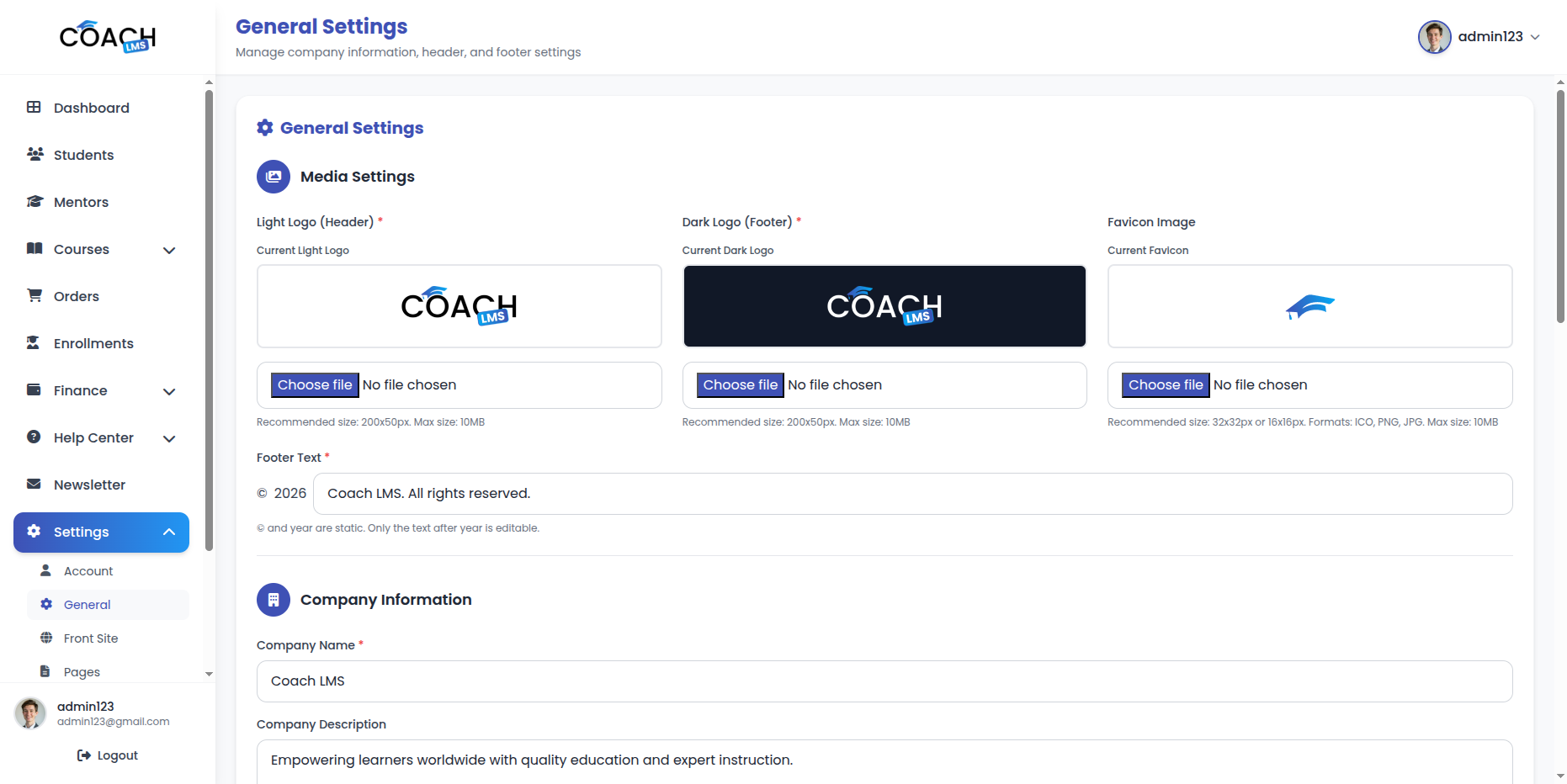
13.2 General Settings
-
- Site Name: Configure the site name
- Logo: Upload site logo (maximum 10MB)
- Favicon: Upload favicon (maximum 10MB)
- Default Currency: Set default currency
- Company Information: Configure company details
- Social Media Links: Configure the Social Media links
- SEO Settings: Configure the SEO description
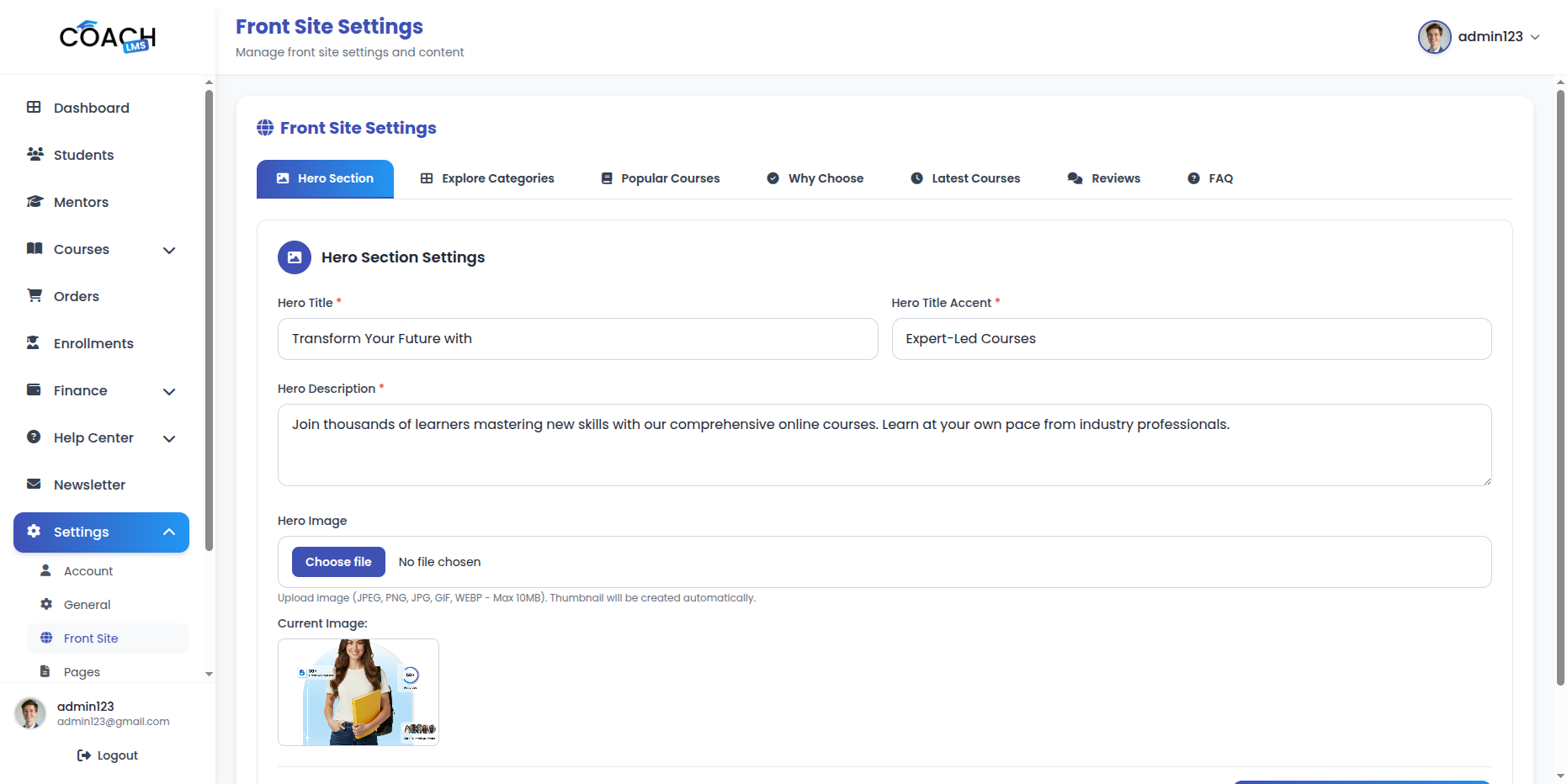
13.3 Front Site Settings
-
- Hero Section: Configure hero section title, description, and image
- Explore Categories Section: Configure category section title and subtitle
- Popular Courses Section: Configure popular courses section title and subtitle
- Why Choose Us Section: Configure features section (create, update, delete, filtering)
- Latest Courses Section: Configure latest courses section title and subtitle
- Testimonials Section: Configure testimonials section (create, update, delete, filtering)
- FAQ Section: Configure FAQ section (create, update, delete, filtering)
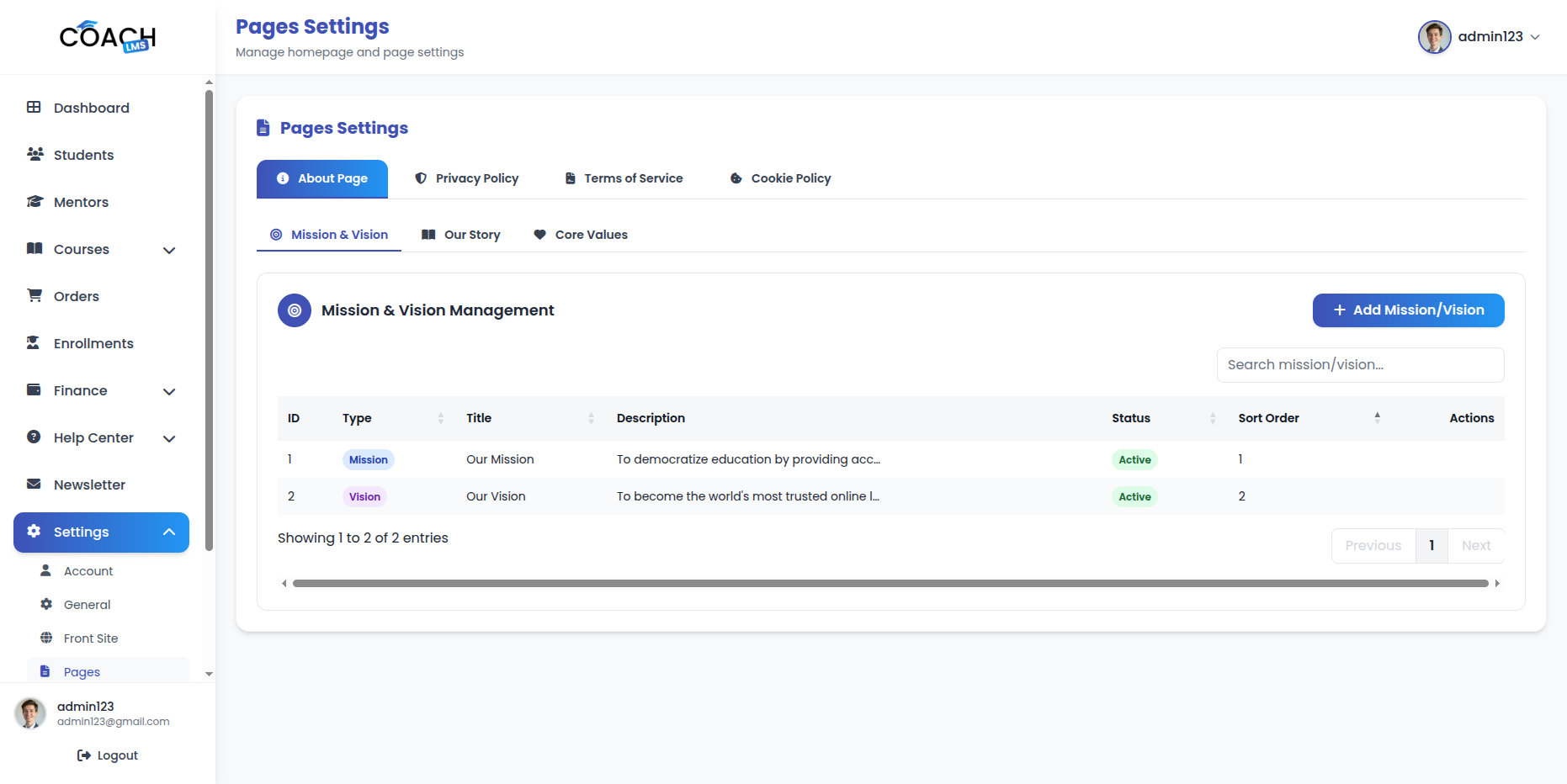
13.4 Page Content Management
-
- The Page Content Management module allows Admins to manage all static pages including policy pages, About Us content, header, and footer settings.
- Key Actions:
- Privacy Policy: Edit page title, description, and content using a rich text editor (supports HTML). Changes reflect immediately on the frontend.
- Terms of Service: Edit page title, description, and content with rich text editor (supports HTML). Updates are reflected on the frontend.
- Cookie Policy: Edit page title, description, and content using rich text editor (supports HTML). Changes appear immediately on the frontend.
- About Us Story: Edit story title and content (supports HTML). Upload, preview, or replace story image (JPEG, PNG, JPG, GIF, WEBP, Max 10MB). Content is displayed on the About page.
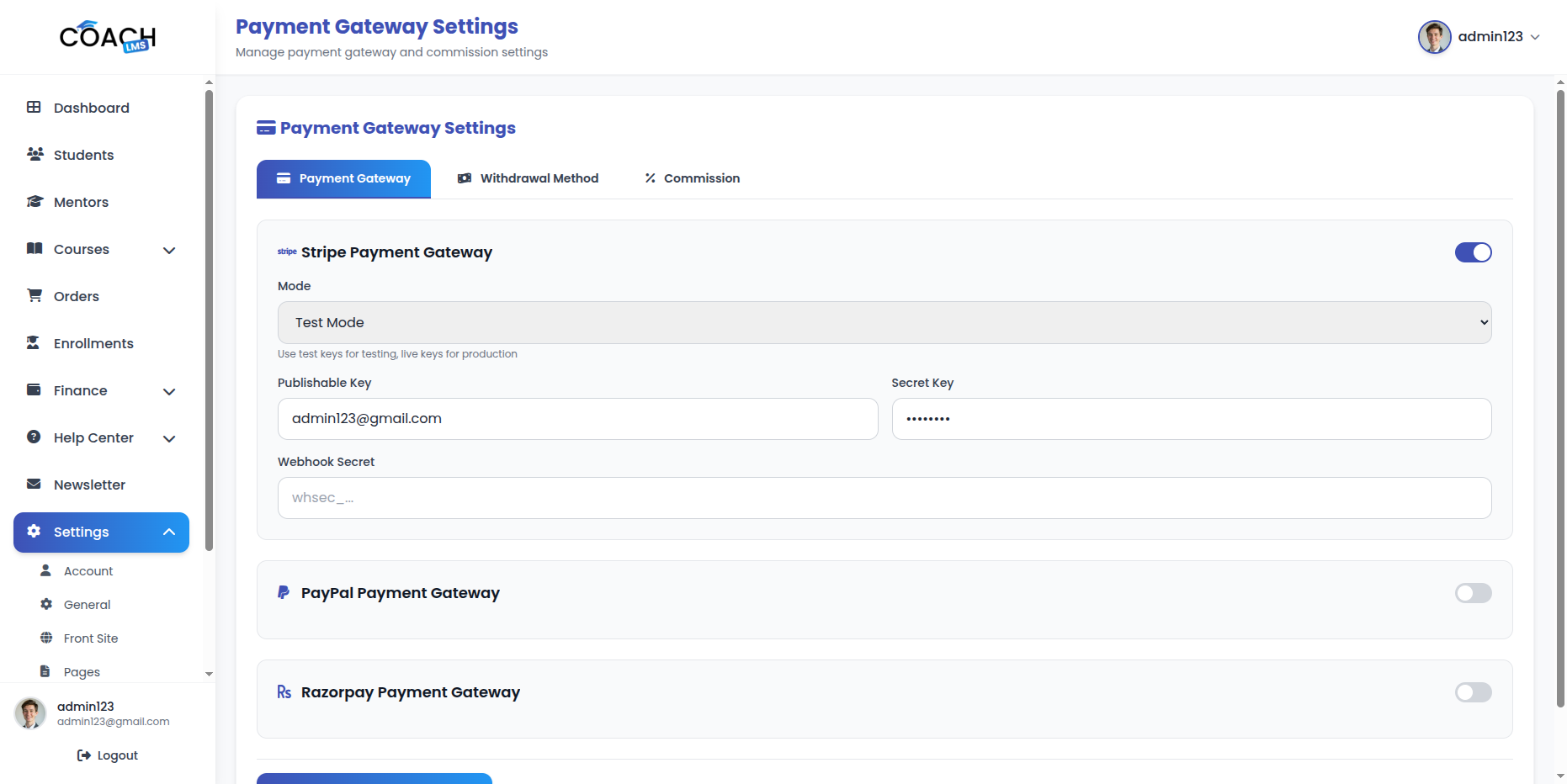
13.5 Payment Gateway Configuration
-
- The Payment Gateway Configuration module allows Admins to set up and manage online and offline payment methods.
Key Actions:
-
-
- Stripe Settings: Select Test/Live mode, enter Publishable Key and Secret Key
- PayPal Settings: Select Test/Live mode, enter Client Email
- Razorpay Settings: Select Test/Live mode, enter Key ID and Secret
- Offline Payment Methods: Configure instructions for offline payments
-
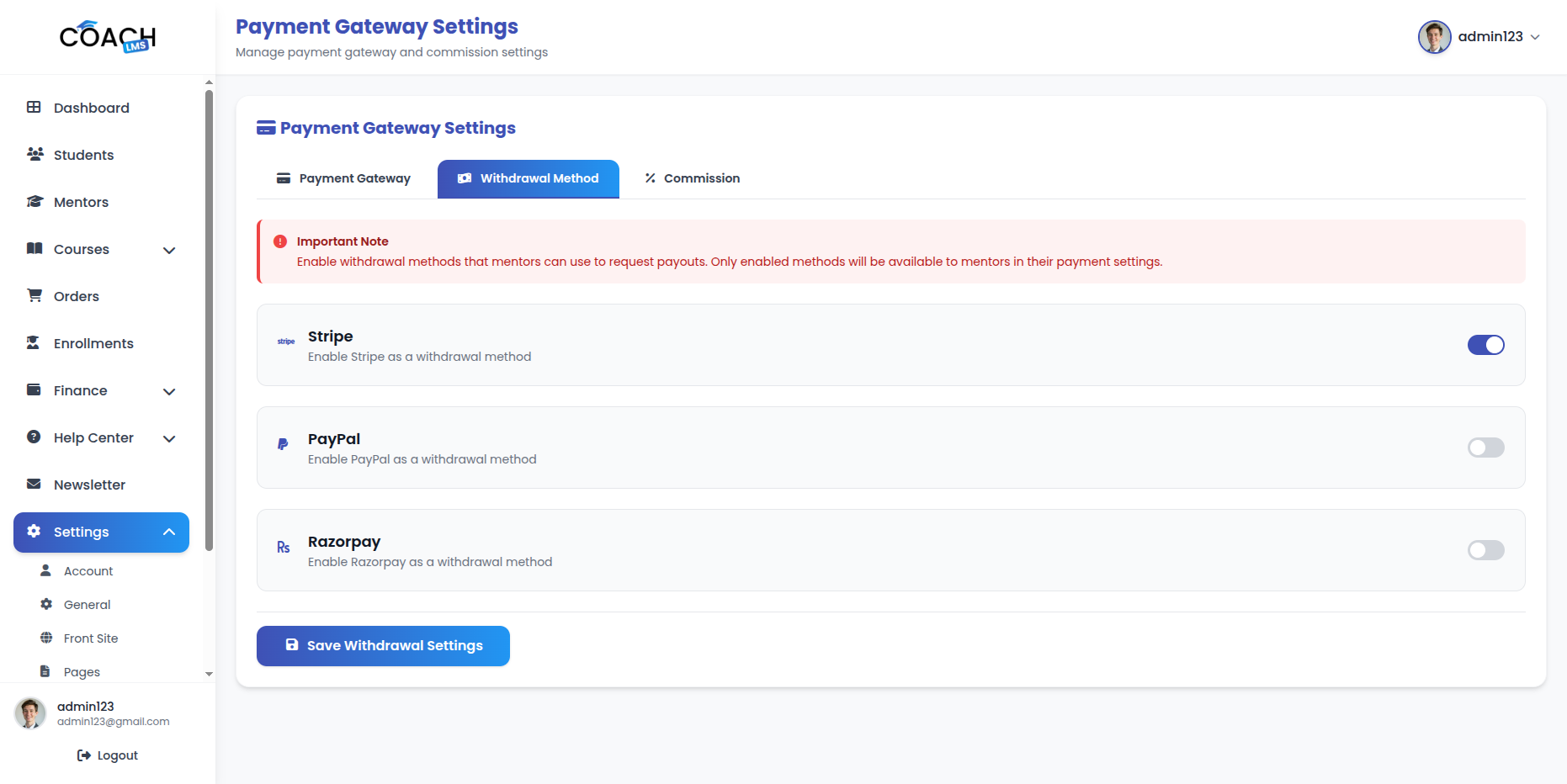
13.6 Withdrawal Methods
-
- The Withdrawal Methods module allows Admins to manage and process withdrawals through different payment gateways.
- Key Actions:
- PayPal: Enable or disable withdrawals via PayPal. Mentors can use only if enabled.
- Stripe: Enable or disable withdrawals via Stripe. Mentors can use only if enabled.
- Razorpay: Enable or disable withdrawals via Razorpay. Mentors can use only if enabled.
13.7 Commission Settings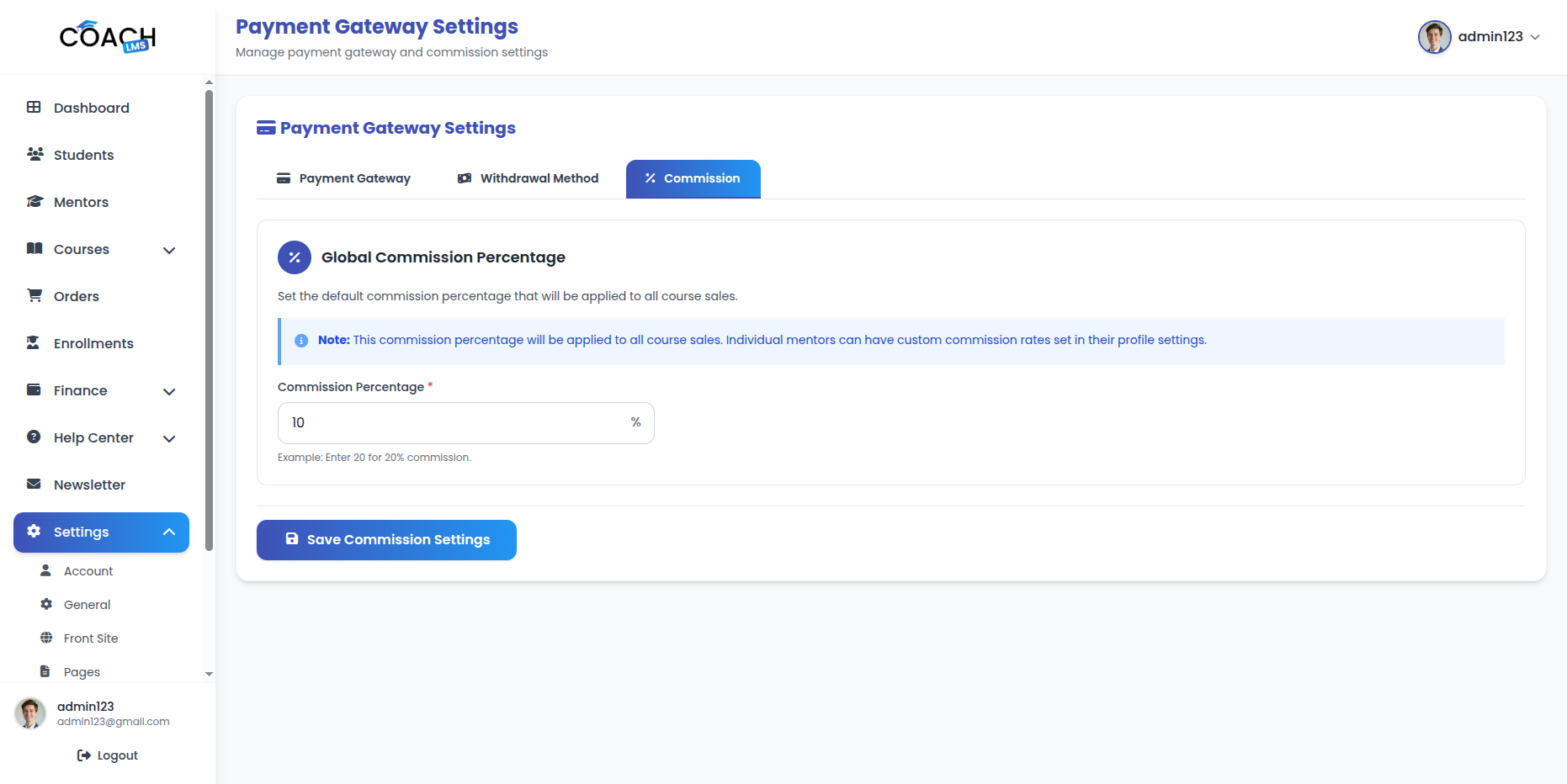
-
- The Commission Settings module allows Admins to define the commission structure for courses.
- Key Action: Admin Commission Percentage: Set the percentage of course earnings that the admin will receive as commission.
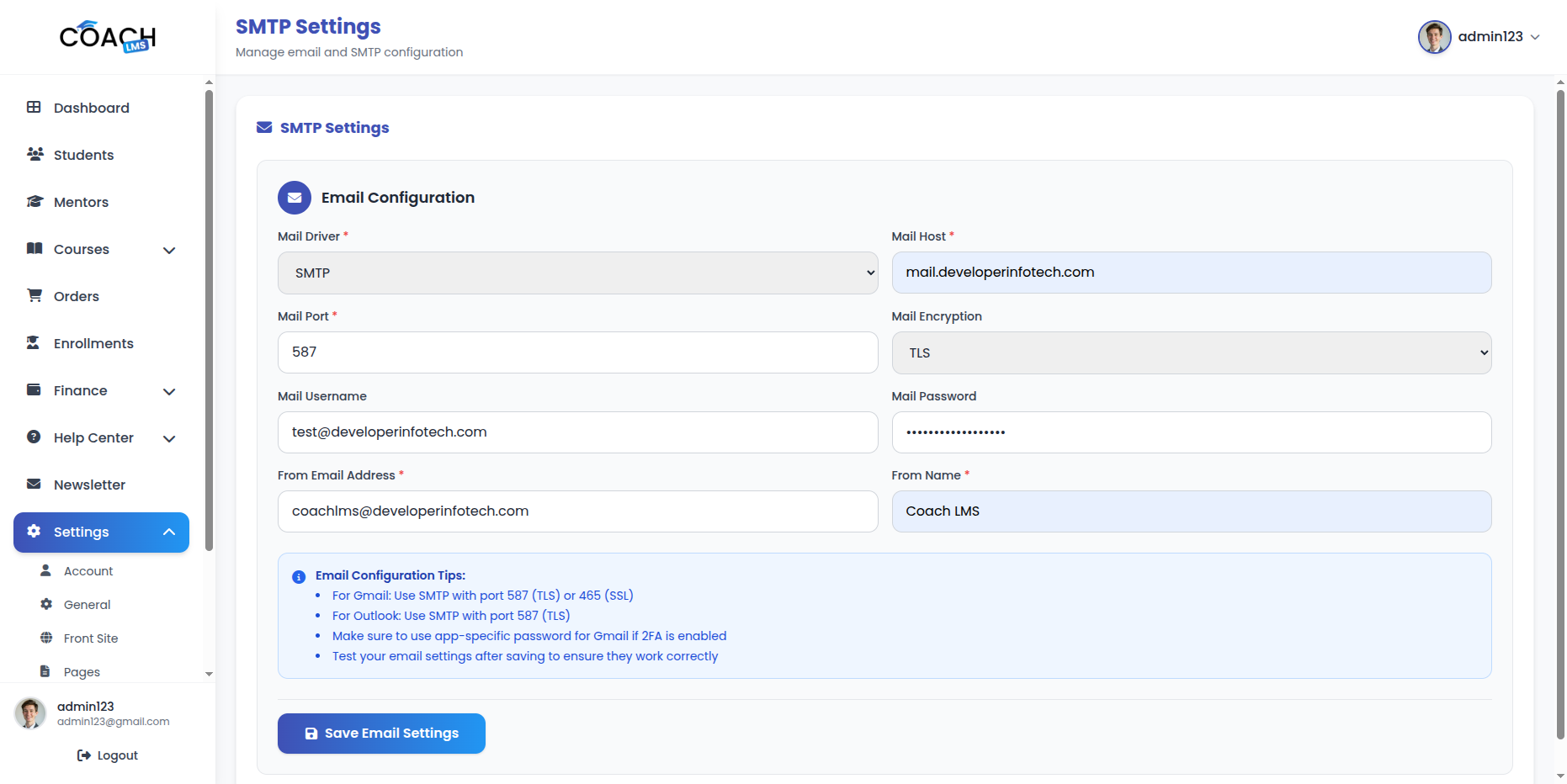
13.8 Email Settings (SMTP)
-
- The Email Settings module allows Admins to configure SMTP settings for sending system emails.
- Key Actions:
- SMTP Host: Set the SMTP server host
- SMTP Port: Configure the SMTP server port
- SMTP Encryption: Choose encryption type (TLS/SSL)
- SMTP Username: Enter SMTP username
- SMTP Password: Enter SMTP password
- From Email: Set the sender email address
- From Name: Set the sender name
- Test Email: Send a test email to verify configuration
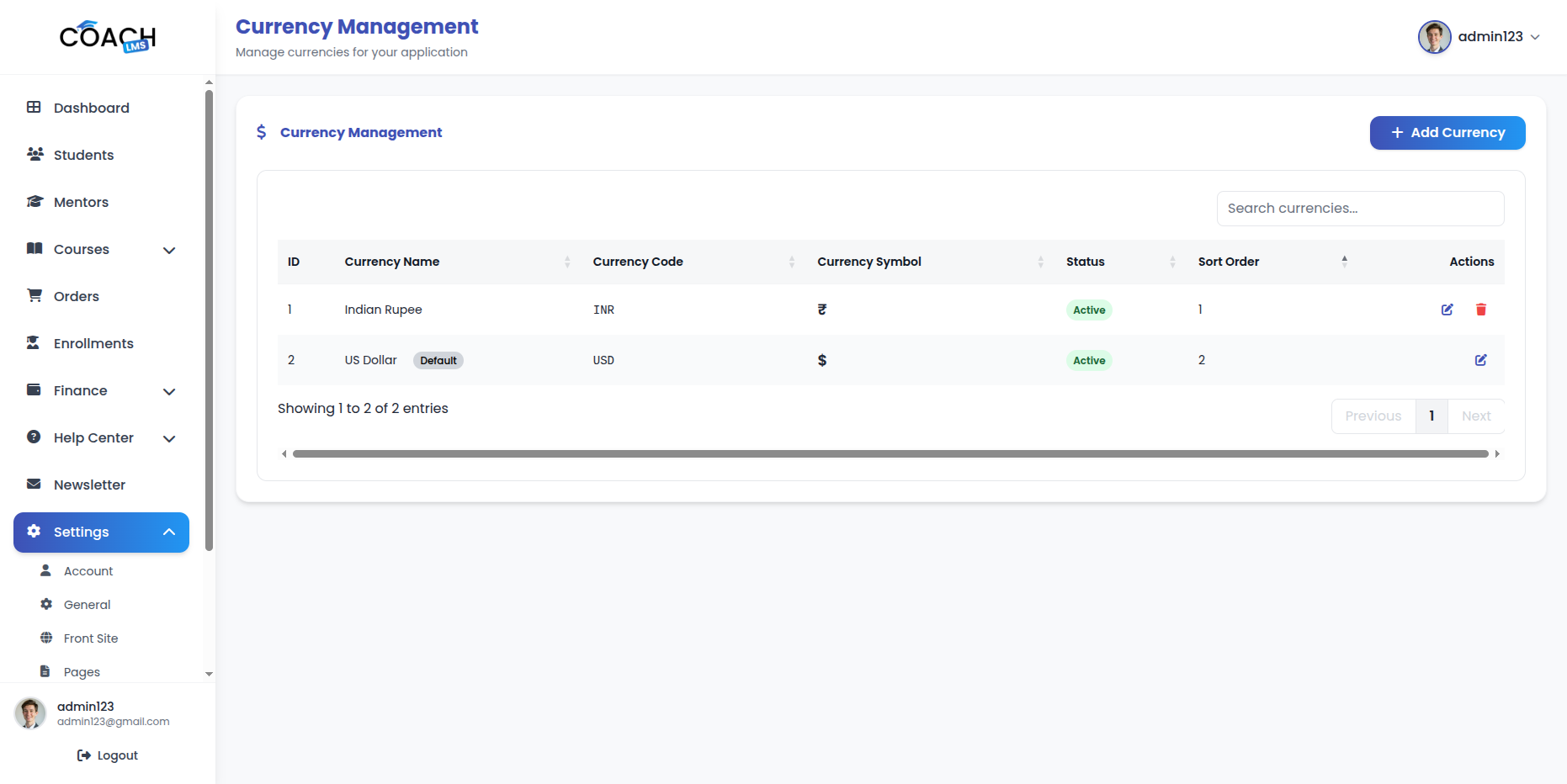
13.9 Currency Management
-
- The Currency Management module allows Admins to manage and configure platform currencies.
- Key Actions:
- Add Currency: Add new currencies to the system
- Edit Currency: Update existing currency details
- Delete Currency: Remove currencies from the system
- Set Currency Formatting: Configure decimal places and number formatting
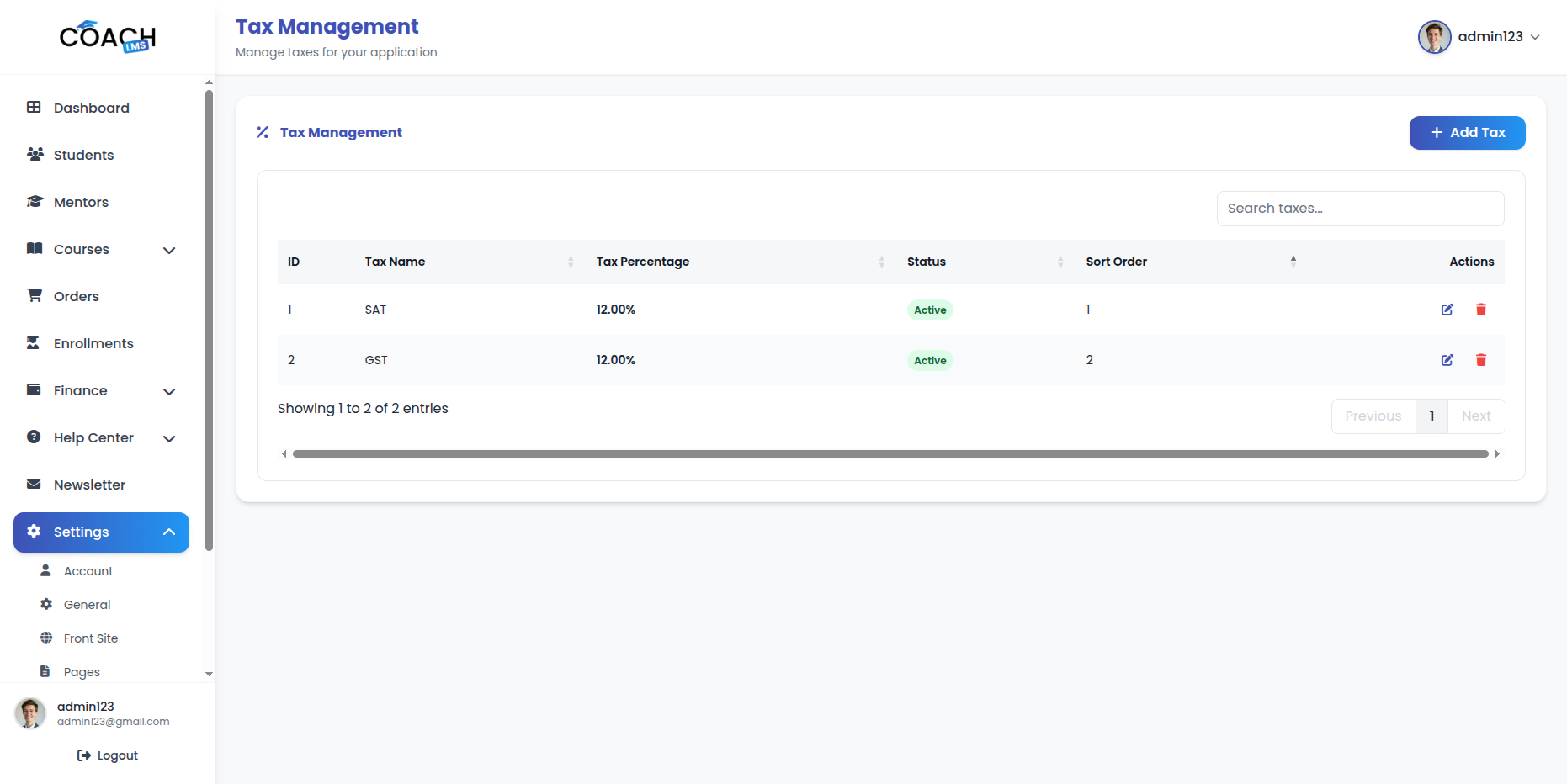
14. Tax Management
-
- The Tax Management module allows Admins to manage and configure taxes for courses and platform transactions.
- Key Actions:
- Add Tax Rate: Add new tax rates to the system
- Edit Tax Rate: Update existing tax rates
- Delete Tax Rate: Remove tax rates from the system
- Configure Tax Calculation: Set the method for tax calculation
Mentor Panel
Profile
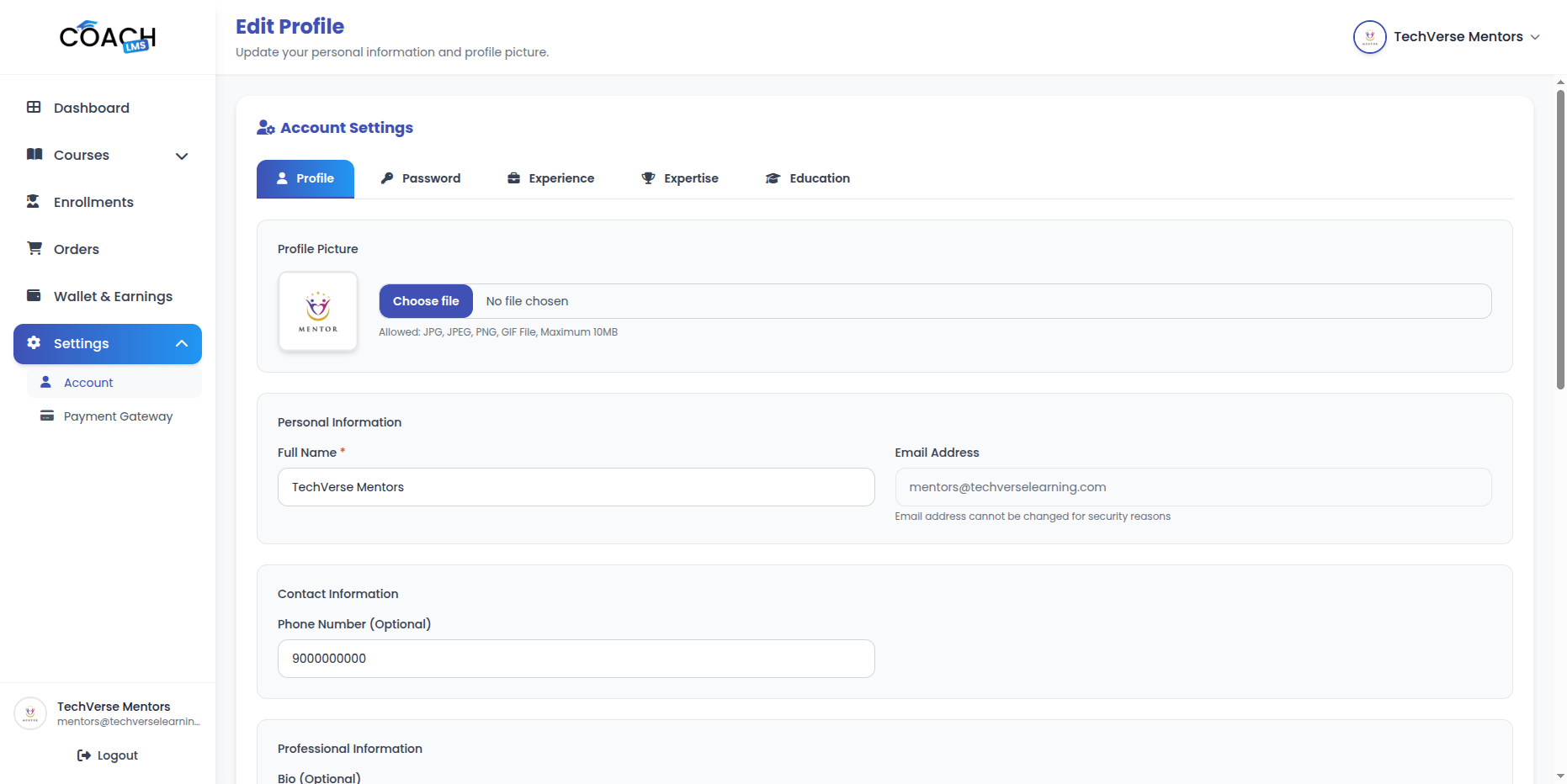
The Profile section allows users to manage their personal account information and security settings.
Profile Information
Update account details including name, phone number, bio, specialization, profile picture, and social media links.
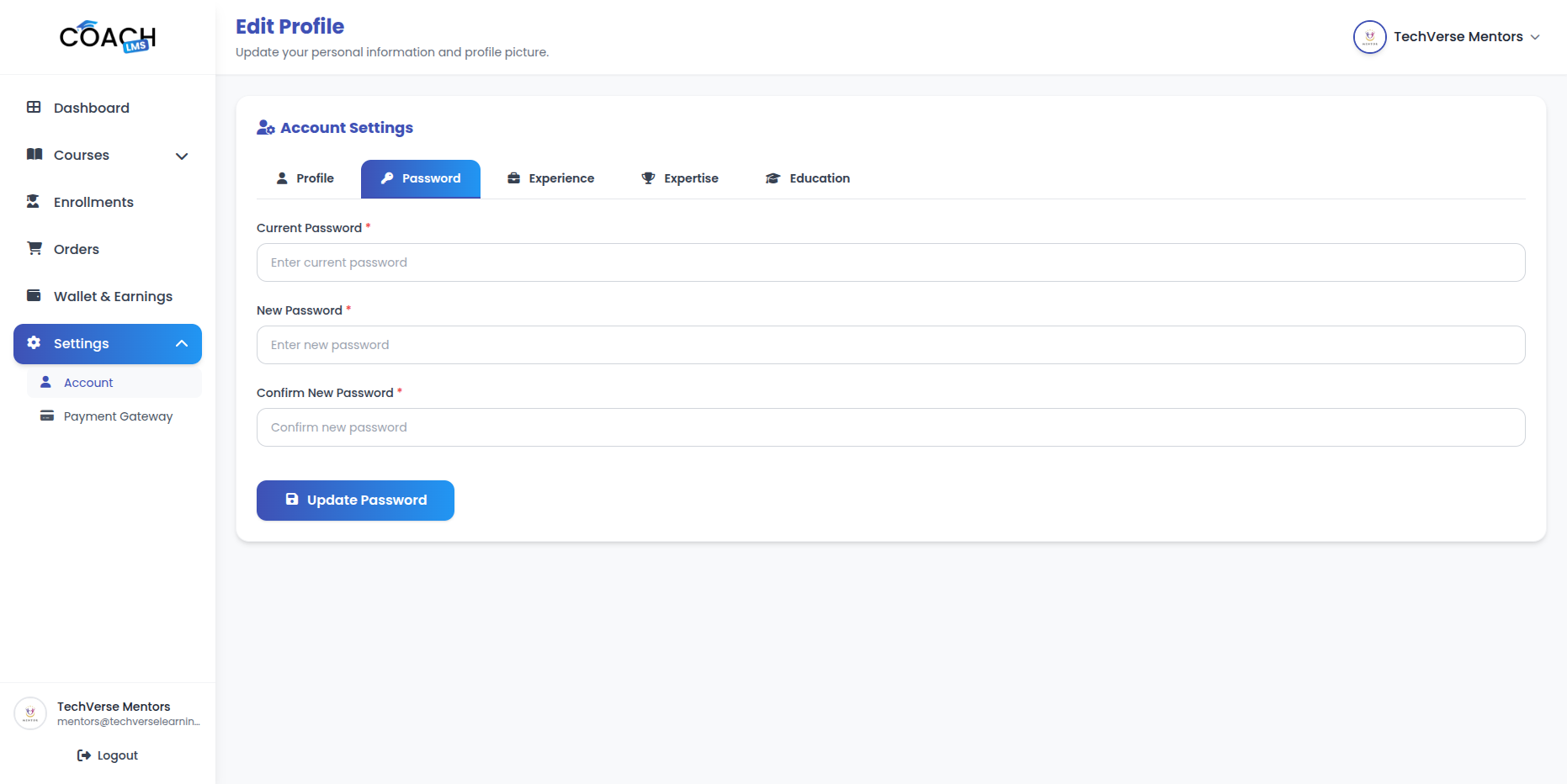
Change Password
Update your account password at any time. For better security, it is recommended to use a strong and secure password.
Dashboard
The Dashboard provides a comprehensive overview of mentor performance, showing key metrics like revenue, courses,students, enrollments, and earnings. It also displays revenue analytics with target tracking, performance metrics, course status breakdown, and recent activities for easy daily monitoring.
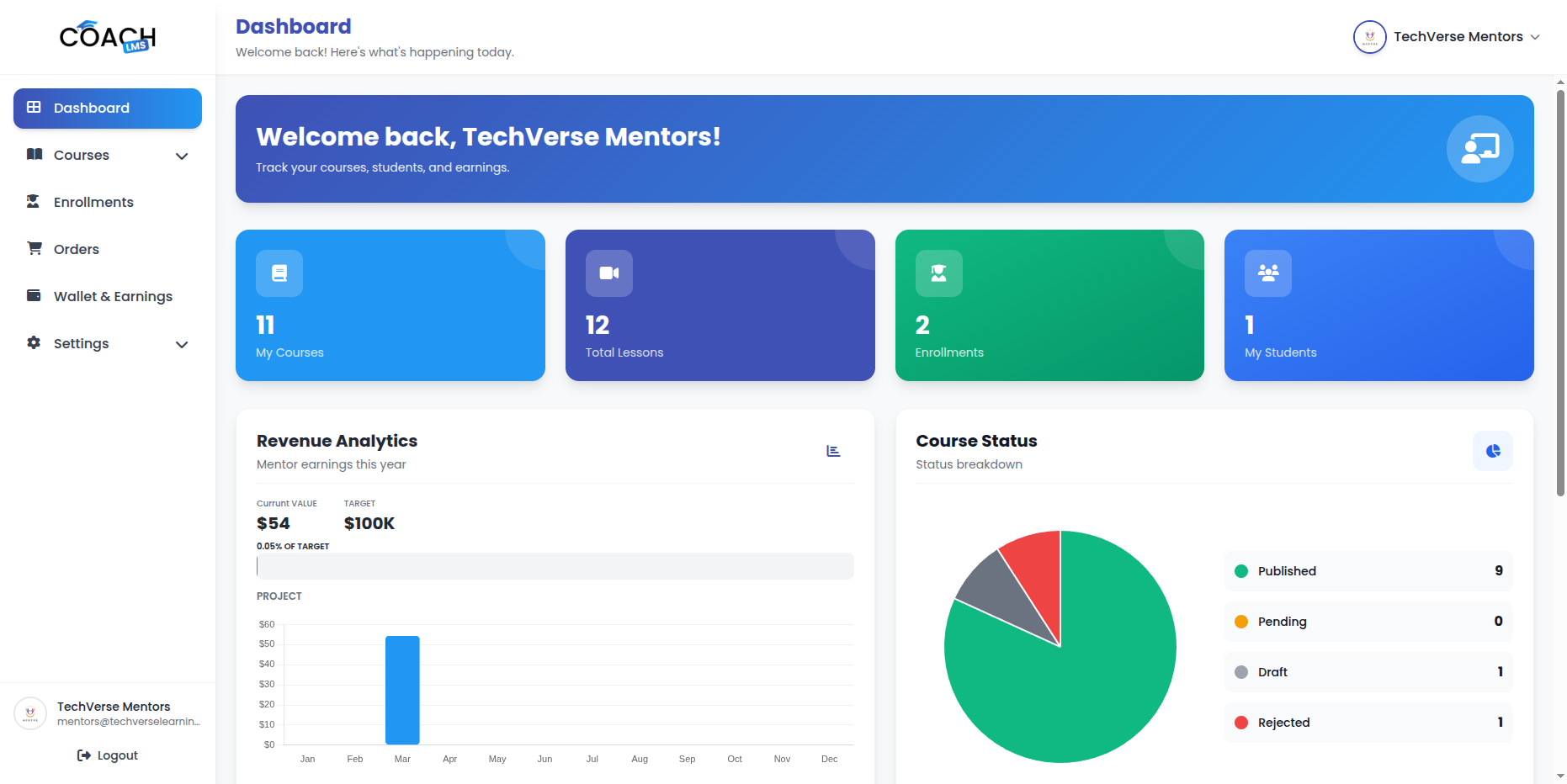
Revenue Analytics
The Revenue Analytics module provides a visual overview of platform revenue performance.
Key Features:
- Column Chart: Displays monthly revenue trends visually.
- Current Revenue: Shows the current revenue amount with K/M formatting.
- Target Revenue: Displays the target revenue.
- Percentage Achieved: Shows the percentage of the target revenue achieved.
- Progress Bar: Visual progress indicator with milestone labels.
Performance Metrics
The Performance Metrics module provides an overview of financial and course performance.
Key Metrics:
- Current Balance: Displays the current wallet balance.
- Total Earned: Shows lifetime earnings from course sales.
- Total Withdrawn: Displays the total amount withdrawn.
- Pending Withdrawal: Shows the amount in pending withdrawal requests.
- Published Courses: Displays the number of published courses.
- Average Earnings per Course: Shows the average revenue generated per course.
- Student Ratio: Displays the enrollment-to-student performance metric.
Course Status Breakdown
Provides a visual overview of course statuses.
Key Features:
- Pie Chart: Displays distribution of courses by status.
- Status List: Shows count of Published, Pending, Draft, and Rejected courses.
Recent Activities
Displays recent system activities for quick tracking.
Key Features:
- Last 6 Activities: Shows the latest six activities in a fixed-height view.
- Activity Type: Displays the type of activity (course created, enrollment, etc.).
- Activity Description: Brief description of the activity.
- Date and Time: Shows full date and time with a clock indicator.
- Quick Statistics
Provides a quick summary of platform performance.
Metrics:
- Total Courses: Total number of courses created.
- Total Students: Total number of students enrolled.
- Total Enrollments: Total course enrollments.
- Total Revenue: Total revenue generated.
Course Management
The Course Management module allows mentors to create and manage their own courses. Mentors can create courses, edit courses, submit courses for review, update course status, delete courses, and manage course deletion requests.
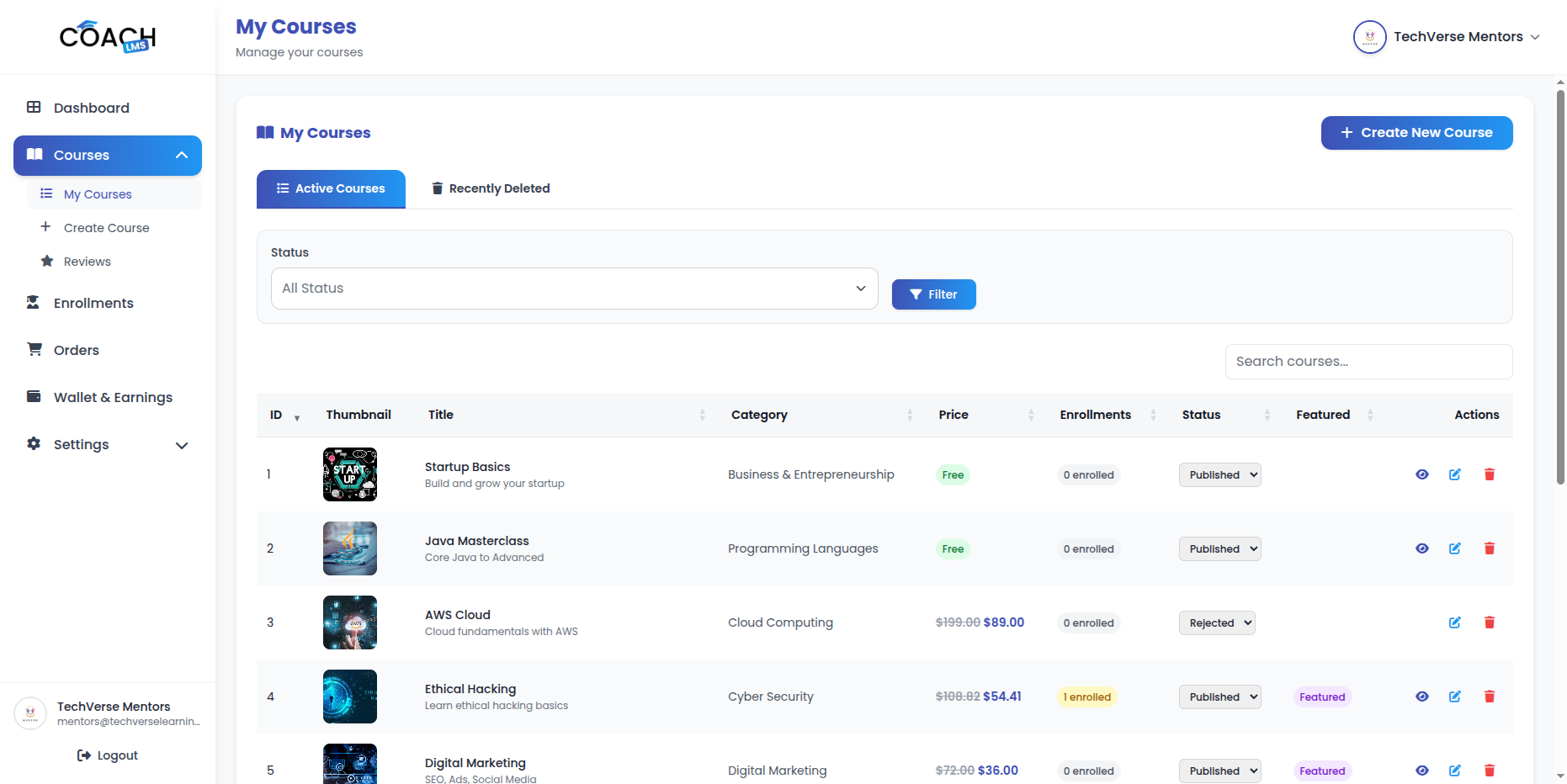
Key Actions
- Create Course: Create a new course by adding title, description, short description, category, price and sale price, level, language, duration, status, and course image.
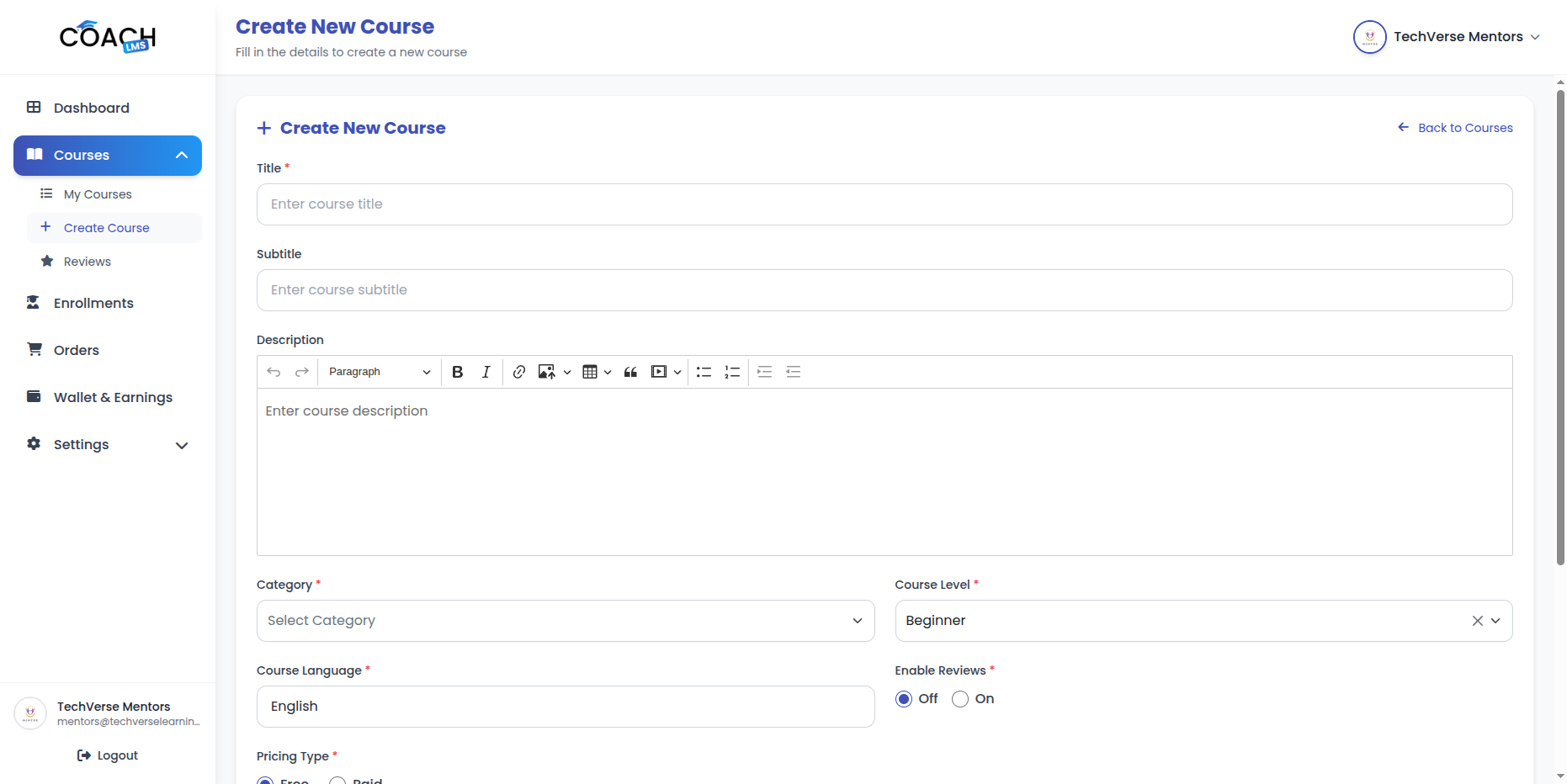
- Edit Course: Update all course details at any time.
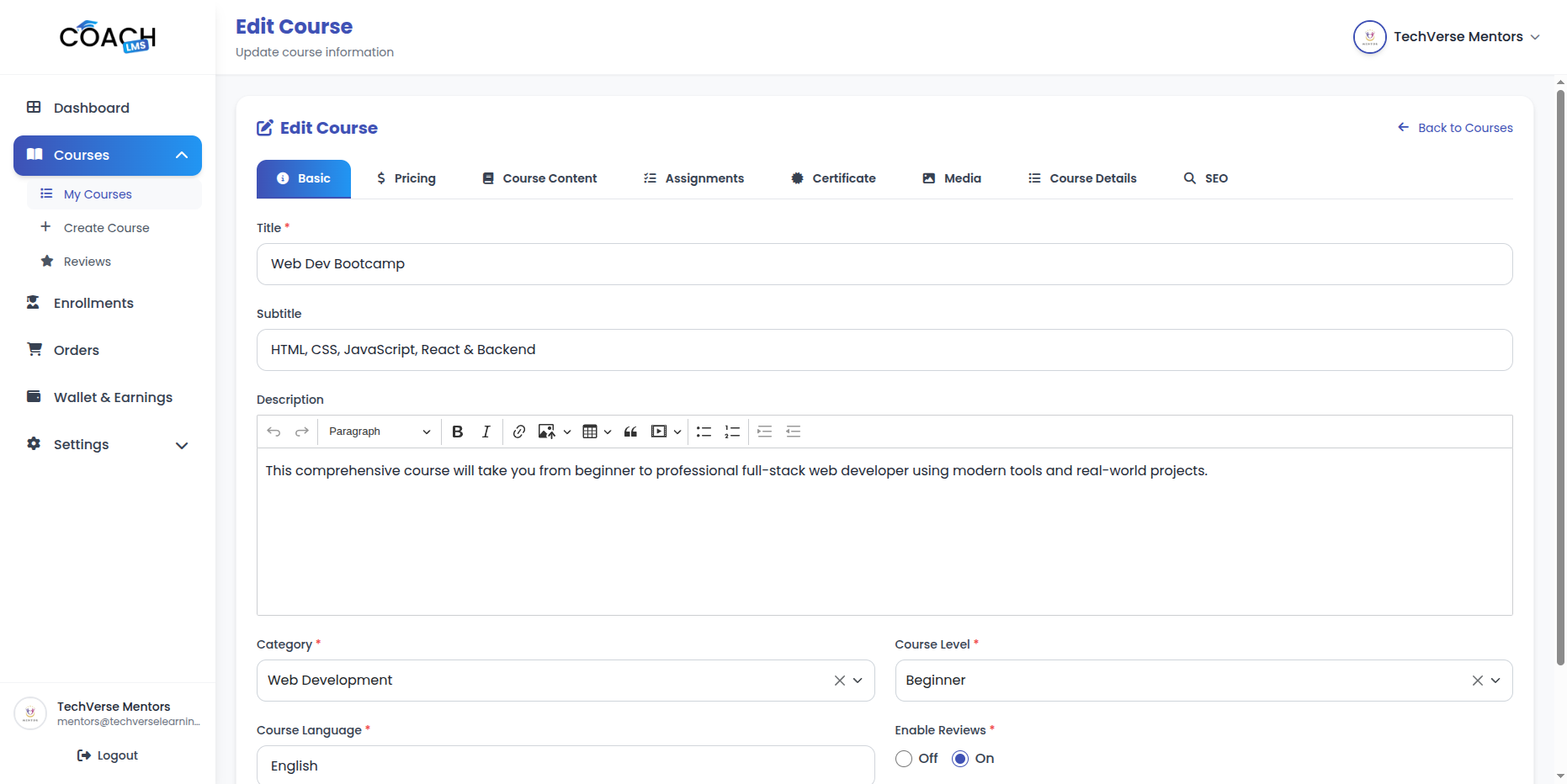
- View Course Details: View complete course information including the full curriculum.
- Submit Course for Review: Submit courses to the Admin for approval.
- Update Course Status: Change course status between Draft and Pending.
- Delete Course: Request deletion of courses by submitting a deletion request to the Admin.
- View Deleted Courses: View the list of deleted courses.
- Approve/Reject Deletion Requests: Approve or reject your own course deletion requests.
3.1 Curriculum Management
The Curriculum Management module allows Mentors to manage course curriculum, including sections, lectures, and quizzes for their own courses.
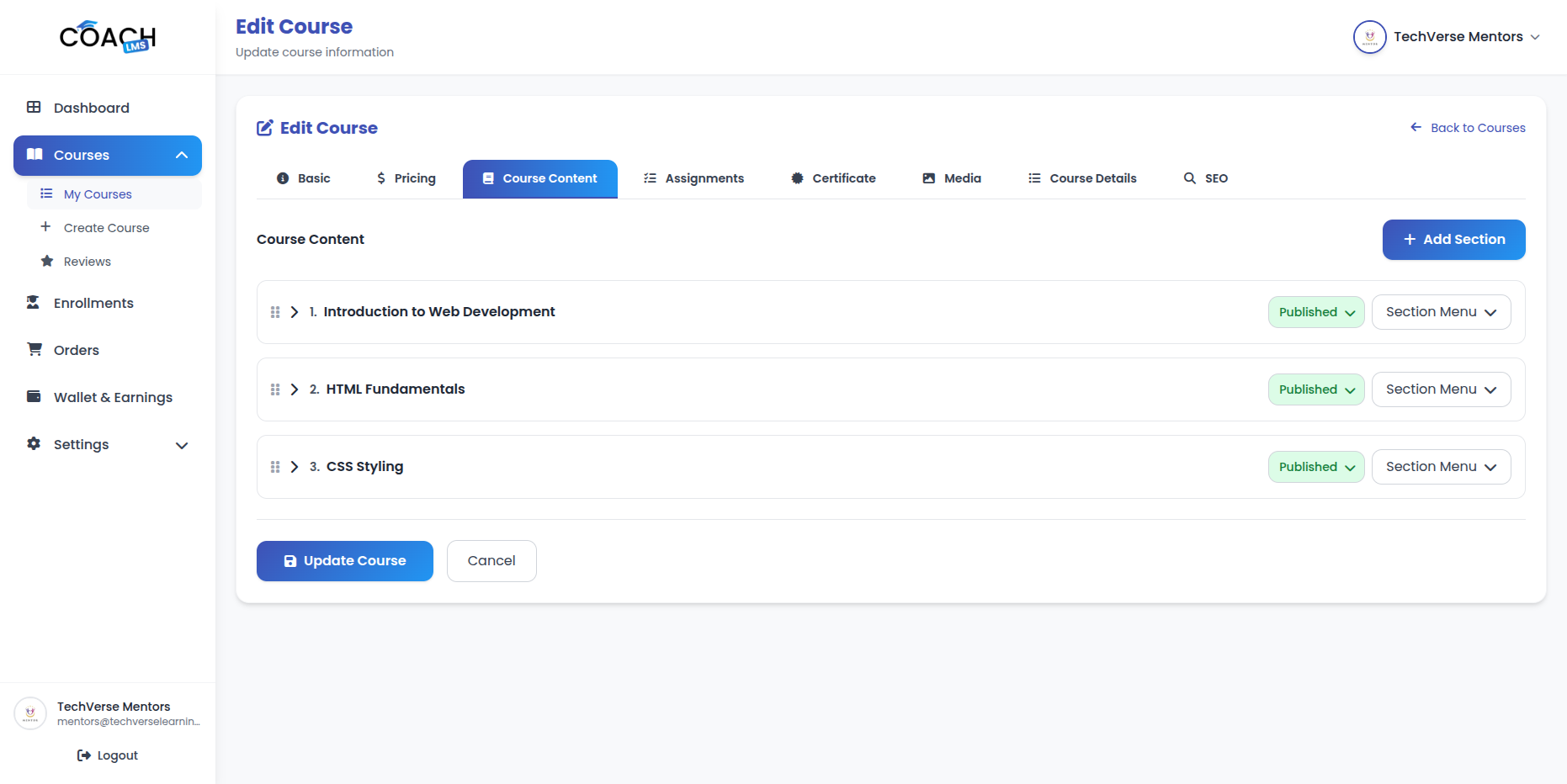
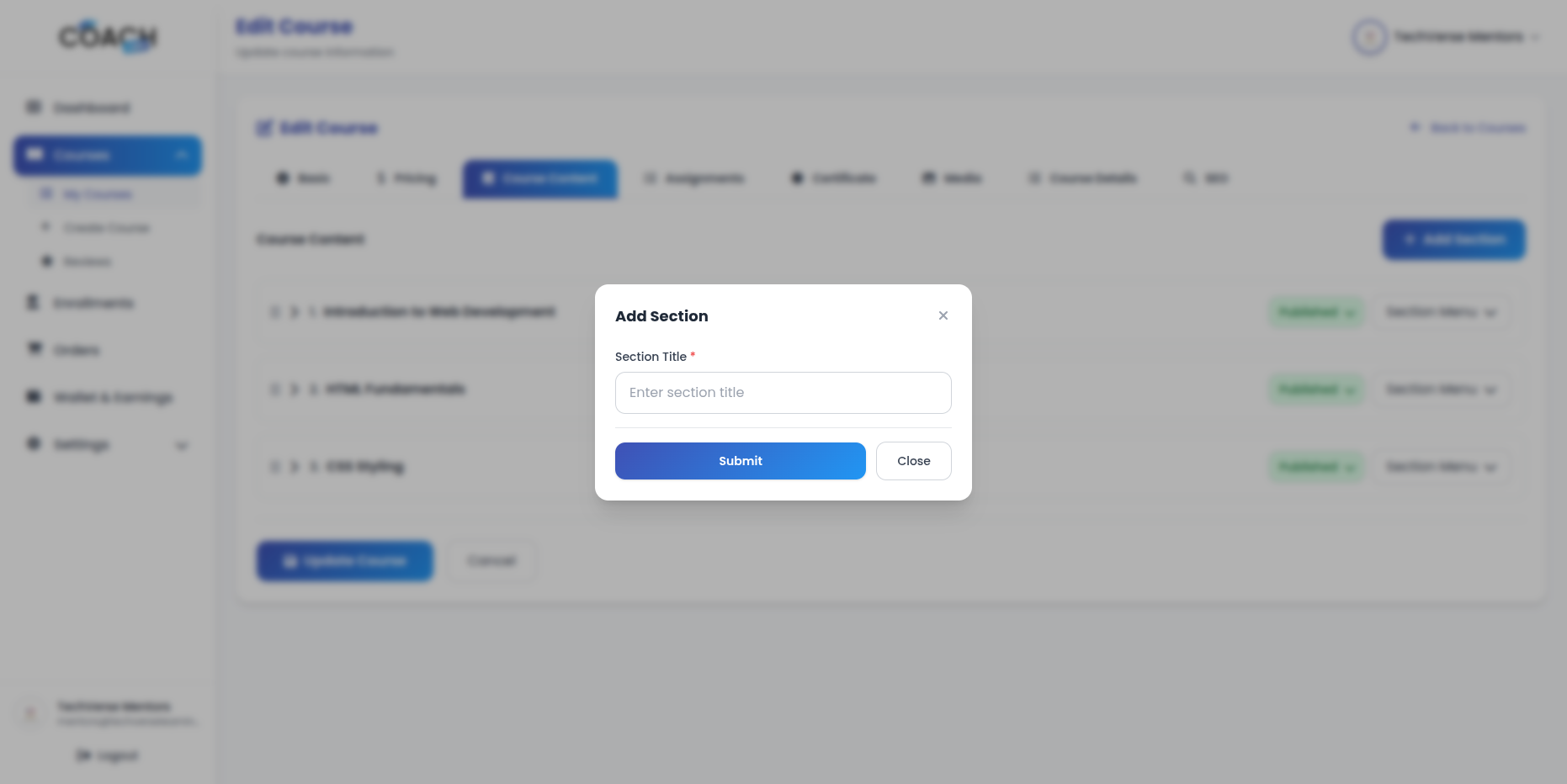
3.2 Sections Management
-
- Create, edit, or delete course sections.
- Reorder sections using drag & drop.
- Enable or disable sections as needed.
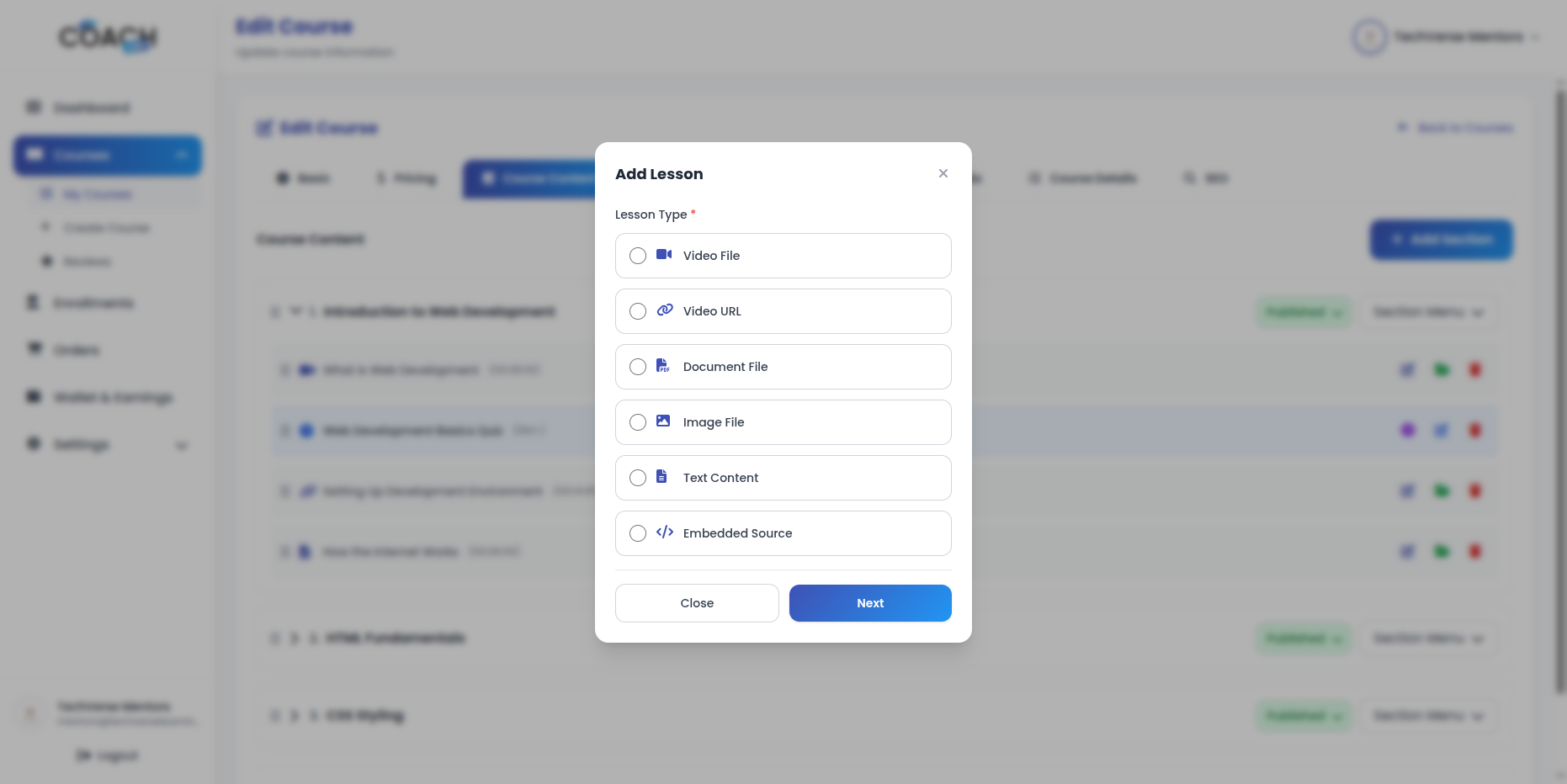
3.3 Lectures Management
-
- Create, edit, or delete lectures.
- Upload lecture videos and set lecture duration.
- Reorder lectures using drag & drop.
- Manage lecture resources (upload, download, delete). Lecture resources support PDF, DOC, DOCX, ZIP, RAR, and 7Z formats.
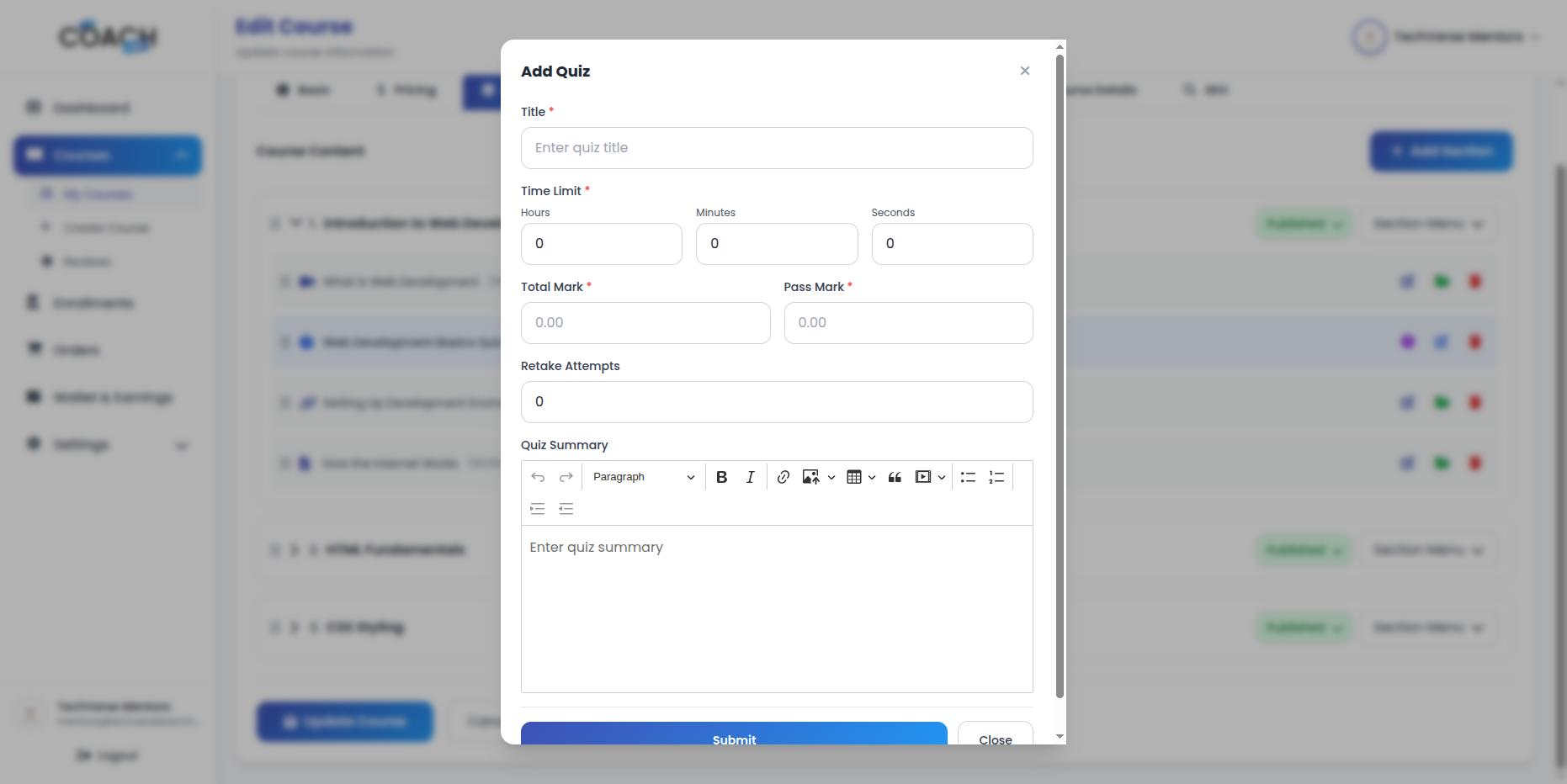
3.4 Quizzes Management
-
- Create, edit, or delete quizzes.
- Set quiz duration and passing score.
- Reorder quizzes using drag & drop.
- Manage quiz questions including:
- Multiple choice questions with multiple options.
- True/False questions.
- Add correct answers and assign points.
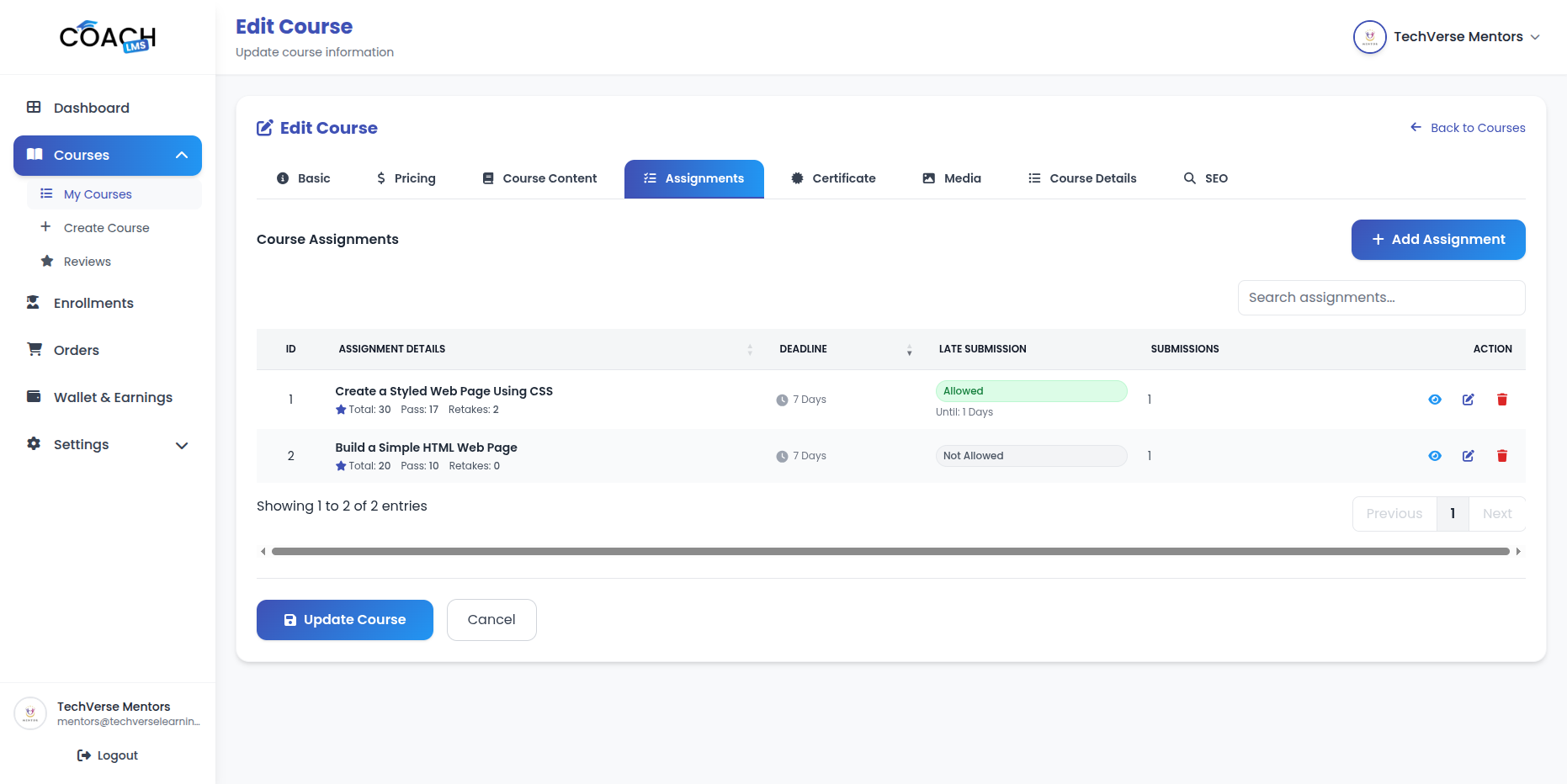
3.5 Assignment Management
The Assignment Management module allows Mentors to create and manage assignments for their own courses. Mentors can create assignments, review student submissions, grade work, and manage resubmissions.
-
- Create Assignment: Create assignments by adding title, description, due day, and points.
- Edit Assignment: Update assignment details at any time.
- Delete Assignment: Remove assignments from courses when no longer needed.
- View Submissions: View all student submissions with downloadable files.
- Grade Submissions: Evaluate submissions by assigning points and feedback.
- Accept/Reject Submissions: Accept or reject student submissions based on evaluation.
- Request Resubmission: Request students to resubmit assignments with a new deadline.
- Lock/Unlock Submissions: Lock submissions to prevent edits or unlock them for resubmission.
3.6 Certificate Management
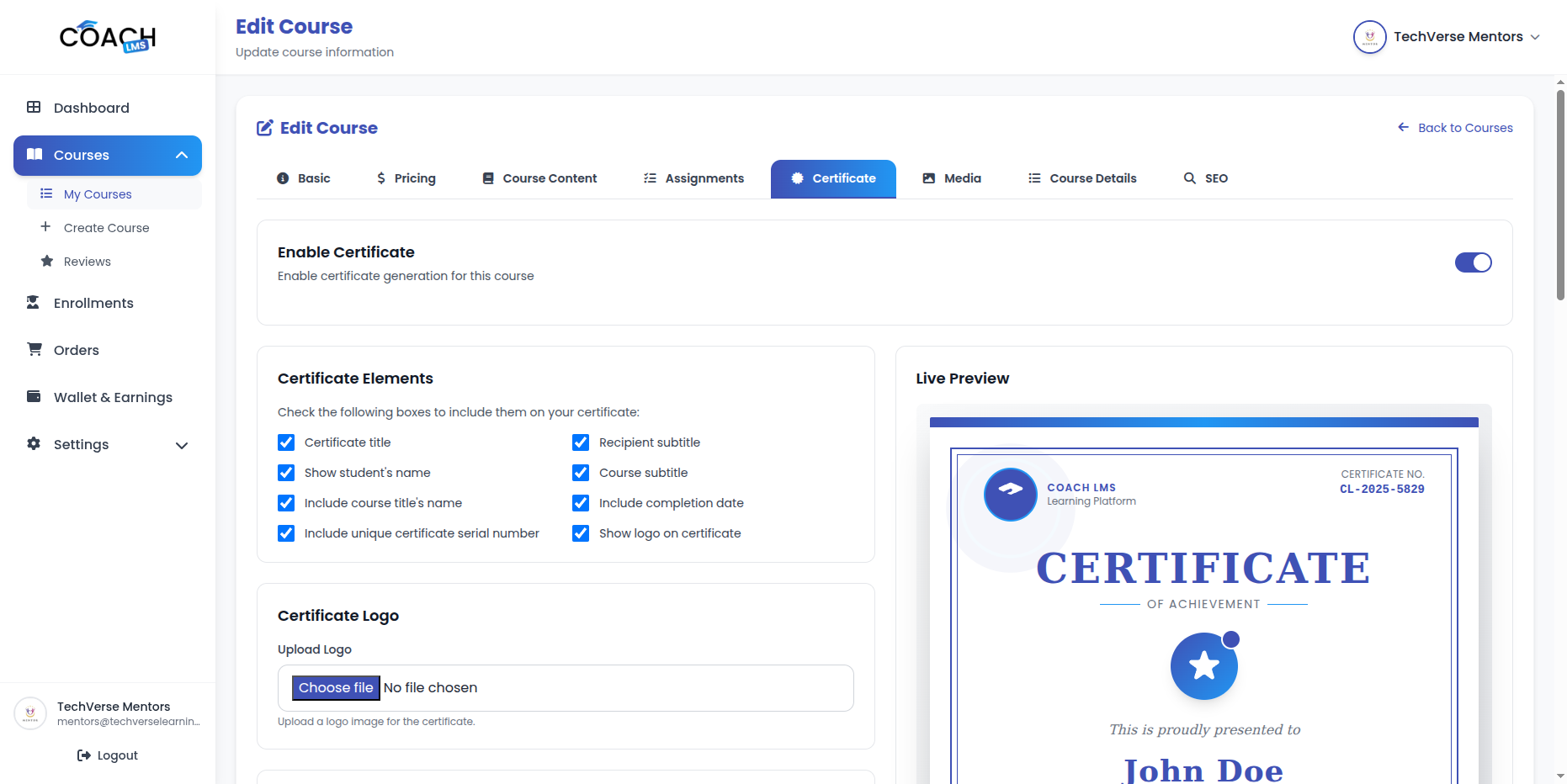
The Certificate Management module allows Mentors to create and manage customizable course completion certificates for their own courses. Students can download certificates in PNG or PDF format after course completion.
-
- Enable/Disable Certificate: Mentors can enable or disable certificate generation for each course. Students can download certificates only when enabled.
- Configure Certificate Elements: Customize certificate title, subtitles, student name, course name, completion date, unique serial number, and logo.
- Upload Certificate Logo: Upload and preview a logo for the certificate header.
- Customize Certificate Text & Colors: Modify all text elements and customize background,border, title, subtitle, name, and content colors.
- Customize Fonts & Sizes: Select fonts and font sizes for title, subtitle, student name, and content using Google Fonts.
- Live Preview: View real-time preview with sample student name and course information.
- Certificate Generation: Certificates are automatically generated upon course completion with student name, course name, completion date, serial number, mentor signature, and platform branding.
3.7 Media Management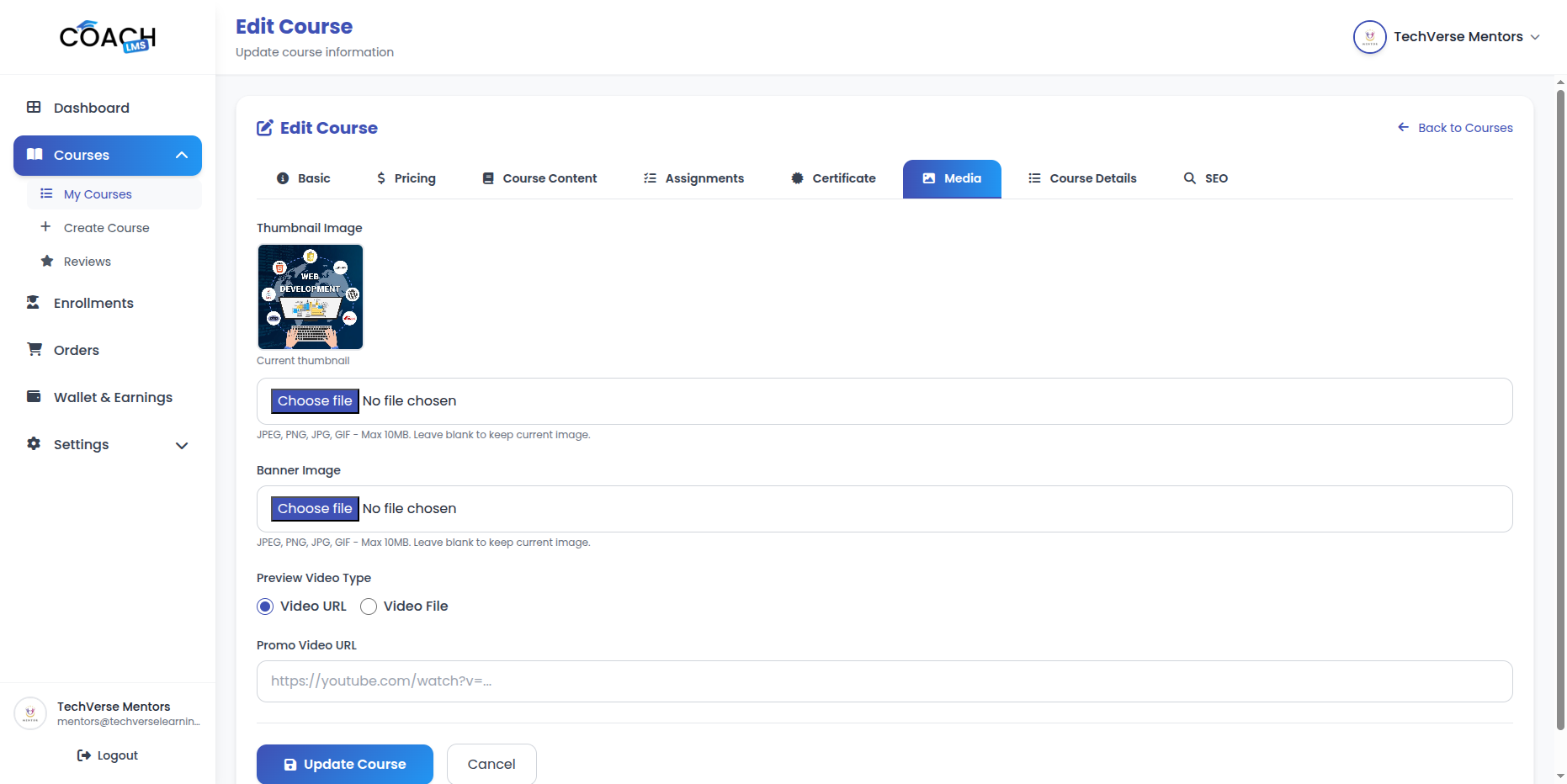
-
- Thumbnail Image: Upload or replace the course thumbnail image (JPEG, PNG, JPG, GIF) with preview support.
- Banner Image: Upload or replace the course banner image (JPEG, PNG, JPG, GIF) with preview support.
- Promo Video: Upload a promotional video using an external URL (YouTube, Vimeo) or file upload (MP4, AVI, MOV) with preview support.
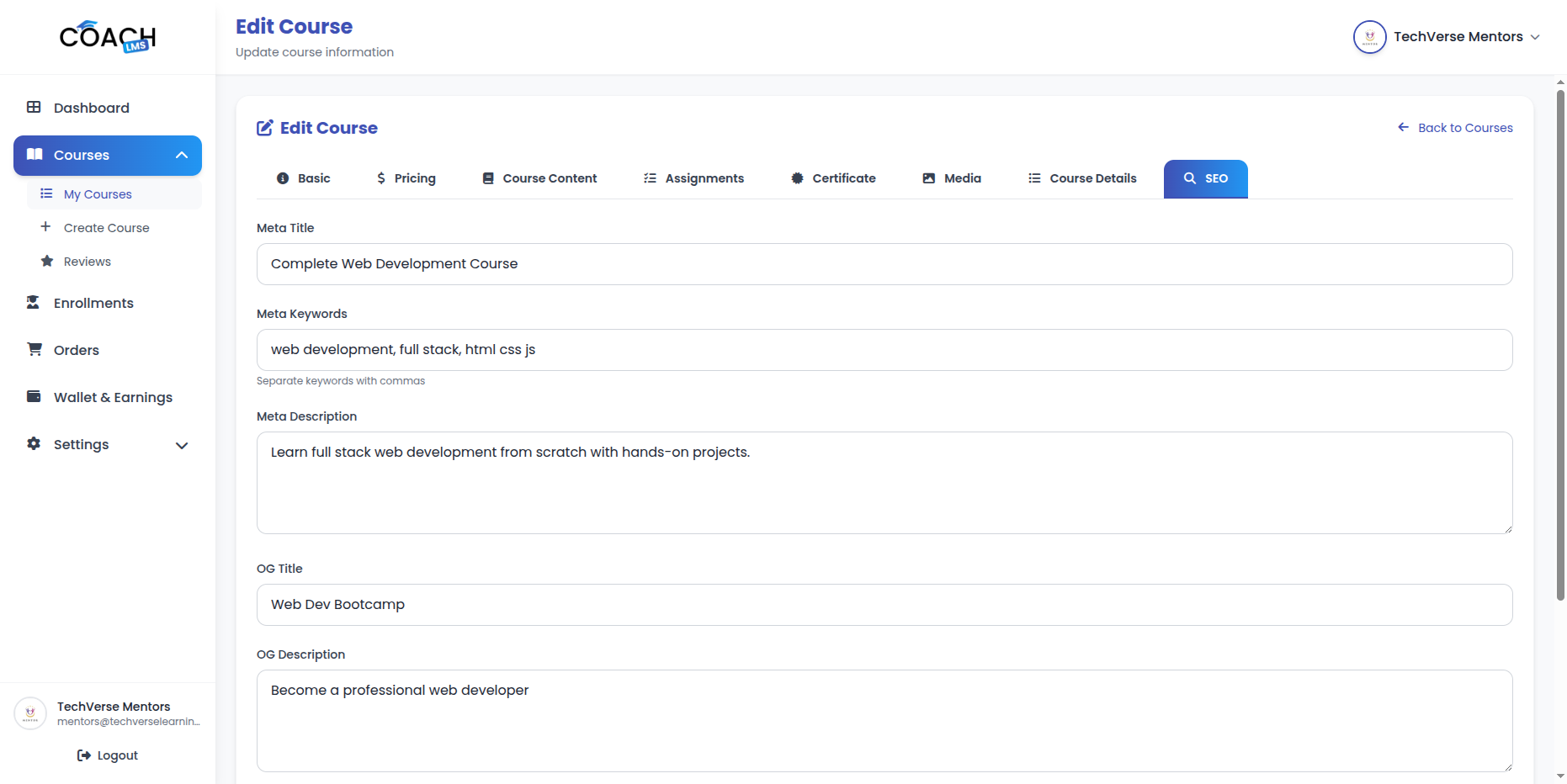
3.8 SEO Settings
-
- Meta Title: Set a custom title for search engines.
- Meta Keywords: Add comma-separated keywords for SEO.
- Meta Description: Write a description for search engine results.
- OG Title: Set title for social media sharing.
- OG Description: Set description for social media sharing.
- OG Image: Upload an image for social media previews (Formats: JPEG, PNG, JPG, GIF, WEBP).
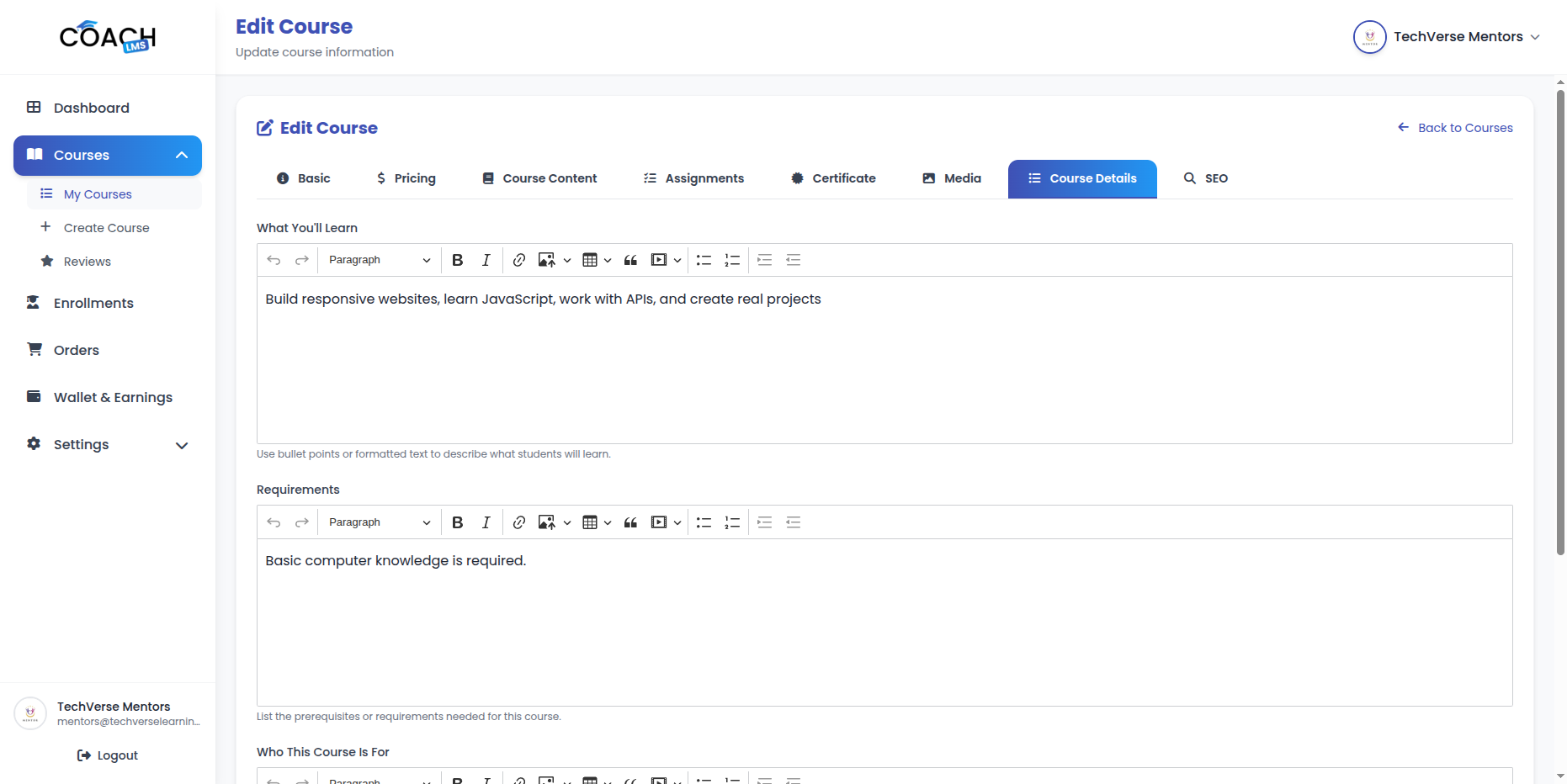
3.9 Course Details
-
- What You’ll Learn: Add course learning outcomes using rich text and HTML formatting with bullet point support.
- Requirements: List course prerequisites with clear formatting and HTML support.
- Who This Course Is For: Describe the target audience using HTML and custom formatting options.
Review Management
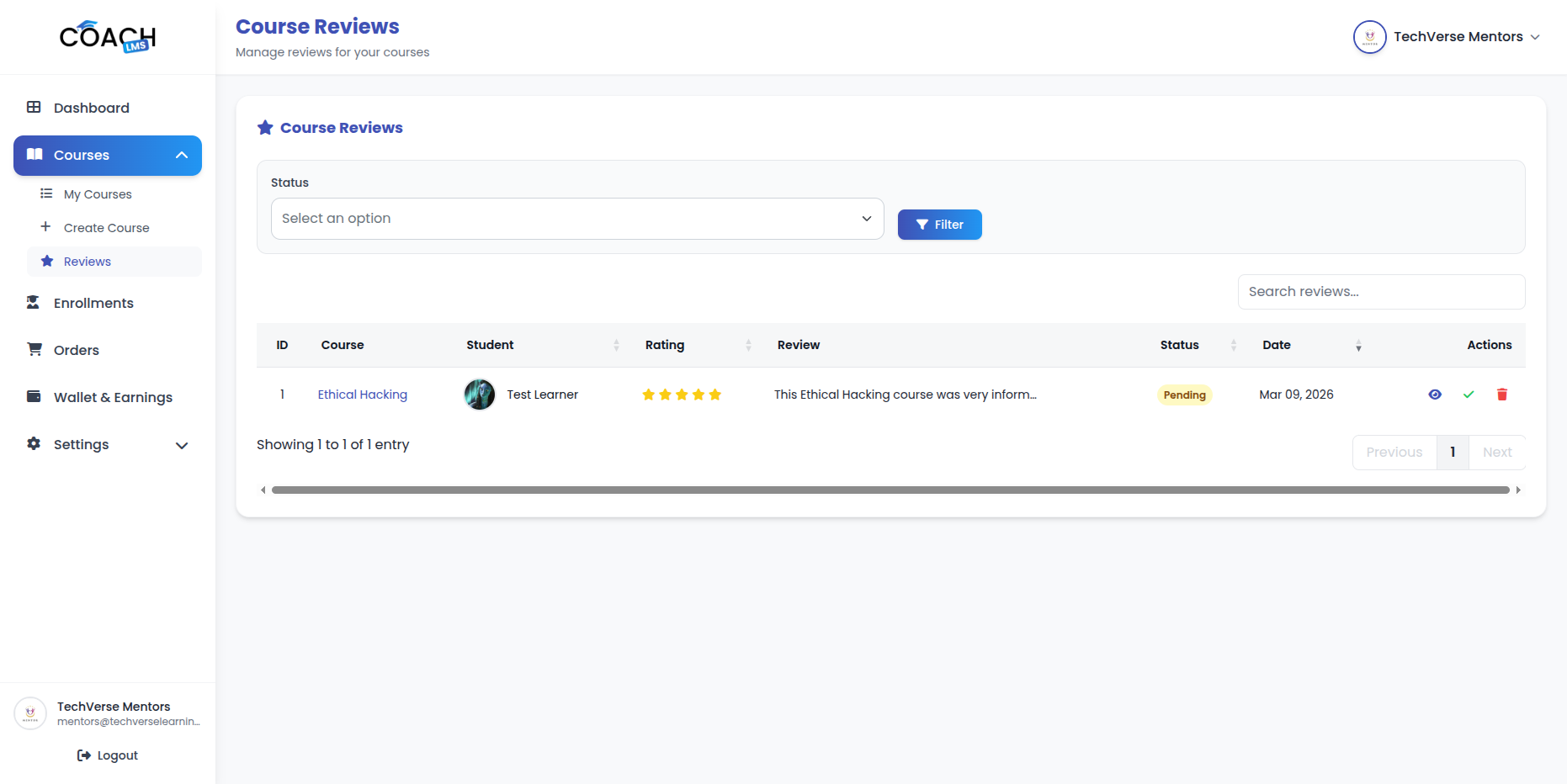
The Review Management module allows Mentors to manage reviews for their own courses only. Mentors can review, moderate, and manage student feedback.
Key Actions
- View Reviews: View all reviews for own courses using DataTable features such as search, filter, and pagination.
- Approve/Reject Reviews: Approve or reject course reviews submitted by students.
- Delete Reviews: Remove reviews from courses when necessary.
- View Review Details: View complete review information including student details, rating, comments, and replies.
Enrollment Management
The Enrollment Management module allows Mentors to view and manage enrollments for their own courses only. Mentors can track student enrollments, manage access, and export enrollment data.
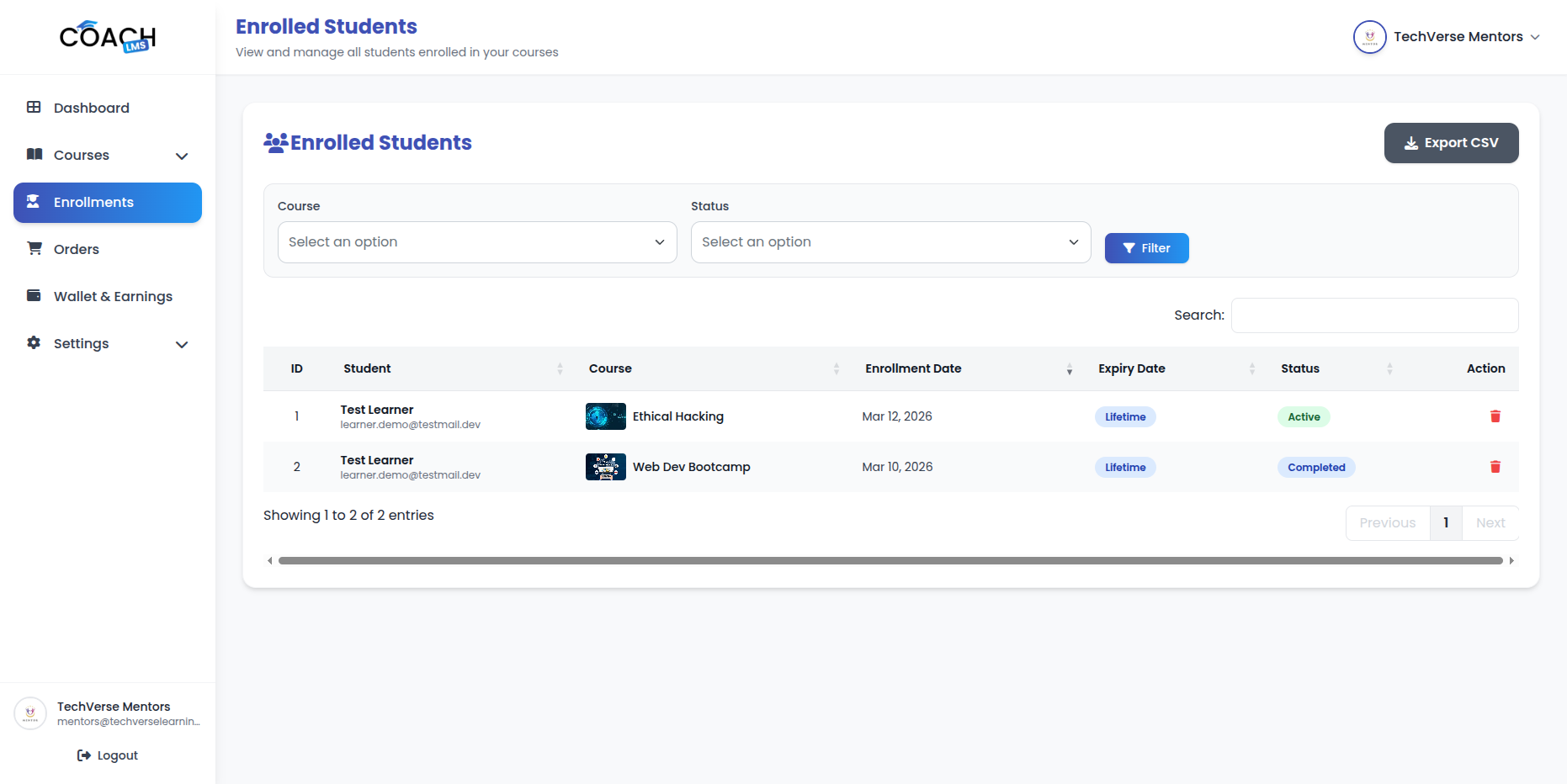
Key Actions
- View Enrollments: View all enrollments for own courses using DataTable features such as search, filter, and pagination.
- Filter Enrollments: Filter enrollments by course (own courses only), student, status, or date range.
- Export Enrollments: Export enrollment data in CSV format.
- Delete Enrollments: Remove enrollments from courses when required.
Order Management
The Order Management module allows Mentors to view and manage orders for their own courses only. Mentors can track student purchases and view order details.
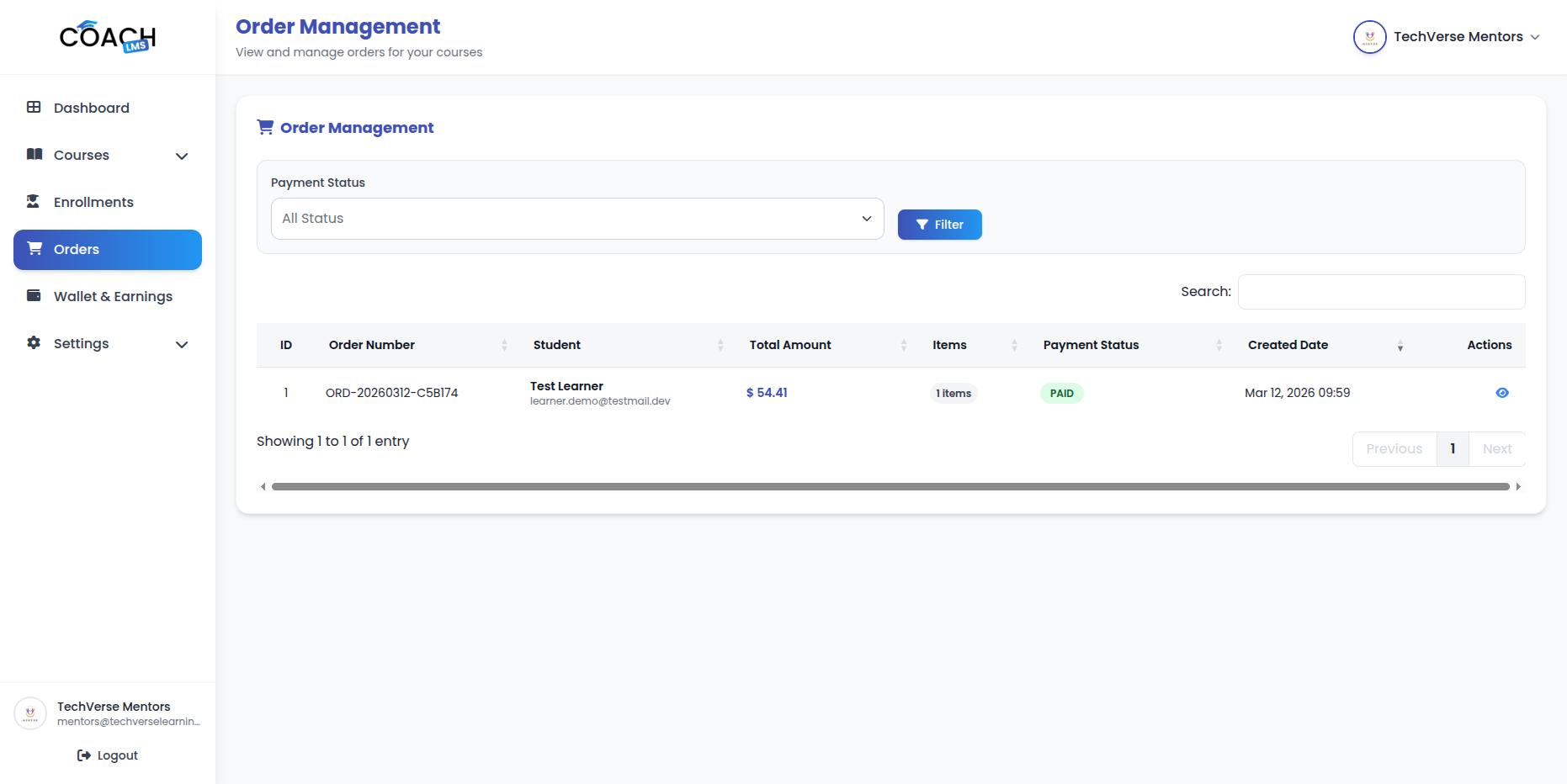
Key Actions
- View Orders: View all orders for own courses using DataTable with search, filter, and pagination.
- View Order Details: View complete order information including purchased courses, payment details, and student information.
- Filter Orders: Filter orders by status, date range, or student.
Wallet & Earnings Management
The Wallet & Earnings Management module allows Mentors to manage their earnings and withdrawal requests. Mentors can view wallet balance, create withdrawal requests, track transactions, and view withdrawal history.
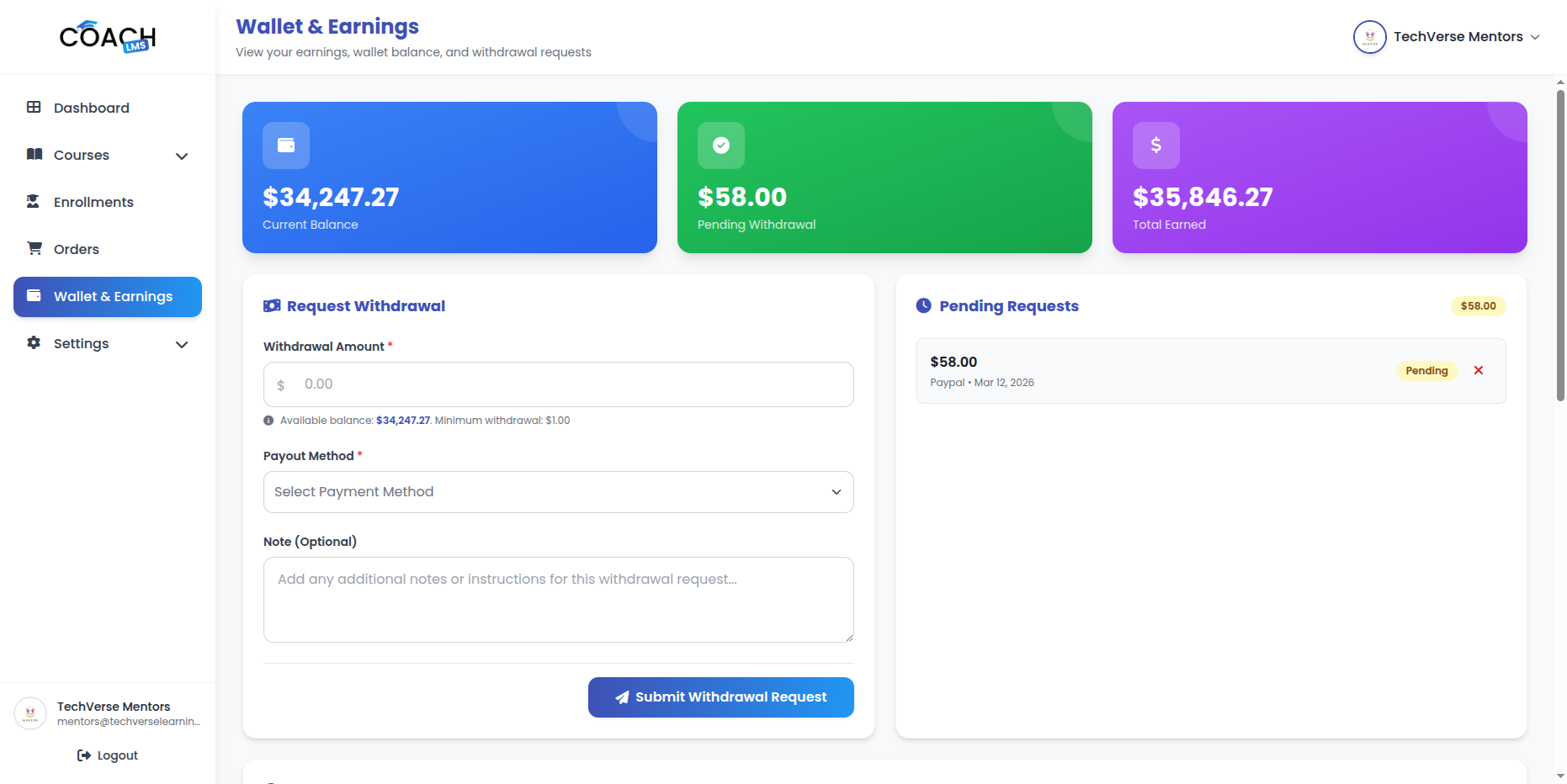
Wallet Dashboard
- Current Balance: Displays current wallet balance.
- Total Earned: Shows lifetime earnings from course sales.
- Total Withdrawn: Displays total amount withdrawn.
- Available Balance: Current balance minus pending withdrawals.
- Pending Withdrawal Amount: Amount in pending withdrawal requests.
Withdrawal Management
- Create Withdrawal Request: Submit withdrawal requests from available wallet balance.
- View Withdrawal History: Track all withdrawal requests with DataTable features such as search, filter, and pagination.
- Filter Withdrawals: Filter requests by status.
- Cancel Pending Requests: Cancel any pending withdrawal requests.
- Withdrawal Methods:
- PayPal: If enabled by Mentor.
- Stripe: If enabled by Mentor.
- Razorpay: If enabled by Mentor.
Transaction History
- View Recent Transactions: Track recent wallet transactions.
- Transaction Type: Credit (earnings) or Debit (withdrawals).
- Transaction Amount: Amount of each transaction.
- Balance Before / After: Wallet balance before and after each transaction.
- Transaction Description: Description of the transaction.
- Transaction Date: Date and time of the transaction.
Settings Management
Manage profile settings including account information, password, and personal details.Configure payment gateway keys (Stripe, PayPal, Razorpay) with test and live mode support for withdrawal payouts. Set payment account details including PayPal email, Stripe Connect ID, and Razorpay Account ID for receiving payouts. Manage profile settings including account information, password, and personal details.
8.1 Account Settings
Manage profile information and password settings for your account.
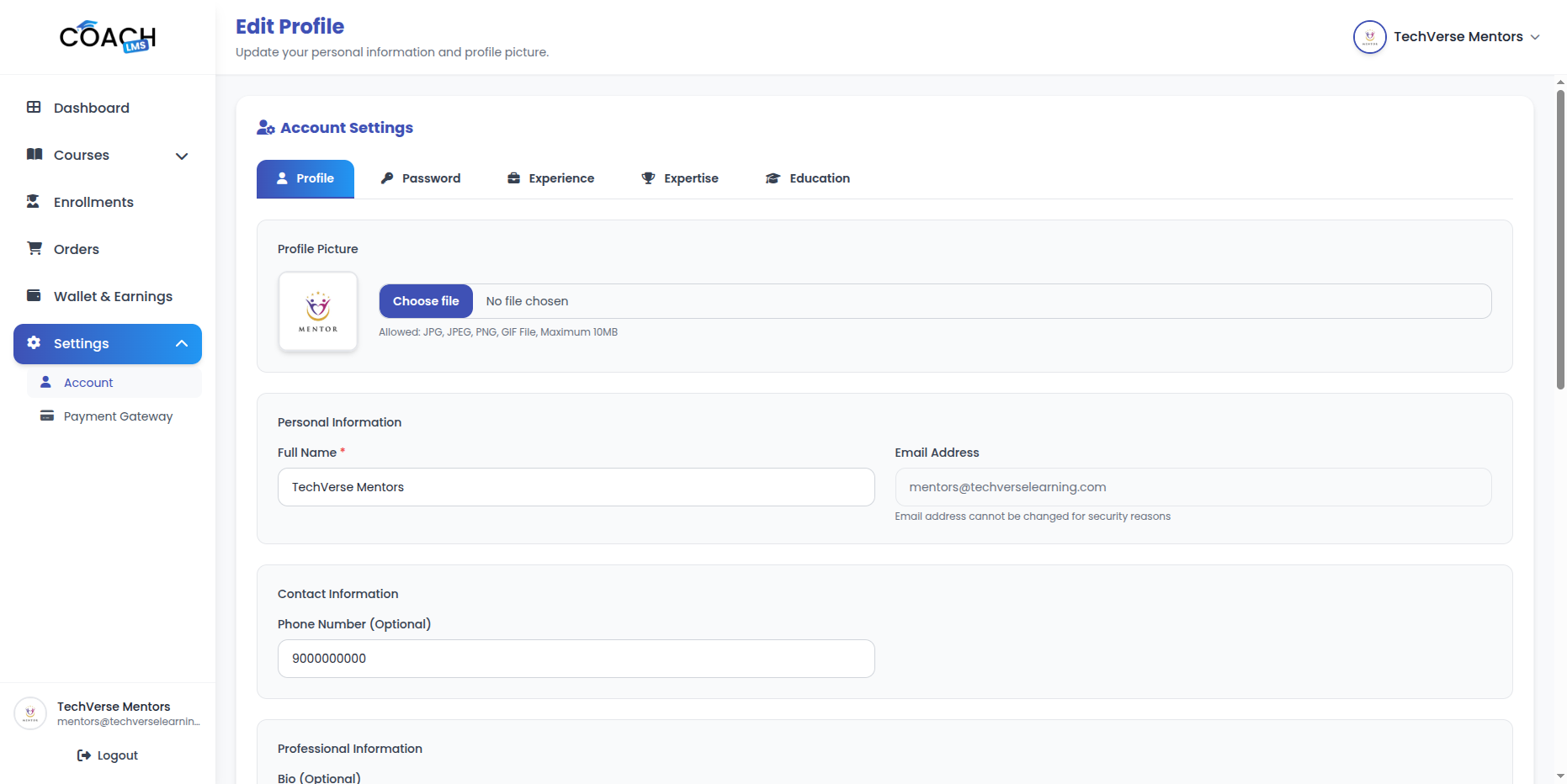
- Profile Information: From here you can update your account details, including profile information,phone number, and avatar.
- Change Password: You can update your password at any time. For better protection, make sure to use a strong and secure password.
Work Experience Management
The Work Experience Management module allows Mentors to manage their work experience entries on their profile.
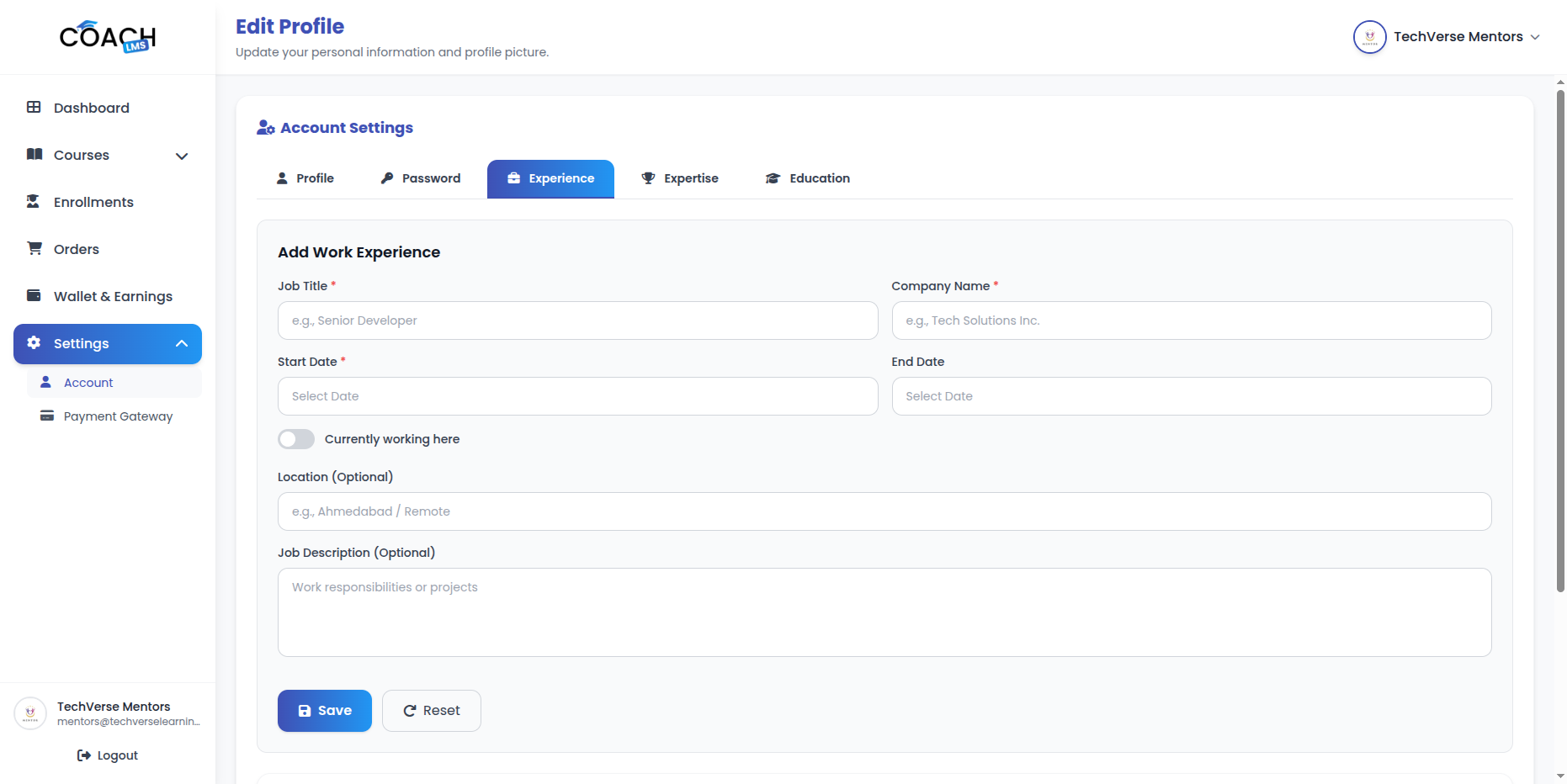
Key Actions
- Add Work Experience: Add entries with company name, job position, start/end dates, job description, and optional location.
- Edit Work Experience: Update existing work experience entries.
- Delete Work Experience: Remove work experience entries from your profile.
Education Management
The Education Management module allows Mentors to manage education entries on their profile.
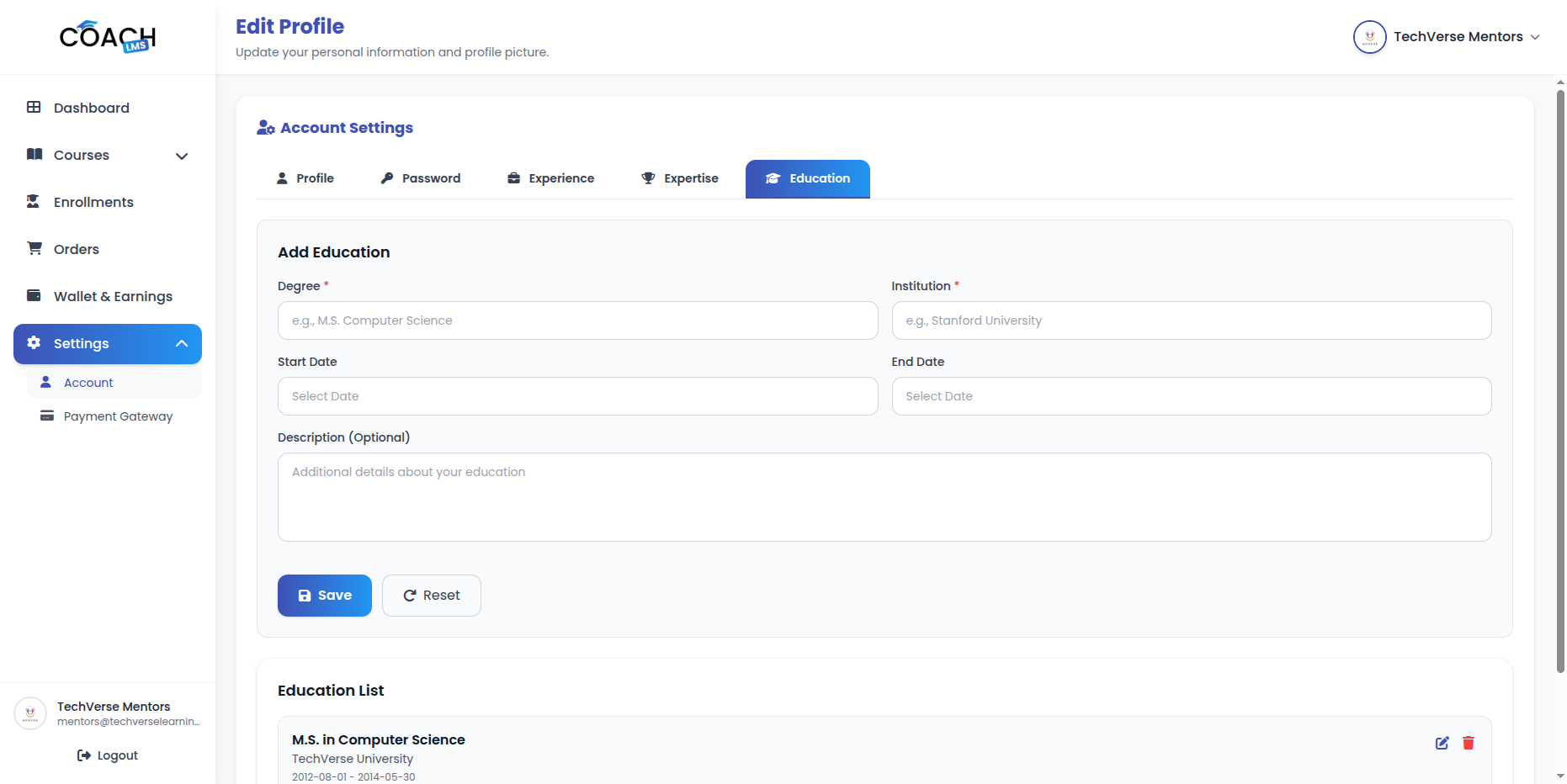
Key Actions
- Add Education: Add entries with institution name, degree, field of study, start/end dates, and description.
- Edit Education: Update existing education entries.
- Delete Education: Remove education entries from your profile.
Expertise Management
The Expertise Management module allows Mentors to manage their skills and areas of expertise.
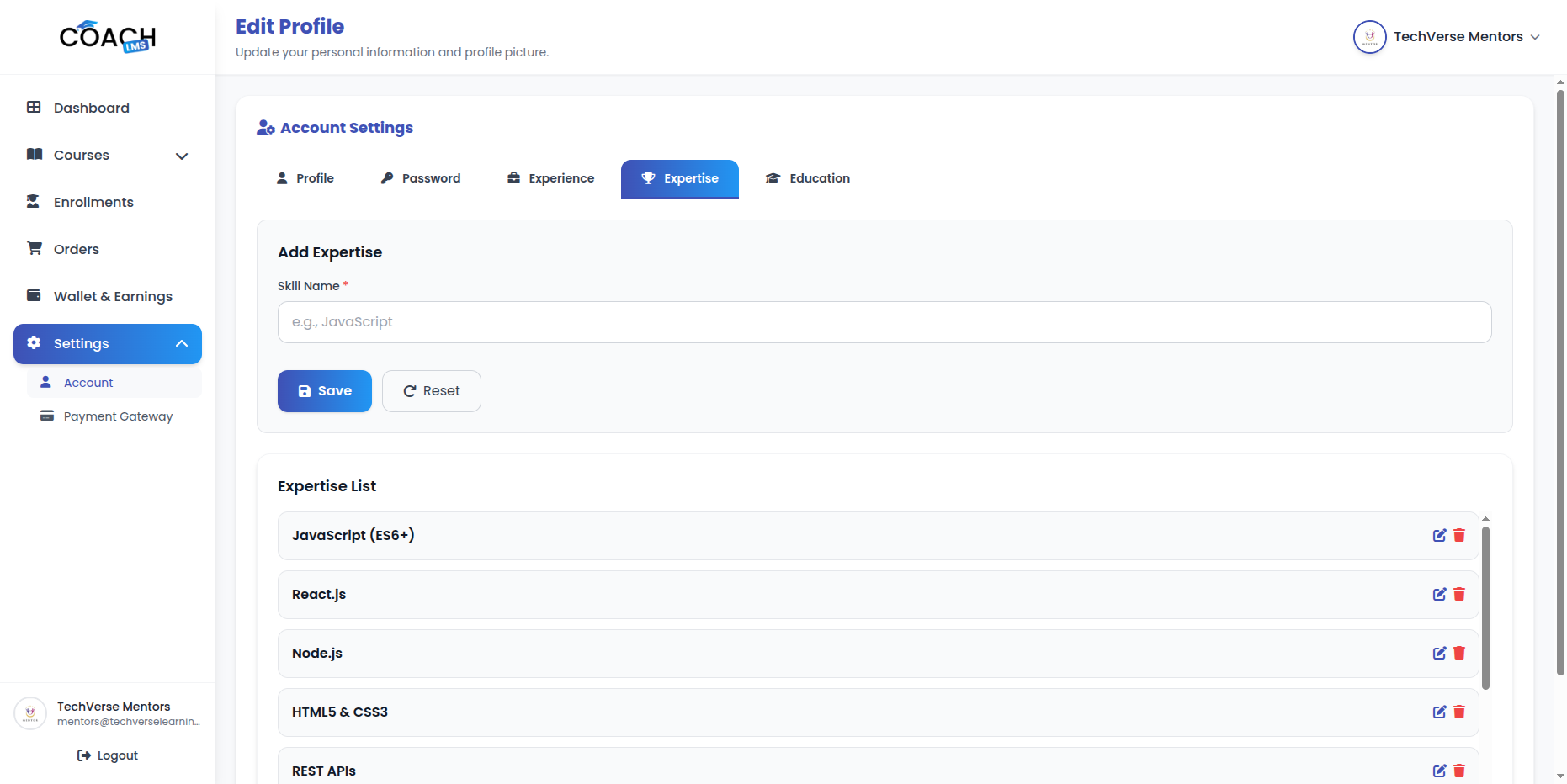
Key Actions
- Add Expertise: Add expertise entries with title and description.
- Edit Expertise: Update existing expertise entries.
- Delete Expertise: Remove expertise entries from your profile.
8.2 Payment Account Management
The Payment Account Management module allows Mentors to configure payment gateway accounts for receiving withdrawals.
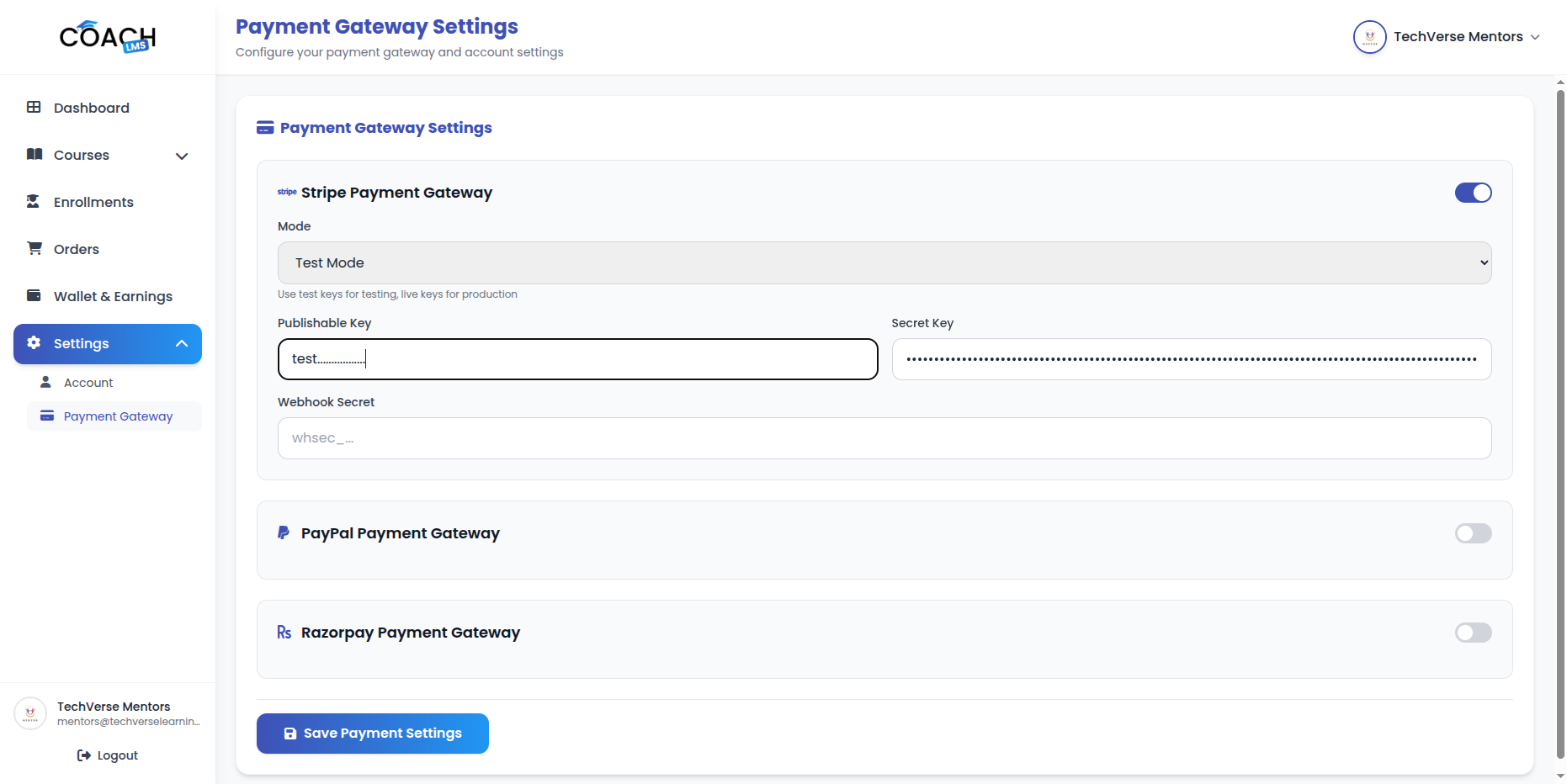
- PayPal Email: Configure PayPal email for receiving withdrawals.
- Stripe Account: Configure Stripe account details for payouts.
- Razorpay Account: Configure Razorpay account details for withdrawals.
- Enable / Disable Payment Methods: Enable or disable payment methods based on availability.
- View Payment Account Status: Check the status of configured payment accounts.
Student Website
The Student Website is a modern, responsive learning platform where students can browse courses, enroll in courses, learn through video lectures, take quizzes, submit assignments, track progress, download certificates, and manage their learning journey. It provides a seamless user experience with course browsing, filtering, search functionality, secure checkout, and comprehensive student dashboard.

1. Homepage
The Homepage module provides a customizable interface to showcase courses, features, and student engagement.
Sections Overview
- Hero Section: Customizable section with title, description, and background image.
- Popular Courses Section: Displays courses with the highest enrollment.
- Latest Courses Section: Shows recently published courses.
- Why Choose Us Section: Highlights platform features configured by admin.
- Testimonials Section: Displays student testimonials.
- FAQ Section: Frequently Asked Questions section for student guidance.
- Newsletter Subscription: Allows students to subscribe to newsletters.
2. Course page
The Course module allows students to explore and find courses based on their preferences.

Sections Overview
- Browse All Courses: View all published courses available on the platform. Click on any course to view detailed course information.
- Filter Courses: Filter courses by category, price range, level (Beginner, Intermediate, Advanced), language, and rating.
- Search Courses: Search courses using keywords. Real-time search results with highlighted matching keywords.
- Sort Courses: Sort courses by latest, popularity, price (low to high / high to low), and rating.
3. Course Detail Page
The Course Detail Page provides students with complete information about a course, its content, and the mentor to enable informed enrollment decisions.

Sections Overview
- Course Hero Section: Display course title, subtitle, featured/bestseller badge, course rating, total reviews, student enrollments, duration, language, mentor name with avatar, and last updated date.
- Course Preview: Show course thumbnail or promo video with play button overlay and modal popup for preview before enrollment.
- Course Pricing & Purchase Options: Display course price (regular/sale), discount percentage, “Free” badge; include Add to Cart, Buy Now, View in Cart, Start Course, and View Certificate buttons based on enrollment status.
- What You’ll Learn: List detailed learning objectives and outcomes using rich text and bullet points.
- Course Content (Curriculum): Expandable/collapsible sections showing lecture count, duration, section-wise breakdown with lecture types (video, document, text, image, embedded) and quizzes; Expand All / Collapse All functionality available.
- Requirements: Display course prerequisites and required tools or knowledge with rich text formatting.
- Course Description: Full course description with detailed content, approach, and HTML formatting support.
- Who This Course Is For: Describe target audience with rich text and HTML formatting support.
- Mentor Profile Section: Display mentor avatar, name, specialization, bio, statistics (rating, total courses, students taught, reviews received), and links to full profile and social media accounts. Click on view mentor profile to view detailed mentor information.
- Course Reviews & Ratings: Show average course rating with stars, total reviews, individual review details (student name, avatar, rating, review text, date, helpful votes), pagination, and write review option for enrolled students.
- Related Courses: Display related courses from the same category with thumbnails, titles, prices, ratings, and navigation to related course detail.
4. Mentor Profile Viewing
The Mentor Profile Viewing module allows students to view detailed information about a mentor, their courses, and reviews.
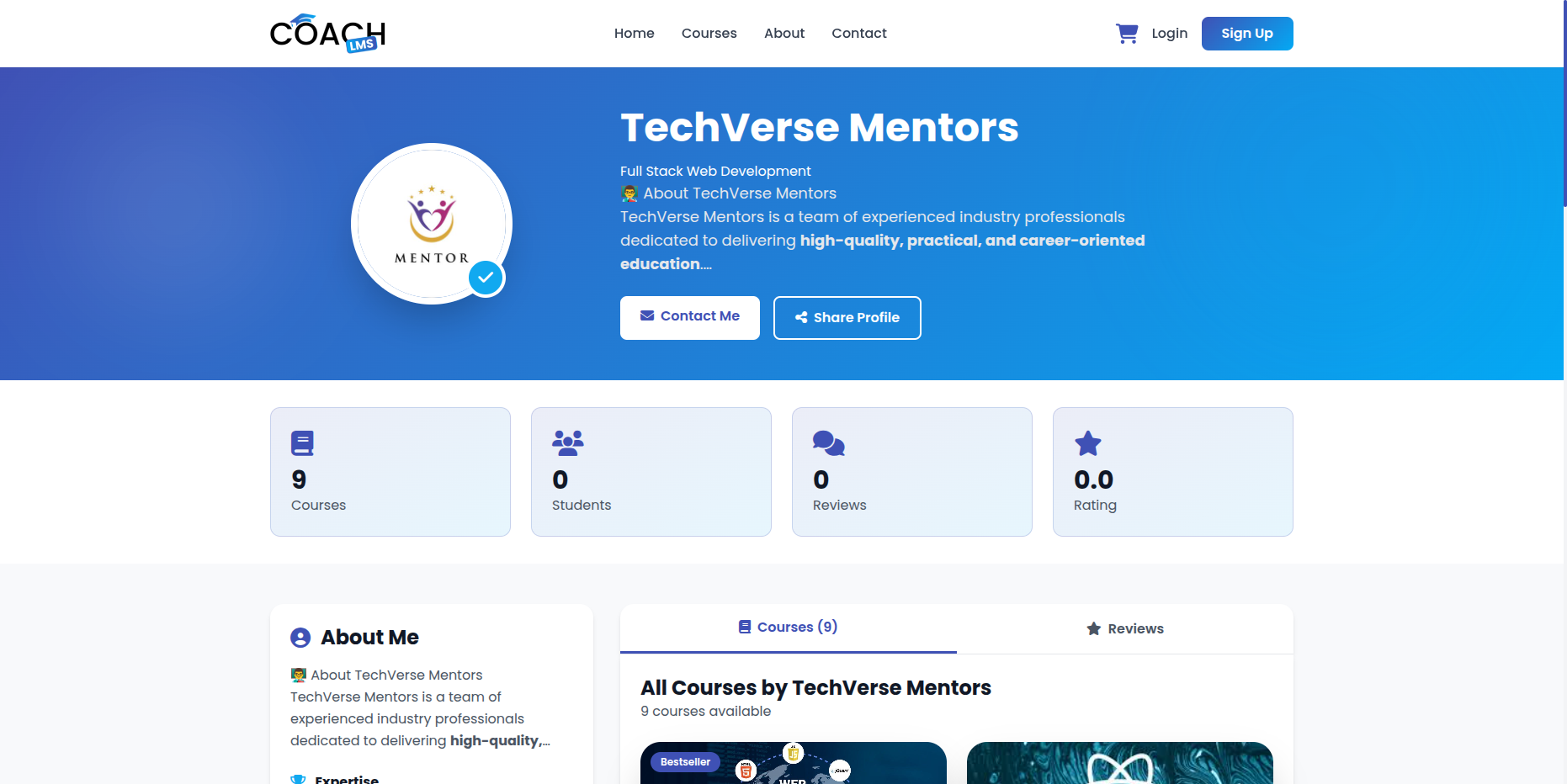
Sections Overview
- Profile Header: Display mentor avatar (or initial if no avatar) with verified badge, mentor name, specialization, and bio summary. Includes Contact Me (email) and Share Profile buttons, with a professional hero section layout.
- Mentor Statistics: Show key metrics in card format: total courses created, total students taught, total reviews received, and average rating (1–5 stars).
- About Section: Full mentor bio with rich text formatting, expertise/skills tags, education history (institution, degree, dates), work experience timeline (company, position, dates, description), social media links (LinkedIn, Twitter, GitHub, YouTube, Facebook, Instagram), and achievements (published courses, student count).
- Mentor Courses Tab: Display all published courses by the mentor in a grid layout. Course cards include thumbnails, titles, prices, ratings, student count, lesson count, featured/bestseller badges, and discount badges. Click to view course details. Empty state message if no courses available.
- Reviews Tab: Show average mentor rating with stars, rating distribution (5-star to 1-star percentages), and individual course reviews with student names, ratings, review text, and dates. Includes pagination and aggregation of reviews across all mentor courses.
- Additional Actions: View mentor’s courses, bio, specialization, work experience, education, and social media links.
5. Cart Management
The Cart module allows students to manage selected courses before proceeding to checkout.
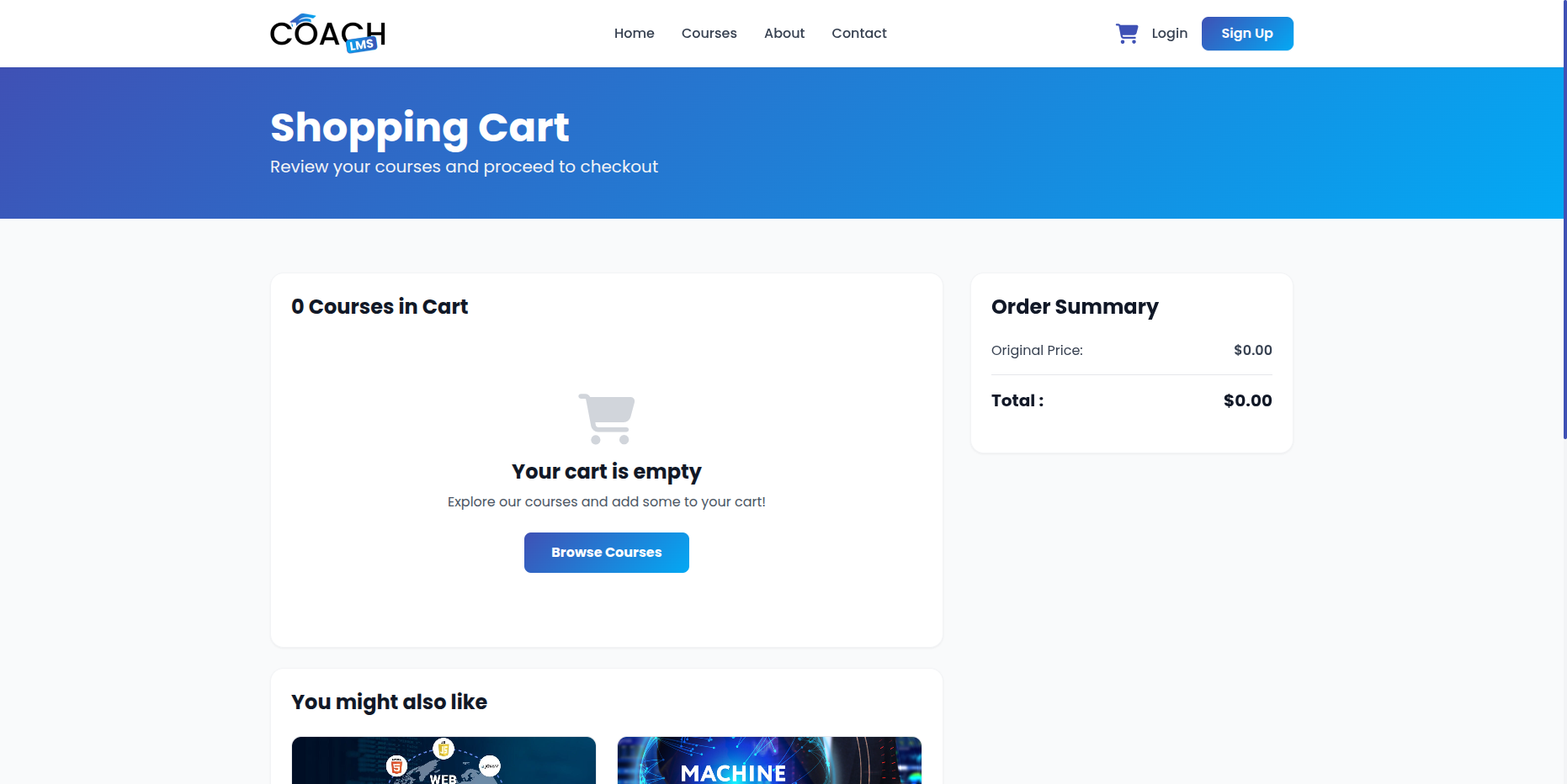
Sections Overview
- View Cart: Display all courses added to cart with thumbnails, titles, mentor names, and prices.
- Course Count & Details: Show total number of courses and individual course information.
- Remove Courses: Remove individual courses from cart with confirmation.
- Clear Cart: Clear all courses from cart with confirmation modal.
- Cart Persistence: Cart data persists across browser sessions for logged-in students.
Order Summary
-
- Price Details: Display original subtotal for all courses.
- Discounts: Show total discount amount and percentage saved.
- Tax Breakdown: Display tax details if applicable.
- Final Total: Show final amount including tax.
Checkout Options
-
- Proceed to Checkout: Button for checkout with items in cart.
- Direct Checkout for Free Courses: Auto checkout if all items are free.
- Empty Cart Message: Display message with link to browse courses if cart is empty.
Recommended Courses
-
- Suggestions: Display recommended courses based on items in the cart.
- Add to Cart: Add recommended courses directly to cart.
- View Details: Show course details and pricing for recommended courses.
6. Checkout Process
The Checkout Process module allows students to securely complete course purchases with step-by-step guidance.
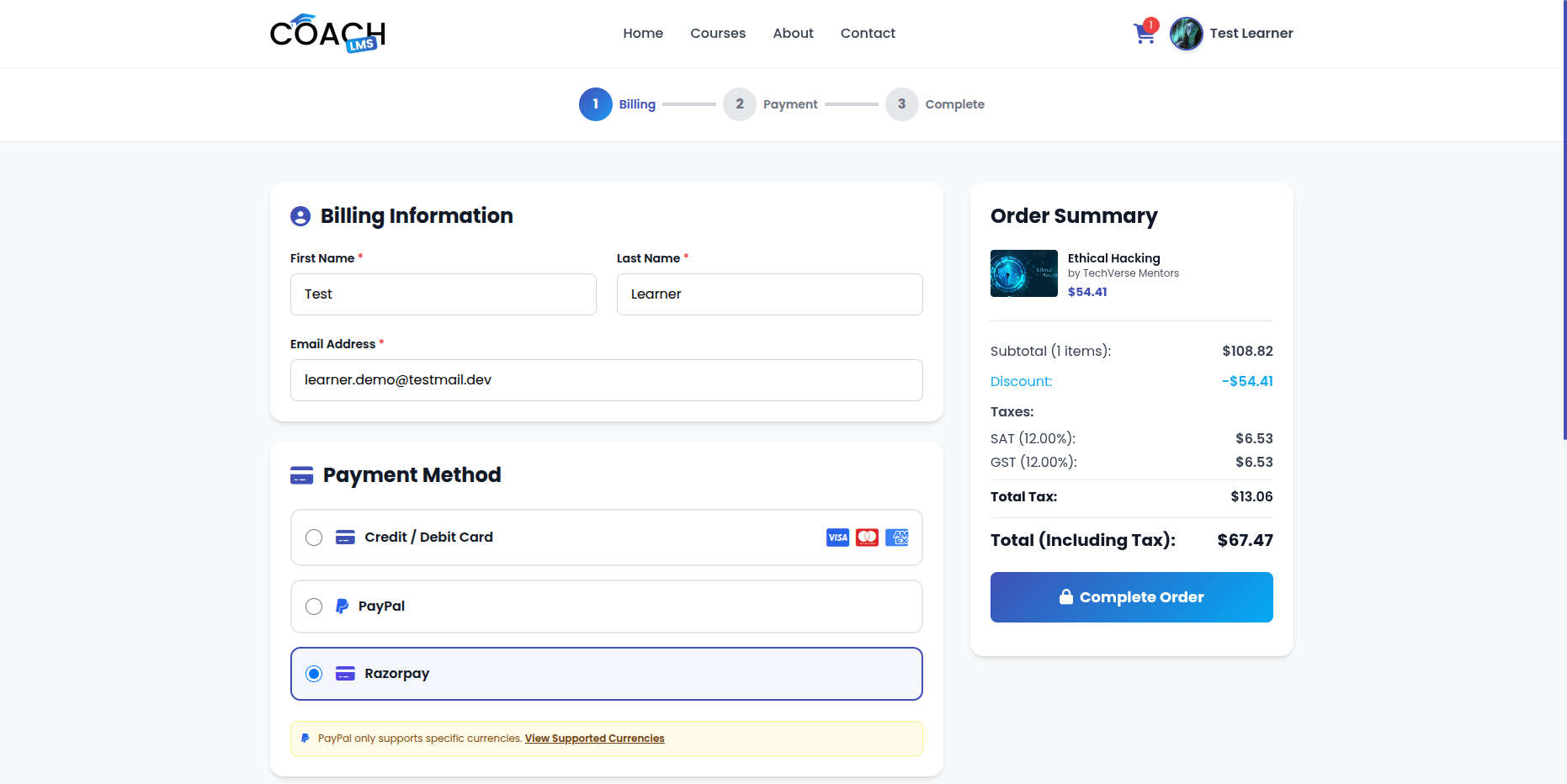
Sections Overview
- Progress Steps: Visual indicator for 3 steps – Billing → Payment → Complete – ensuring clear checkout flow.
- Billing Information: Complete form with first/last name, email, address, city, state, ZIP, and country. Pre-filled fields from user profile and validation included.
- Payment Method Selection: Choose from enabled gateways – Stripe, PayPal, or Razorpay. Secure payment with SSL encryption; fields and instructions adjust per gateway.
- Order Summary Sidebar: Display cart items with thumbnails, titles, mentor names, prices, subtotal, discounts, taxes, and final total. Sticky sidebar for easy access.
- Terms & Conditions: Required checkbox to accept Terms of Service and Privacy Policy before completing the order.
- Trust Badges: Security and service badges (Secure Payment, Lifetime Access, 24/7 Support) displayed for student reassurance.
- Order Processing: Automatic course enrollment upon payment, email confirmation sent, and redirect to success page. Handles payment failures with clear error messages.
7. Order Processing
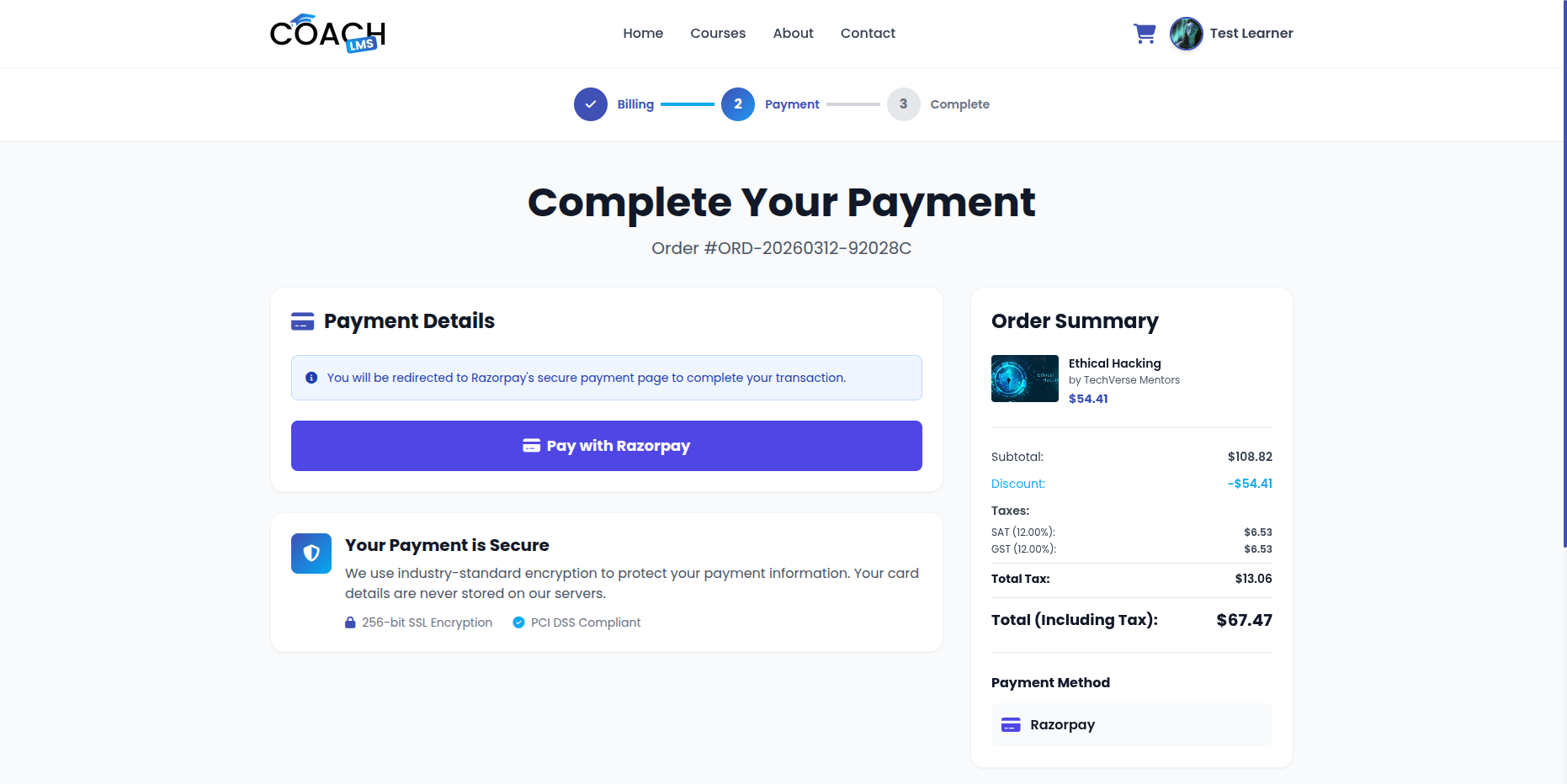
- Create order automatically after successful payment.
- Enroll student in purchased courses immediately.
- Send email confirmation with order details.
- Redirect student to order success page.
- Handle payment failures with clear error messages.
8. Order Success
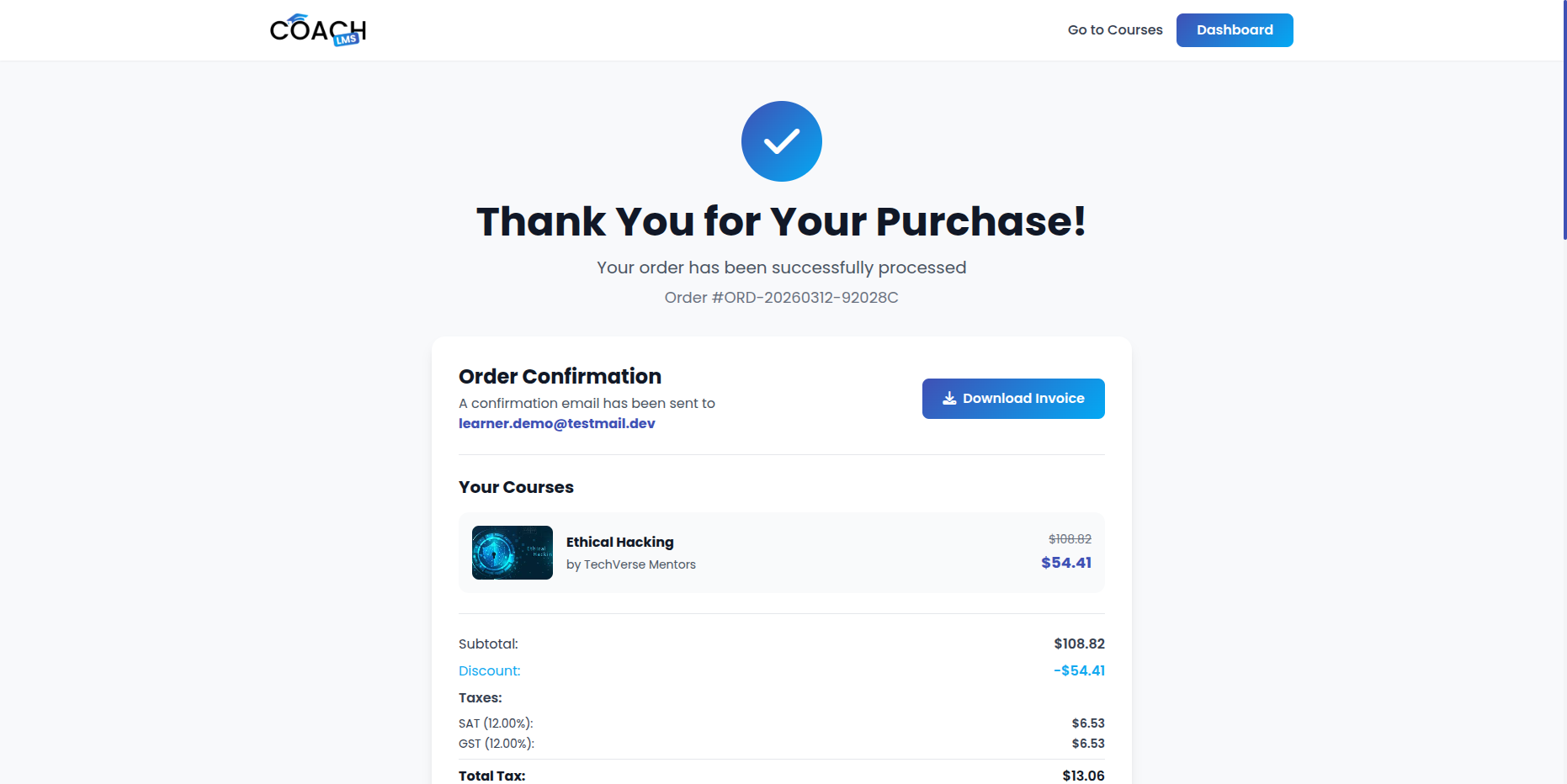
- Success Confirmation: Animated checkmark, thank you message, and order number.
- Purchased Courses: List courses with thumbnails, titles, mentor names, and prices; show “Free” badge or sale prices.
- Payment Summary: Subtotal, discounts, coupon, tax breakdown, total paid, and payment method with transaction details.
- Invoice Download: Download invoice PDF for record-keeping.
- Next Steps: Action cards (Check Email, Start Learning, Download App), buttons (Go to Home, Go to Dashboard), social sharing links, recommended courses, and support links.
Let's do great work together.
Request A Free Quotation!